Showing posts with label School Resources. Show all posts

Thursday, December 8, 2016

20 Minute Mentor - Online Faculty Professional Development - Spring 2017 Schedule

The Center for Teaching, Learning, and Innovation (CTLI) offers faculty a professional development series from Magna Publications, called the 20 Minute Mentor. The goal of the 20 Minute Mentor series is to offer faculty practical professional development opportunities in twenty minute snippets that can be accessed from anywhere and at any time during the given week. Session topics cover the areas of student engagement, teaching and learning, teaching online, assessment and learning goals, and classroom management.

Information on how to access the 20 Minute Mentor sessions is available each week in the Bulletin and the iDevelop e-newsletter.

New video presentations (with supplementary materials) go live at 10:00am each Monday morning and are only accessible through Sunday. 

Banner with "Got 20 Minutes?  Then you have time to learn with the Monday Morning Mentor!"

The following sessions are on the schedule for spring 2017. For session descriptions, objectives, and mentor bios, click on the titles below. 
We would love to hear your feedback on the usefulness of these sessions. Please send your input to ctli@northshore.edu.

Friday, August 19, 2016

20 Minute Mentor - Online Faculty Professional Development - Fall 2016 Schedule

The Center for Teaching, Learning, and Assessment (CTLA) and Instructional Technology and Design (ITD) have partnered up again to bring faculty a professional development series from Magna Publications, called the 20 Minute Mentor. The goal of the  20 Minute Mentor series is to offer faculty practical professional development opportunities in twenty minute snippets that can be accessed from anywhere and at any time during the given week. Session topics cover the areas of student engagement, teaching and learning, teaching online, assessment and learning goals, and classroom management.

Information on how to access the 20 Minute Mentor sessions is available each week in the Bulletin and the iDevelop e-newsletter.

New video presentations (with supplementary materials) go live at 10:00am each Monday morning and are only accessible through Sunday. 

Banner with "Got 20 Minutes?  Then you have time to learn with the Monday Morning Mentor!"

The following sessions are on the schedule for fall 2016. For session descriptions, objectives, and mentor bios, click on the titles below. 
We would love to hear your feedback on the usefulness of these sessions. Please send your input to itd@northshore.edu.

Friday, April 10, 2015

Faculty Resources for Blackboard Learn

The year-long Blackboard Learn implementation is wrapping up this summer as all courses (online, hybrid, and face-to-face) will be delivered in Blackboard Learn for summer 2015 sessions.

Instructional Technology and Design (ITD) has created several resources to aid faculty in the transition from ANGEL to Blackboard Learn.
  • Course Migration from ANGEL to Blackboard Learn: A handout that outlines how course shells and everything that they contain are migrated over from ANGEL and displayed in Blackboard Learn.
    http://goo.gl/SidmX4       
  • From ANGEL to Blackboard Learn: A handy reference sheet that lists the common tasks in ANGEL and how to perform them in Blackboard Learn.
    http://goo.gl/ohN4S5    
  • Blackboard Learn Course Checklist: A quick reference checklist of course areas that should be looked at and updated if necessary, especially as it relates to the migration from ANGEL to Blackboard Learn.
    http://goo.gl/JfGxka
Please do not hesitate to contact ITD at itd@northshore.edu if there are any questions.

Monday, February 16, 2015

Instructional Technology and Snow Days

Have your courses been impacted by the snow days? Are you looking for a way to continue student learning even when classes are cancelled due to weather? 
A picture of North Shore Community College Danvers Campus covered in snow in February, 2015
Source

Instructional Technology and Design has created a list of a few instructional technology tools that can be used to extend the teaching and learning environment outside the classroom walls to support your students’ engagement with the course content and facilitate your communication with them. Please contact itd@northshore.edu if you need any additional information or support to implement these in your courses.

ANGEL: A great instructional technology tool that can aid you in maintaining the continuity of your course. All face-to-face courses automatically have an ANGEL shell that provides faculty with a “private classroom” area for you and your students. In ANGEL, faculty can post announcements about the status of class with instructions on how to proceed through related learning activities; upload various types of content such as assignments, readings, lecture notes, or PowerPoint slides; link to related online resources such as YouTube videos or web sites; set up drop boxes where students can submit homework; and facilitate discussions for students to engage with the course materials. 
http://angel.northshore.edu/

Video Anywhere: A feature within ANGEL that allows faculty (and students) to easily record video anywhere in ANGEL (for example, Announcements, Pages, Discussion Forums, Drop Boxes, etc.) using their webcam, upload it to YouTube, and embed that video, as well as any other videos already uploaded to YouTube, directly into any of the content editor text boxes present within ANGEL.

Screencast-o-matic: An easy to use screen capture software program that allows you to record anything on your computer screen (PowerPoint presentation, software program, etc) along with your voice. Screencast-o-matic can be used to create pre-recorded mini-lectures. Video files can be stored in ANGEL, on YouTube, or Google Drive. NSCC has a ProPage subscription so please contact ITD for information about pro access.
http://www.screencast-o-matic.com/

Adobe Connect: A web-conferencing tool that can be used to facilitate interactive online course activities such as live lectures, review sessions, and online office hours. Adobe Connect supports audio, video, slide presentations, document sharing, screen sharing, whiteboard activities, chat and polling. Adobe Connect sessions can be recorded for later viewing by students who are unable to attend the live session. NSCC has several licenses for Adobe Connect so please contact ITD for more information.

TodaysMeet: A backchannel online chat tool that allows you to extend the conversation beyond the classroom and have real-time discussions.
https://todaysmeet.com/

Audacity: A free audio-recording program that can be used to create MP3 audio recordings. Audacity is simple to use and can be used to create pre-recorded mini-lectures. Audio files can be stored in ANGEL, on YouTube, or Google Drive.
http://audacity.sourceforge.net/

Google Docs, Slides, and Sheets: Web-based collaborative tools (documents, presentations, or spreadsheets) that can be used by students to easily work together on a project. Available through our NSCC Gmail account under Apps.

Google Hangouts: A web-based conferencing tool that can be used to facilitate small group conversations or collaborations. A Google Hangout supports audio and video conversations, text chat, and YouTube video, screen, and Google Docs sharing. Available through our NSCC Gmail account under Apps (Google+).

YouTube: A repository of videos of all sorts with ample educational content on nearly any subject. Instructors can create videos to post here or create playlist of lectures and instructional content already available on YouTube. To share or watch a video, no account is necessary. To create a playlist or upload a video, an account is necessary. Available through our NSCC Gmail account under Apps (YouTube).

Films-On-Demand: A library database of instructional and documentary videos accessible to students and faculty through the NSCC Library. Faculty can share links to specific videos or create specialized playlists that chunk together segments from different videos. An activated library account is needed.
http://proxy6.noblenet.org/login?url=http://digital.films.com/PortalPlaylists.aspx?aid=4051


What other instructional technologies have you used to extend the teaching and learning environment and to keep your classes moving forward even with snow day cancellations?

When one of my evening classes was cancelled due to snow, here is how I used various instructional technologies to keep the students on track and not miss a beat.

1. I sent an email to all my students providing them information on the activities we would be completing instead of class and directed them to the learning management system for more detailed information.

2. In the learning management system, I posted an announcement with detailed directions on the learning activities that the students needed to complete during the week to make up for the cancelled class.

3. I used Screencast-o-matic to record several mini-presentations demonstrating the key tasks and concepts covered in the chapter (we were just getting started with Excel) and walking them through the steps of the project that they needed to complete. These videos were posted up in the learning management system for students to view.

4. In the learning management system, I posted directions for a project that the students needed to work on and then submit through the assignment drop box feature of the  learning management system.

5. I also held a discussion forum in the learning management system where students posted their thoughts on and discussed with each other the benefits of using Excel, the ways it could be used personally and professionally, and the types of decisions that need to be made when creating workbooks and charts.


What specific strategies have you employed to keep the learning process going when classes are cancelled due to snow?


Wednesday, March 12, 2014

The LMS Transition: Demos & Sandboxes

The college has recently begun a search for a new Learning Management System, with implementation scheduled to begin in summer 2014.  This process is moving forward with the selection of three vendors who have been scheduled for on-campus presentations in early March.  Each vendor will come to campus to make a presentation to the campus community about the features and functionalities of their product.  The vendor presentation will take place in Danvers and will be video-conferenced over to Lynn.  The schedule of presentations is:
  • Canvas:  Monday, March 3rd from 2:30pm to 4:00pm in DS119 and LW325 
  • Blackboard:  Wednesday, March 12th from 2:30pm to 4:00pm in DS119 and LW225
  • Desire2Learn:  Thursday, March 13th from 2:30pm to 4:00pm in DS119 and LW325
We look forward to seeing you at these sessions so that you can provide us feedback on the products.  Even if you are not able to attend all three presentations, please attend the ones that you can to provide us input.

Each company's product will also be available for members of the college community to experience and evaluate after the presentations.  ITD will be hosting several opportunities in March and April for faculty and staff to stop in, test out the different systems, and provide us with feedback.  Access to the sandbox environment will also be available virtually and more information will be available soon.  Please save these dates:

  • Wednesday, March 19th from 9:00am-3:00pm in DB201 (during spring break)
  • Thursday, March 20th from 9:00am-3:00pm in LW306 (during spring break)
  • Wednesday, March 26th from 8:00am-9:30am in LW306
  • Wednesday, March 26th from 4:00pm-6:00pm in LW306
  • Thursday, March 27th from 8:00am-9:30am in LW303
  • Thursday, March 27th from 2:00pm-5:00pm in LW305
  • Wednesday, April 2nd from 8:00am-10:30am in DB201
  • Wednesday, April 2nd from 2:00pm-6:00pm in DB201
  • Thursday, April 3rd from 8:00am-10:30am in DB239 (Library Preview Area)
  • Thursday, April 3rd from 2:00pm-6:00pm in DB201
In the meantime, please let us know if you have any questions or concerns at itd@northshore.edu.

Tuesday, March 4, 2014

Snow Days Got You Down? Level Technology to Make Up Missed Classes

Have your courses been impacted by the snow days?  Looking for a way to continue student learning even when classes are cancelled due to weather?

North Shore Community College’s learning management system, ANGEL, is a great instructional technology tool that can aid you in maintaining the continuity of your course.  All courses automatically have an ANGEL shell that provides faculty with a “private classroom” area for you and your students.  In ANGEL, faculty can post announcements about the status of class with instructions on how to proceed through related learning activities; upload various types of content such as assignments, readings, lecture notes, or PowerPoint slides; link to related online resources such as YouTube videos or web sites; set up drop boxes where students can submit homework; and facilitate discussions for students to engage with the course e materials. 

To aid faculty in using ANGEL, Instructional Technology and Design is offering the following services and resources.

One-on-one Consultation and Training

Staff members from Instructional Technology and Design are available during the day and in the early evening to schedule one-on-one ANGEL consultations and trainings.  These can be done in person, over the phone or virtually.  Please email itd@northshore.edu if you would be interested in scheduling a session.

ANGEL Overview Sessions

Instructional Technology and Design will be offering several ANGEL Overview sessions in the evening on both the Danvers and Lynn campuses.  These sessions will demonstrate how to post an announcement, upload a document, create a discussion forum, and make the course site available to students.  The sessions will be offered:

  • Monday, March 10th from 5:30pm-6:00pm in DB304
  • Tuesday, March 11th from 5:30pm-6:00pm in DB304
  • Wednesday, March 12th from 5:30pm-6:00pm in LW323
  • Thursday, March 13th from 5:30pm-6:00pm in LW329
If you are interested in attending one of these sessions, please RSVP to itd@northshore.edu.

How-To Videos

Instructional Technology and Design has developed a resource guide that provides links to various how-to videos on using ANGEL.  These quick videos will walk you through the various components of ANGEL so you can learn them on wherever and whenever it is convenient for you. 

Access the videos here: http://goo.gl/MweuaQ

If you have any questions about using ANGEL, please do not hesitate to contact Instructional Technology and Design at itd@northshore.edu.

Tuesday, January 21, 2014

20 Minute Mentor - Online Faculty Professional Development

The Center for Teaching, Learning, and Assessment and Academic Technology have partnered up again to bring faculty a professional development series from Magna Publications, called the 20 Minute Mentor. The goal of the  20 Minute Mentor series is to offer faculty practical professional development opportunities in twenty minute snippets that can be accessed from anywhere and at any time during the given week. Session topics cover the areas of student engagement, teaching and learning, teaching online, assessment and learning goals, and classroom management.

Information on how to access the  20 Minute Mentor sessions is available each week in the Bulletin.

New video presentations go live at 10:00am each Monday morning and are only accessible through Sunday. Presentation handouts and supplementary materials are always available.
The following sessions are on the schedule for spring 2014.  For session descriptions, objectives, and mentor bios, click on the titles below.
We would love to hear your feedback on the usefulness of these sessions. Please send your input to itd@northshore.edu.

Thursday, September 12, 2013

The Digital Assignment: How Do You Accept Assignments?

When I look back even 5 years ago, I've seen a significant change in the ways in which faculty take assignments. I know faculty have been taking digital assignments as far back as the 1990s but it often seemed the exception whereas now it feels much more like the rule. We all remember the frantic whirlwind of getting an assignment to an instructor (often after waiting until the last minute to write it) by battling printers or lines at the printers, traffic, crowded hallways, etc just to get that paper in before the end of class, only to repeat this several times each semester.

While there are many benefits to taking online assignments (less chance of losing it, time stamps, environmentally friendly, less redundancy, etc), there are definitely some drawbacks and every person has their own method of doing it.  Below are some of the different methods of taking digital assignments that you may be using or considering using. 

EMAIL
Email is still a popular method of receiving digital assignments as it remains a standard go-to place for students and faculty alike. 
Benefits
Email is easily accessible for most people.  You don't have to dig too far down into a learning management system to find it and you can do searches to find things.  With NSCC's Gmail server, we have a large space (30 gigabytes and counting) with which to store our emails and attachments.  You will also have an exact time stamp of when the student sent it.
Drawbacks 
Organizing assignments as they come in can be challenging. Finding and sorting along with downloading each assignment can be time-consuming; especially if you intend to send them back with comments (and thus have to upload the assignments again).  Improper file formats mean more back and forth with the student.  The excuse "I sent it, you didn't get it?" can be come fairly common (whether truthful or not).
Tips
  • Have students put a specific but unique word in their subject line (such as your course code) to make it easier to find and search.
  • Create labels and use filters. 
  • Be sure to reply to students to let them know you received their paper.  It can be a very simple response that you copy and paste into each, but it will be useful for the students to know.
  • Include in your syllabus and elsewhere that this will be the method of submission for course assignments.
ANGEL DROPBOX
Every course at NSCC has an ANGEL shell and you can create dropboxes for your assignments.  Students would then log into ANGEL and go into the course shell in order to upload their assignment. 
Benefits
All of the assignments are in one place for you to see and to download in a single batch.  You can see what time students passed in their assignment and grade them all in the same place as well as use a grading rubric.  If you use ANGEL's Automate feature, you can have an email sent to students who haven't uploaded the paper by the appointed time.  Students can receive an email when their grade is posted. 
Drawbacks 
Using the dropbox still requires students to be shown what it is and how to use it within class time.  It also means setting up a dropbox for assignment to prevent confusion for students.  Also, it's best used when using the gradebook in full.  While there is batch download, you still need to upload graded papers with comments one by one.  Like email, there is still the issue of file format since students may not upload the preferred or required file format, causing delays. 
Tips
  • Make sure you spend some class time (5 minutes or so) showing students how to get into ANGEL and upload their file.
  • When setting up the dropbox, be sure to include instructions (including file format, due date, links to relevant resources, etc) in the message box.  
  • Make use of the advance settings in the dropbox to determine when you will stop submissions, how many submissions you will take and other matters to make it more efficient for you. 
  • Include in your syllabus and elsewhere that this will be the method of submission for course assignments.
GOOGLE DRIVE
Faculty are increasingly using and enjoying the benefits of Google Drive with its suite of programs including a word processing program, spreadsheet program, and presentation program that students can use and save themselves money by not buying expensive programs like Microsoft Office.
Benefits
The ability to create student folders where all of a student's work can be found.  No uploading or downloading.  Easy to comment and provide feedback to the student.  Opportunity to use text-chat or the comment feature to have back and forth discussions about assignment.  The program is already tied to the students' School email so it's easy to locate.  The Google Drive app allows for students and faculty to access the content regularly without signing in and out of the school's system.  Easy citation system.  Lots of good How-To resources to direct students towards (as well as for yourself).  One singular file format.
Drawbacks
There's a big learning curve since many students haven't used it yet.  The sharing of files and folders can get confusing.  Though there are work-arounds, if the student doesn't have consistent internet access, it can be cumbersome.  Google regularly updates or changes their suite of tools which can confuse faculty and students.
Tips
  • Have the students create their own Folder that they share directly with you (and then put all of their folders into your own "Class Folder."
  • Make note of the "Revision" feature under the File menu.  This can provide a history of the project being made which can be useful in understanding how a student is working.
  • Include in your syllabus and elsewhere that this will be the method of submission for course assignments.
eCONTENT DROPBOX
Publishers are now creating very robust learning management systems that are accompanying their books.  These eContent web-based (and sometimes software-based or app-based) programs will have a dropbox similar to the one in ANGEL but may have some extra features. 
Benefits
If you are using the other eContent, then it is one central place to house your materials.  The eContent site will often have clear instructions on how to use the dropbox.  All of the assignments in one central location.  Some of them will allow for any file format to be uploaded and for the instructor to download in a preferred format.
Drawbacks
If you're not using much else of the eContent, this becomes more cumbersome to students (especially, if they did not buy a new book).
 Students may have access problems and not be able to complete the work or just email it instead. 
Tips
  • Be sure to spend some class time familarizing your students with the environment.
  • Include in your syllabus and elsewhere that this will be the method of submission for course assignments.


What methods and programs do you take digital assignments in?  What obstacles do you contend with when doing so?  What solutions have you found?  What tips would you add to the ones above?

Friday, September 6, 2013

Polling in the Classroom

Of course every great instructor loves to see their students engaged in the classroom.  Students, believe it or not, love to have their voices heard too, although many may be shy about doing that.
With the influx of new technologies over the last few years, many new ways have been developed to get your student's voice heard in your class.  One kind of technology that has been used here at North Shore Community College is clicker technology, which is often times referred to as audience response, classroom response, or student response technology.

This little device, the clicker, allows the student to make their voice heard anonymously in class.  Many faculty have used polling when talking about controversial issues.  The student submits their actually feelings on an issue without class influence.  Other faculty have used clickers to get a sense of whether or not the class has understood the gist of the material just presented in class.  It's a kind of "pre-testing" or "assessment" of student knowledge.  It helps you as the instructor understand just where they are in their learning or any common misconceptions that might be happening.

Formal polling can be developed in PowerPoint.  On-the-fly polling can be conducted anywhere, anytime.  We use Turning Technologies' Turning Point software here at the College for both formal and anywhere/anytime polling.  You, as the instructor, get to tailor the polling to your classes needs.   For instructors, who for whatever reason choose not to clicker hardware in their class, web-based and phone-based solutions are also available through Poll Everywhere.  Submitting answers through a web site are often preferred over submitting answers via text as students texting may cost that student money depending on their texting plan.

For "first steps" in this process, please contact me at dhoule@northshore.edu or 978-739-5530.  Also, here is a great resource for getting started with clickers here at North Shore.  We are happy and here to help! 

General Overview of Clickers 
Assessment
Peer Discussion/Peer Learning/Student Engagement 
  • Classroom Reconsidered: Understanding and Engaging Students with Clickers
    http://www.slideshare.net/derekbruff/hpers-keynote-2010
        

Have you used clickers or other similar tools in your class?  What are some of your best experiences with it?  What surprised you about the experience?

Tuesday, September 3, 2013

20 Minute Mentor - Online Professional Development for Faculty

The Center for Teaching, Learning, and Assessment and Academic Technology have partnered up again to bring faculty a professional development series from Magna Publications, called the 20 Minute Mentor. The goal of the  20 Minute Mentor series is to offer faculty practical professional development opportunities in twenty minute snippets that can be accessed from anywhere and at any time during the given week. Session topics cover the areas of student engagement, teaching and learning, teaching online, assessment and learning goals, and classroom management.

Information on how to access the  20 Minute Mentor sessions is available each week in the Bulletin.

New video presentations go live at 10:00am each Monday morning and are only accessible through Sunday. Presentation handouts and supplementary materials are always available.
The following sessions are on the schedule for fall 2013.  For session descriptions, objectives, and mentor bios, click on the titles below.
We would love to hear your feedback on the usefulness of these sessions. Please send your input to itd@northshore.edu.

Monday, July 29, 2013

August Instructional Technology Workshops

We hope everyone is having a great summer!

In August, Instructional Technology and Design will be sponsoring a series of workshops on a variety of topics around integrating technology into the teaching and learning environment.  All North Shore Community College faculty are welcome to attend.  The workshops will be in Danvers Berry 202 unless otherwise indicated.  Check out the workshop descriptions to learn more about each workshop.

If you are interested in attending any of the workshops, please take a moment to RSVP.

Tuesday, August 20th

9:00am to 10:15am, New to ANGEL
10:30am to 12:00pm, ANGEL Discussion Forum*
1:00pm to 2:00pm, Blogger
2:15pm to 3:30pm, Flipping the Classroom [DB304]

Wednesday, August 21st

1:00pm to 2:00pm, Communicating with your Students Virtually (Google Chat, Skype, Google
Hangout, etc.)
2:15pm to 3:30pm,  Screencasting – Creating Videos

Thursday, August 22nd

9:00am to 10:15am, ANGEL Rubrics*
10:30am to 12:00pm, ANGEL Gradebook*

Tuesday, August 27th

9:00am to 10:15am, Smart Classroom [DB304]
10:30am to 12:00pm, Encouraging Student Collaboration with Google Documents and Google Sites
1:00pm to 2:15pm, New to ANGEL
2:30pm to 3:30pm, Advanced ANGEL - RSS Feeds, Automated Agents, etc.*

Wednesday, August 28th

9:00am to 10:15am, Getting Started with Clickers [DB304]
10:30am to 12:00pm, Creating Accessible Online Course Content [DB304]
1:00pm to 2:00pm, ANGEL Assessment* [TBD]

*Note: Participants attending these ANGEL workshops should have already attended a New to ANGEL workshop or have experience in using ANGEL. 

Please let us know if you have any questions. We look forward to seeing you at the workshops!

What workshops are you planning to attend? What other workshops would you like us to offer?

Friday, March 1, 2013

Best Practices for Smart Classrooms: Accessing Resources

There are many resources for Smart Classrooms that are available on NSCC's Campus Pipeline (http://pipeline.northshore.edu) under the "My North Shore" tab.  

When you click on the "My North Shore" tab, look under the "College Departments" header and then click on the "Academic Technology" link.  


An image of Pipeline's "My North Shore" Tab
This is the initial view under Campus Pipeline.  Note the College Department section on the left.  Note Academic Technology in that section.
Here you'll find many helpful resources from classroom documentation to step-by-step guides and video tutorials.  If you have any questions about these resources, please contact Dave Houle at dhoule@northshore.edu.
Academic Technology Panel in My NorthShore Tab
These are the resources under
Campus Pipeline -> MyNorthShore -> CollegeDepartments -> Academic Technology


Friday, November 9, 2012

Document Cameras at NSCC


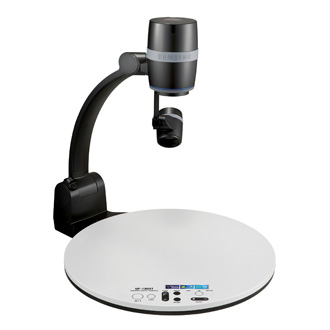
Document cameras are a classroom technology that are becoming more and more a standard part of the physical classrooms.  The cameras are integrated into the Smart Classroom.  Whether you’ve used this technology before or are using it for the very first time, you can begin to learn or learn more about why the use of this technology in the classroom may help to enhance teaching and learning.  Below are several articles that will give you a glimpse into how you might consider integrating the use of this tool into your teaching.

If you’d like more information about document camera technology here at North Shore Community College and would like to discuss ways to use this in your teaching, please contact me, Dave Houle, at dhoule@northshore.edu or 978-739-5530.
Have you used document cameras in your classes before?  What did you find useful about them?  What worked and what didn't?  Let us know your thoughts by commenting below.

Wednesday, October 10, 2012

Professional Development - Anytime, Anywhere

This year, Academic Technology is piloting a new on-demand online professional development service – Magna Commons.

Our subscription to Magna Commons provides North Shore Community College faculty and staff with instant access to current and archived versions of the most popular Magna Online Seminars, covering a broad range of teaching and learning topics such as student engagement, technology and Web 2.0, grading and feedback, academic integrity, and course design.  There are also a variety of seminars specifically targeted to faculty teaching in an online or hybrid environment.  These seminars are delivered by educators from institutions across the county.  Each online seminar presentation also comes with a PowerPoint handout, supplemental materials, and a transcript.

Sampling of the professional development titles available:
  • Five Strategies to Engage Today’s Students
  • Ten Ways to Actively Engage Your Students
  • How to Deepen Learning through Critical Reflection
  • Active Learning That Works: What Students Think
  • Finding The Right Technology to Support Learning Outcomes
  • Grading Strategies to Promote Student & Faculty Success
  • Engage Online Students with Targeted Feedback
  • Selecting and Using Technologies in Online and Blended Courses
  • Best Practices for Designing Successful Blended Courses
To access the professional development seminars, you will need to create an account on Magna Commons and enter in our Authorization Code.  You will only need to do this once.  After you have done this, you will have instant access to Magna Commons from any computer, whether it is on- or off-campus, with your unique username and password.  Seminars can be viewed by subscribers on a computer or many mobile devices.

For information on creating an account and accessing Magna Commons, please refer to the announcement in the Bulletin on October 9, 2012 or email itd@northshore.edu.

Enjoy--and let us know if you check it out, some of your thoughts and experiences!

Wednesday, September 19, 2012

20 Minute Professional Development – Monday Morning Mentor

This year, the Center for Teaching, Learning, and Assessment (CTLA) and Academic Technology has partnered up again to bring faculty a professional development series from Magna Publications, called the Monday Morning Mentor. The goal of the Monday Morning Mentor series is to offer faculty practical professional development opportunities in twenty minute snippets that can be accessed from anywhere and at any time during the given week. Session topics cover the areas of student engagement, teaching and learning, teaching online, assessment and learning goals, and classroom management.

New video presentations go live at 10:00am each Monday morning and are only accessible through Sunday. Presentation handouts and supplementary materials are always available.
The following sessions are on the schedule for fall 2012.  For session descriptions and objectives, click on the titles below.
Information on how to access the Monday Morning Mentor sessions is available each week in the Bulletin.

We would love to hear your feedback on the usefulness of these sessions. Please send your input to itd@northshore.edu.

Monday, July 2, 2012

First Steps in Using A SmartBoard

Many of us have heard about interactive white boards or "Smart Boards" but haven't yet had a chance to use them.   One suggestion before starting use the Smart Board is to download the Smart Notebook software.  This is the software that gets used on your Smart Board to create materials--text, image, videos, animations, games, etc.  The Smart Notebook 11 software can be downloaded directly to your laptop or your PC.  30 day trials are available.  Product codes are also available for North Shore Community College full and part time faculty, if you'd like to use for more than 30 days.  Please email dhoule@northshore.edu and I'll send you the link to a product code.

There are also some great short videos that will help get you started:

Downloading Smart Notebook 11
http://www.youtube.com/watch?v=bZiyko_eVjI

Smart Board Tutorial
http://www.youtube.com/watch?v=dwla8E6jz4g

Smart Notebook 11:  The Activity Builder
http://www.youtube.com/watch?v=XVwcyfJzAtA

Smart Notebook 11
http://www.teachertechnologies.com/2012/05/smart-notebook-11/

Of course, your Academic Technology department is here to help.  Please contact me, Dave Houle, at dhoule@northshore.edu and I'll get back to you as soon as I can.

Enjoy your Smart Board and Smart Notebook exploration.

Wednesday, March 28, 2012

Freeing The Course Part 2: Course Readings

So now we come to the next part in our series on “Freeing the Course.”  In the first part, we dealt with free programs and tools, this time, we're looking at free readings and material for your class.  We all know that textbooks are a significant challenge for any course.  The prices are challenging for students between affording them, getting them from the bookstore, and glitches or problems with financial aid.  Then, of course, there is the problem of ordering them online on their own and waiting.

So what about free material online?  There’s lots of it.  Vast amounts, in fact.  So what do we make of that and how do we use it?  There are several considerations that you want to think about before venturing onto using online materials that is worth considering.

1.    How much will they be reading online?  Reading on screen has been found to be more challenging than reading a physical text.  Some of this may come to change with improved technology, but it’s something worth keeping in mind.  One way to offset this is to make sure the physical text may be available (on reserve in the library, as a “recommended” purchase in the bookstore, or just through the library and inter-library loan.

2.    Do you want students to have the readings in class?  Many faculty members will want students to have them in hand in class.  So this might mean you need to clarify your technology usage policy in your classroom to encourage students to bring laptop or tablet devices.  However, many of your students may want to print the material.  If that’s the case, please make sure you provide them with sufficient guidelines on how to print efficiently (such as double-sided or printing 2 pages on 1 side of a paper to get 4 pages per piece of paper).  Not only does this promote more environmentally friendly results, but students are limited in the amount they can print before the school charges them and you don’t want to use the student’s entire semester budget for just your class.

3.    How reliable are the readings to stay where they are?  We know the internet can be quirky.  That awesome site that’s here today can be gone tomorrow.  So in selecting readings, make sure you choose reliable sites or sites that have been around for several years (though that’s no guarantee that they will always be around).  You might want to find the source in several places or alternatives to each reading.

4.    What do you want the students (or yourself) to do with the readings?  As we’ll see below, the online environment allows for something that you cannot with regular texts (at least not as easily) and that is create a collaboratively annotated online text.  So maybe all you want your students to do is to read the material.  But you can also start to push the students to engage with the material and voice opinions or thoughts on particular passages directly onto the page, using tools like Diigo.

Ok, so what are some of those resources that you may want to consider:

The first handful sources of particular use for the Humanities and Social Sciences (though other disciplines are apt to find great nuggets to include in their courses from these sites):  The Internet Archive, The Gutenberg Project, Wikisource, and Librivox.  There are large repositories of the public domain which includes books and textual material in the case of Archive, Gutenberg Project, and Wikisource, but also sound in the case of Librivox and images, sounds, videos, text, programs, and well, the entire internet, in the case of The Internet Archive.  Some of these sites only offer html-based text resources, but Archive does a decent job of providing formats that are operable in different eReaders.

Librivox offers user-based sound recordings of works that are in the public domain.  This can be great for giving students access to audio renderings of readings.  However, it could also be a great idea as an assignment for students to create additional reading in the public domain; it might be a great service learning project for a communications, media, or English course.
Meanwhile, if you are looking for a standard textbook, Flatworld Knowledge might be your place to be.  From this site, you can select and use an online textbook FOR FREE for your class.  As the site explains it, "It’s this easy: search our catalog, request a print review copy or review our book online, complete an online adoption form, give a URL to your students, and download our supplements. Done. It really is that easy."    The text is free for students to read online and if they want to order a physical copy, they can for a reasonable price.  Faculty can also chose to customize the text if they so choose.

In addition to these Internet-based sources, there are also two great tools that are available through the library.  The first is Ebrary, the library’s digital library, giving students access to 1000s of books both popular and academic.  Faculty can assign entire books or individual chapters from a range of books.  Ebrary also includes some great tools such as a notes section, annotations, and highlight so students can engage more with the text.  Overdrive is another great source for access to digital copies of both books (more popular books in this case) and audiobooks.  The one drawback with Overdrive is that there are limitations on the amount of students that can virtually check out a book.  But it might be useful to direct students if you have them doing research or required to read an outside book on their own.

Finally, for developing content online as opposed to standard pay-for texts, I’d highly recommend Diigo.  This is a social bookmarking tool that allows you to not only create and share bookmarks, but if you create a group, you can collaboratively annotate and highlight any page you bookmark (or that students bookmark).  Some faculty enjoy using a variety of websites including blogs, newspapers, and other online sources.  They can create a Diigo group for their class, organize the links into different “chapters” or “weekly readings.”  But what’s great is that the faculty can annotate and highlight passages on the website that students will be able to see or faculty can require students to write commentary on the website.  In effect, this creates a “living text” that the faculty member can use each semester, adding or subtracting as it makes sense to do so.  For more exploration of Diigo’s uses, check out our playlist on Youtube.

One last note.  It’s important that you explain to students the expectations around your course material in terms of how they should be used.  Students may not have had material online to read and so giving them some directions and guidelines about how to read (and notate) online as well as resources to overcome problems and alternative places they can find the material is really important.  It’s frustrating to the faculty member when the student doesn’t do the reading, but it’s equally frustrating for the student when the reading isn’t accessible.
  • What are barriers for you to keep you from using online materials instead of the standard physical text?
  • What kind of online material have you used?  What did you like and dislike about it?
  • What would be your ideal for online materials?  How would it work?