Showing posts with label Classroom Tools. Show all posts

Friday, December 13, 2024

20 Minute Mentor - Online Faculty Professional Development - Spring 2025 Schedule

 The Center for Teaching, Learning, and Innovation (CTLI) offers faculty a professional development series from Magna Publications, called the 20 Minute Mentor. The goal of the 20 Minute Mentor series is to offer faculty practical professional development opportunities in twenty minute snippets that can be accessed from anywhere and at any time during the given week. Session topics cover the areas of student engagement, teaching and learning, teaching online, assessment and learning goals, and classroom management.

Information on how to access the 20 Minute Mentor sessions is available each week in the Bulletin and the iDevelop e-newsletter.

New video presentations (with supplementary materials) go live at 10:00am each Monday morning and are only accessible through Sunday. 


Banner with "Got 20 Minutes?  Then you have time to learn with the Monday Morning Mentor!"

The following sessions are on the schedule for spring 2025. For session descriptions, objectives, and mentor bios, click on the titles below. 

Programs denoted with * are still in production and will be finalized shortly. 

We would love to hear your feedback on the usefulness of these sessions. Please send your input to ctli@northshore.edu. 

Wednesday, June 29, 2022

20 Minute Mentor - Online Faculty Professional Development - Fall 2022 Schedule

The Center for Teaching, Learning, and Innovation (CTLI) offers faculty a professional development series from Magna Publications, called the 20-Minute Mentor. The goal of the 20-Minute Mentor series is to offer faculty practical professional development opportunities in twenty minute snippets that can be accessed from anywhere and at any time during the given week. Session topics cover the areas of student engagement, teaching and learning, teaching online, assessment and learning goals, and classroom management.

Information on how to access the 20-Minute Mentor sessions is available each week in the Bulletin and the iDevelop e-newsletter.

New video presentations (with supplementary materials) go live at 10:00am each Monday morning and are only accessible through Sunday. 


Banner with "Got 20 Minutes?  Then you have time to learn with the Monday Morning Mentor!"

The following sessions are on the schedule for fall 2022. For session descriptions, objectives, and mentor bios, click on the titles below. 
We would love to hear your feedback on the usefulness of these sessions. Please send your input to ctli@northshore.edu. 
Tuesday, April 13, 2021

iDevelop – NSCC’s Faculty Professional Development eNewsletter (4/12/2021)

Welcome to iDevelop, a weekly eNewsletter providing faculty with information about professional development opportunities at NSCC. The intent of this eNewsletter is to spotlight the various professional development events for faculty in one convenient location as well as share best practices, resources and tips related to the teaching practice. iDevelop is being brought to you by the Center for Teaching, Learning, and Innovation (CTLI).  

  
Sign reads:  Got 20 minutes?  Then you have time to learn with the Monday Morning Mentor
  
20 Minute Online Professional Development
The Monday Morning Mentor series will be available over the spring semester to bring you professional development in twenty minute snippets. The topic for the week of April 12th is What Are 5 Easy-to-use Technologies That Have a Big Impact on Learning in the Online Classroom? The presentation is available Monday at 10:00am and is accessible through Sunday of that week. For information on accessing the presentation and supplemental materials, please view the Bulletin or the email version of iDevelop.

More information about this session (including description, topics, and learning goals) is available at  https://www.magnapubs.com/product/program/5-easy-to-use-technologies-that-have-a-big-impact-on-learning-online.

The following easy-to-use, free technologies are discussed in this week’s Monday Morning Mentor session. If you are interested in exploring any of these more, please feel free to reach out to the CTLI at ctli@northshore.edu. We would be happy to help.
The complete spring 2021 schedule of Monday Morning Mentor sessions is available at http://nscclets.blogspot.com/2020/12/20-minute-mentor-online-faculty.html. 

Looking for transcripts of past Monday Morning Mentor sessions? Please email ctli@northshore.edu with the session title and we can provide you with the transcript and supplementary materials. 

Other Professional Development Opportunities
  • Salem State University Earth Day Events. The Salem State Earth Days Planning Committee has extended an invitation to the NSCC community to participate in their Earth Days events. Their theme this year is “There is No Planet B.” The schedule of free events and registration information is available on the Earth Days webpage at https://www.salemstate.edu/earthday. 
  • 45th Forum on Tolerance. This spring, the Forum on Tolerance is focusing on "Black Lives Matter: the U.S. Journey towards Justice and Healing Part 2" and will take place in individual segments that will be broadcast over Zoom Monday, April 12th through Friday, April 16th. A schedule of events as well as the links to register for each segment is available at http://www.northshore.edu/tolerance/.
  • Digital Teaching Symposium 2021. Blackboard is sponsoring this free virtual event focusing on best practices for what’s next in digital teaching on Friday, April 16, 2021. More information as well as the registration link is available at https://events.bizzabo.com/DTS2021/home.
  • 2021 NSCC Visiting Writer Event. During Arts in April, visiting writer and North Shore alumnus John R. Nelson will present a slide show and read from his new collection of essays, Flight Calls: Exploring Massachusetts through Birds, described as "somewhere between a personal memoir, a true-life adventure, and a birder's personal journey." This event will take place on Zoom on Tuesday, April 20, 9:30-10:45 AM and Wednesday, April 21, 9:30-10:45 AM. More information as well as Zoom links are available at https://www.northshore.edu/arts-in-april/writing-events.html. A full schedule of Arts in April events is available at https://www.northshore.edu/arts-in-april/.
  • 2021 Northeast OER Summit. Registration is now open for the 4th Annual Northeast OER Summit. The Summit is free and will take place Monday, May 24 – Wednesday, May 26, 2021 virtually through University of Massachusetts Amherst Conference Services. If you are interested in attending, you can register at https://umass.irisregistration.com/Site/OER.    
  • Dis/Misinformation: Perspectives and Pedagogies for Educators in the Post-Truth Era. Harvard University's Global Studies Outreach Center is offering their 9th annual free summer educator workshop virtually over a two-week period: July 26 - August 6. Participants can join for all or some of the sessions offered over those two weeks. More information is available at https://globalstudiesoutreach.harvard.edu/. 
Upcoming Webinars of Interest
  • K-12 and Community Colleges Collaborate on OER (CCCOER webinar) on Wednesday, April 14 at 3:00 PM EST. “Open Educational Resources (OER) can make education more equitable and inclusive at any level of education. Hear from a panel of K-12 and community college educators as they compare and contrast the benefits and challenges of transforming learning with open practices and open content that is adaptable by teachers and students.  The topic of why and how faculty can work together across school sectors to support students in their local community will be explored.” (webinar description) More information as well as the registration link is available at https://www.cccoer.org/webinar/k-12-and-community-colleges-collaborate-on-oer/. 
Interesting Articles and Resources
Share Your Teaching Resources and Professional Development Opportunities
If you have any teaching resources that you would like to share with other NSCC faculty or know of any other professional development opportunities that NSCC faculty might be interested in, please feel free to send them to ctli@northshore.edu and we will share them in the upcoming issues of iDevelop.

We hope you have enjoyed this weekly eNewsletter and would love your input. Please let us know if you have any feedback on the format, content, and resources or if there is anything else you would like to see in the eNewsletter.

Thank you,
CTLI 

Tuesday, February 10, 2015

A Simpler Solution to Tablets and Laptops

David von Schlichten mentioned in his recent Conversation blog post on The Chronicle that he is fine with students using their digital devices to do whatever they want in the class and that it is their choice to engage or not engage. I can appreciate that hands-off approach but I agree with some of the commentators that while it may work for the instructor, it is likely to be challenging for other students in the classroom and they may be distracted. This point was made obvious to me when a student was once caught watching inappropriate material in my class. Granted, it was likely way more interesting than whatever I was teaching at the time, but his peers ratted him out by the astonished and bemused looks on their faces.  

In the last few years, I have enlisted a new tactic in dealing with digital devices that works out well for all parties. At the start of the course and in the syllabus, I provide the following three rules for using laptops and tablets in the course. 

  1. If a student is going to use a device, they must sit in the front center area of the class.
  2. If other students are distracted by non-course related activities, the student will receive a warning (and eventual restriction of use).
  3. At the end of class, the student is required to email me the notes.
Classroom with desks.  Source: https://farm1.static.flickr.com/9/74907741_c2d59deb64.jpg
Source
The first rule means that the students know their peers will be seeing what they are doing and when coupled with the second, they know their peers can hold them accountable.  By sharing the rules to the class, I also make it clear that students should communicate with me if there is distracting laptop use. 

However, the third rule is the most invaluable. I clarify that the notes need to be substantial and not just copying my usually sparse PowerPoint slides. It provides a check and level of accountability that students often thank me for at the end of the course. If students know they need to produce something with their device, they are more likely to stay on task. As an instructor, it’s a great feedback loop about where they are placing emphasis within the notes. It means that if I think subject X was important but they fixated on subject Y, I might need to revisit the material. 

I used to be the instructor who would be quite strict about device usage, but I quickly realized that I can’t remember a time when I have been in a classroom as a student and not been doodling, writing non-class-related notes and ideas and still been able to take substantial notes. I found this approach great in guiding students toward staying on track and also getting quick feedback about what they are learning. It also gives them the freedom to direct their attention as they see fit, but know they need to use the device as a tool for learning, not for entertaining. 


What ways have you found to integrate or deal with digital devices in your classes?

Tuesday, September 16, 2014

Active Learning Classrooms

Active Learning Classrooms are teaching and learning spaces that allow faculty to move their course design beyond lecture.  Faculty are supported through the room design, flexible furniture, multiple writing surfaces, and interactive technologies.  In these rooms, students move from a static learning environments (rows of chairs) to a more dynamic one (group seating often utilizing chairs and tables on wheels).

Here at North Shore Community College, we have designed two spaces as Active Learning Classrooms.  LE 304 in Lynn and DB 101 in Danvers have portable chairs on wheels and white boards have been installed around the wall surfaces of the classrooms.  Faculty have begun to requests these spaces as they allow for students to work together more efficiently and effectively.  The teacher's role then becomes more of a guide to learning.

Some effective teaching models in these kinds of  classrooms include:

1.  Think--Pair--Share
This is a discussion strategy where the teacher gets the students thinking about a posed question.  The students then "pair up" to talk about their thoughts or answers to the question.  The teacher then calls on the pairs to share their thoughts with the rest of the class.

2.  Focused Listening
Here students recall what they know about a subject.  This can be done in pairs or groups  They list what they know on a sheet of paper.   The instructor roams the room requesting the lists to be read out loud by the pairs or groups.

3.  Brainstorming
This is similar to focused listening.  Here, though, students might stretch what they know by forming creative connections between previous knowledge and new possibilities.  In Brainstorming, there are no wrong answers.

4.  Note Check
With Note Check, students partner with someone.  They compare notes.  They notice each other's misconceptions or lack of clarity, and then assist in pointing that out and cleaning it up.

5.  The Two Minute Paper
Here the faculty member asks students to summarize the most important points in the day's lecture.  It helps students to put things in their own words.  It also helps students to identify their gaps in their understanding.

6.  The Final Question
At the end of class, the faculty member asks the students if they had one last question about the material, what would it be?  It encourages students to think deeply about material before leaving the room.

Resources:
If you would like to know more about Active Learning Classrooms, please contact us at itd@northshore.edu.

Dave Houle
Coordinator, Instructional Technology
dhoule@northshore.edu


Thursday, February 27, 2014

Instructional Technology: The Green Solution

An often unrealized potential of instructional technology is the ways it can benefit the environment and reduce waste.  Here are some of my favorite ways to reduce waste through technology.

Online Readings

By providing readings online and allowing students to bring digital devices to class to use when we are working on the class readings, means that students are less likely to print it out.  However, even if they do, I provide them with instructions on how to get the most out of printing by using double-sided and depending on their viewing preferences, possibly 2 pages per side of paper (therefore a 60-page document is reduced to 15 pieces of paper).  Particularly in courses that have massive (and often, overpriced) texts that have lots inside that may never be read, I like that I can provide just the necessities. And with a growing assortment of Open Textbooks that are online for free, it makes it even easier!

Online Assignments

Recycle, Reduce, Reuse Icon
I stopped taking paper assignments several years ago and it has been a great experience.  Not only do I save paper but I am more organized, save time, and provide much more potent feedback to students.  Most word processor programs have a "comment" feature now so that you can provide comments around a paper rather than writing directly on it.  Between the comment feature, the highlight feature, and a file with canned comments (e.g. "Avoid using 2nd person pronouns in formal essays.  Remember that if your argument relies upon directly addressing the reader, then it might not be as strong as it can be").  I can download the papers, grade them, and send them all back.  Students get their grades sooner and have all of their grades in ANGEL or in their email.   


Virtual Tours and Field-Trips

Organizing a class field-trip has a variety of challenges.  Besides cost, determining times, getting everyone together, etc, there's also the challenge of whether there is a local place to visit that merits uprooting everyone's schedule.  However, many places such as museums and galleries are offering virtual tours for participants.  A good example of this is the Smithsonian's National Museum of Natural History where you can tour the facilities.  Besides the cost, the environmental impact of visiting a museum that might be thousands of miles away is all but eliminated.   


Virtual Reality/Simulations/Games

In addition to virtual tours, you might also consider finding virtual reality environments (Second Life), simulations (such as ECG Simulator) or even video games (check out Serious Games for more information on these) as great learning experiences while also reducing the amount of waste, risks, and costs.  Additionally, with many of these types of environments you can either capture the experience or have each student have personalized experiences enhancing the learning for all involved. 

What are some of the ways you are leveraging technology to reduce you and your students environmental impact? 

Tuesday, October 29, 2013

The Gold Standard Implementation of Peer Instruction Using Clickers

Recently, I watched a webinar from Turning Technologies that addressed a standard of implementation for using clickers for peer instruction.  Julie Schell, the Director of OnRamps and Strategic Initiatives, was the presenter.  In her presentation, "Using Clickers with Peer Instruction," she offered the 7 basic steps of this standard:

1.  Provide a mini lecture
2.  The instructor asks a question to the class
3.  The students are given time to think about the question
4.  The students vote for the first time
(The answer is not shown if there is a right answer; the answer may be shown if there is not a correct answer)
5.  Students discuss their response to the question with a neighbor or in groups
6.  A second vote is taking in class
(The answer  is shown)
7.  There is an explanation of why the answer is correct.

Peer instruction and class interaction often fall apart when one or more of these steps are left out of the process. Check out the entire webinar here. 

If you'd like more information about survey and polling solutions to help enable peer instruction and student discussion in your classroom, please contact me, Dave Houle, at dhoule@northshore.edu.

Friday, September 6, 2013

Polling in the Classroom

Of course every great instructor loves to see their students engaged in the classroom.  Students, believe it or not, love to have their voices heard too, although many may be shy about doing that.
With the influx of new technologies over the last few years, many new ways have been developed to get your student's voice heard in your class.  One kind of technology that has been used here at North Shore Community College is clicker technology, which is often times referred to as audience response, classroom response, or student response technology.

This little device, the clicker, allows the student to make their voice heard anonymously in class.  Many faculty have used polling when talking about controversial issues.  The student submits their actually feelings on an issue without class influence.  Other faculty have used clickers to get a sense of whether or not the class has understood the gist of the material just presented in class.  It's a kind of "pre-testing" or "assessment" of student knowledge.  It helps you as the instructor understand just where they are in their learning or any common misconceptions that might be happening.

Formal polling can be developed in PowerPoint.  On-the-fly polling can be conducted anywhere, anytime.  We use Turning Technologies' Turning Point software here at the College for both formal and anywhere/anytime polling.  You, as the instructor, get to tailor the polling to your classes needs.   For instructors, who for whatever reason choose not to clicker hardware in their class, web-based and phone-based solutions are also available through Poll Everywhere.  Submitting answers through a web site are often preferred over submitting answers via text as students texting may cost that student money depending on their texting plan.

For "first steps" in this process, please contact me at dhoule@northshore.edu or 978-739-5530.  Also, here is a great resource for getting started with clickers here at North Shore.  We are happy and here to help! 

General Overview of Clickers 
Assessment
Peer Discussion/Peer Learning/Student Engagement 
  • Classroom Reconsidered: Understanding and Engaging Students with Clickers
    http://www.slideshare.net/derekbruff/hpers-keynote-2010
        

Have you used clickers or other similar tools in your class?  What are some of your best experiences with it?  What surprised you about the experience?

Thursday, August 8, 2013

Best Apps for Teaching

In May, I went to a 1-day conference on by "Tablets, Handhelds, Smartphones; Oh My: Challenges and Solutions in Supporting Mobile Devices and on Campus" by NERCOMP.  In one session, they spoke about great apps for teaching that are certainly worth sharing:

Poll Everywhere
http://www.polleverywhere.com
Platform(s):  Any device with internet access.
Cost:  Free account with limitations on size of polls.
This a classroom response system that uses mobile phones, Twitter, and the web.  This is similar to clicker technology except online and without having to use clickers.

Socrative
http://www.socrative.com
Platform(s):  Works on all platforms and web-enabled devices.
Cost:  Free with registration.
This is a smart classroom response system that empowers teachers to engage their classrooms through a series of educational exercises and games via smart phones, laptops, and tablets.

Flipboard
http://www.flipboard.com
Platform(s):  Apple & Android Devices
Cost:  Free with registration.
With the latest version of this (2.0), you can not only look at the news that you care about but you can save and collect things that you love into your own magazines.  Examples: "Cars I Like" "Best Vacation Offers."

Evernote
http://www.evernote.com
Platform(s):  Any device with internet access.
Cost:  Free with registration.
This is a suite of software and services that allows you to take notes and archive.  It supports many operating platforms.

Cloud On
http://site.cloudon.com
Platform(s): Apple & Android Devices
Cost:  Free with registration.
This brings Microsoft Office to your iPhone and iPad and links it to your Box, Dropbox, Google Drive, and SkyDrive accounts.


Air Sketch
http://www.qrayon.com/home/airsketch/default.aspx
Platform(s): iTunes
Cost: $9.99
This allows you to turn your iPad into a wireless whiteboard.  You can also annotate PDF documents and images live.
1-2 Educational Uses


What apps to you use in the classroom to help with student engagement?

Monday, July 29, 2013

August Instructional Technology Workshops

We hope everyone is having a great summer!

In August, Instructional Technology and Design will be sponsoring a series of workshops on a variety of topics around integrating technology into the teaching and learning environment.  All North Shore Community College faculty are welcome to attend.  The workshops will be in Danvers Berry 202 unless otherwise indicated.  Check out the workshop descriptions to learn more about each workshop.

If you are interested in attending any of the workshops, please take a moment to RSVP.

Tuesday, August 20th

9:00am to 10:15am, New to ANGEL
10:30am to 12:00pm, ANGEL Discussion Forum*
1:00pm to 2:00pm, Blogger
2:15pm to 3:30pm, Flipping the Classroom [DB304]

Wednesday, August 21st

1:00pm to 2:00pm, Communicating with your Students Virtually (Google Chat, Skype, Google
Hangout, etc.)
2:15pm to 3:30pm,  Screencasting – Creating Videos

Thursday, August 22nd

9:00am to 10:15am, ANGEL Rubrics*
10:30am to 12:00pm, ANGEL Gradebook*

Tuesday, August 27th

9:00am to 10:15am, Smart Classroom [DB304]
10:30am to 12:00pm, Encouraging Student Collaboration with Google Documents and Google Sites
1:00pm to 2:15pm, New to ANGEL
2:30pm to 3:30pm, Advanced ANGEL - RSS Feeds, Automated Agents, etc.*

Wednesday, August 28th

9:00am to 10:15am, Getting Started with Clickers [DB304]
10:30am to 12:00pm, Creating Accessible Online Course Content [DB304]
1:00pm to 2:00pm, ANGEL Assessment* [TBD]

*Note: Participants attending these ANGEL workshops should have already attended a New to ANGEL workshop or have experience in using ANGEL. 

Please let us know if you have any questions. We look forward to seeing you at the workshops!

What workshops are you planning to attend? What other workshops would you like us to offer?

Monday, February 4, 2013

Using Prezi Without Losing Your Mind

We had a great series of workshops prior to the start of the Spring 2013 semester, including one on Prezi.  Since it is a great tool for learning inside and outside the classroom, we thought we'd follow up with this blog post for those that couldn't make the workshop.  You will also find the Prezi that we created for this presentation and here is access to the handout that we provided.

So what is Prezi?  It's most basic description is that it is 3-dimensional presentation tool that can used to align and present information in a more meaningful way.

BENEFITS: As a web-based program, Prezi has a lot to offer.
  • Free:  A free account is available to anyone.  If you register for their education license with your school email address, you will have an enhanced account with more space and usages rights. 
  • Easy to Use:  After checking out some introductory and how-to material, you can easily begin work on a Prezi using mostly pointing and clicking.  No programming skills needed and no software to download.
  • Single or Collaborative Use:  Like other Web 2.0 tools, users have the option of working on it together or singularly at the same time (and at different computers).  Additionally, one can present a Prezi online to another audience that is not present. 
  • Visual Appeal:  In lieu of the standard PowerPoint, the ability to move from slide to slide on screen adds a bit more visual stimulation for presentations (so long as the tool isn't overused). 
  • PowerPoint Integration:  If you already have created PowerPoints, you can upload and integrate them into a Prezi very easily.  You can also integrate PDF files as well.

CHALLENGES:  Though Prezis are enjoyable to use for education, there are certain challenges to contend with when considering using them.
  • Limited Space:  Even with an education license, you're limited to 500 megabytes.  That amount may be more than enough, but if you're teaching several different classes and plan to use one for each class, you might fill up that space quickly.
  • Clunkiness: Because of the nature of Prezi working within a browser, occasionally the program can get a bit clunky and you'll be unable to drag or move around the way you want.  Typically when this happens, you will need to save the Prezi, exit the Prezi, and close the browser and/or clear the cache and then return to it.
  • Getting to Advance:  Prezi can be easy to learn but it takes planning and practice to develop a rich presentation that fully utilizes the tools that Prezi has available.  We recommend looking at a lot of the examples made available on the site in order to get a stronger sense of what can be done.
  • Movement Overload:  Because of the movement feature in Prezi and how it can draw attention, early users often use too much motion.  They mistake the availability of movement for the relevance of movement.  Movement should be selective and relevant--otherwise it becomes a gimmick that doesn't help keep focus (as well as occasionally induces nausea).

USES:  Keeping those things in mind, we turn now to consider what are some of the best ways that you can use Prezi for education.
  • Standard Presentation:  There certainly isn't anything keeping you from uploading your PowerPoints and using Prezi as a straightforward presentation tool.
  • Conveying linear-based ideas:  Prezi works great when trying to convey information that is formulaic or process-oriented.  Telling a story, explaining a pattern, or moving through a routine all lend themselves well to being displayed in a Prezi.
  • Conveying nonlinear ideas:  Prezi also works great for grouping related information communicating differences according to space and alignment. If you want to identify features of a culture or elements of a story, you can use Prezi to differentiate the different pieces. It's also useful for honing in on elements of a contained piece.  For instance, you can move about to focus in on different aspects of an image (a cell, painting, landscape, etc.). 
  • Visualizing Integrated Concepts:  When working with a complex system, Prezi really shines.  This is where layering your information and using the depth of a Prezi can help communicate the "big picture" as well as the smaller pieces (that is, see the "Forest" and the "trees").
  • Brainstorming & Mindmapping:  Finally, Prezi can also be used to help students or even the instructor to bridge connects and ideas.  This could work well in groups of students working on a project as they could all be in a Prezi (by collaborating) at the same time and connecting their ideas.


Do you use Prezi?  How useful have you found it?  What are your students reactions to using Prezi? 

Thursday, January 31, 2013

Mobile Devices in the Classroom

This blog post was developed by the ITD Team (Andrea Milligan, David Houle, Lance Eaton and Pat Lavoie).

Though we should be deliberate in how we embrace mobile technology, what are some of the ways in which it can enhance our classroom experiences and student learning? In mid-January, the Instructional Technology and Design team facilitated a conversation with faculty on this topic during a Mobile Devices in the Classroom workshop. Potential benefits and challenges were explored along with a discussion around potential useful classroom applications.

When it comes to mobile devices in the classroom, it is clear that they can provide some great advantages to making it a more rewarding experience.  Mobile devices can be used to
  • Provide students with instant access to the world in the classroom. This is great for looking up words that they are unfamiliar with, translating words they do not know, incorporating data into the discussion, doing research on a topic being discussed in class and communicating with experts.
  • Provide students with opportunities to engage, interact, and create in a classroom environment and beyond that may not have been previously possible.  Students can create presentations on the fly, develop videos encapsulating a conceptual process, manipulate interactive course materials, or work together on writing something within the class without hovering over each others' shoulders.
However, there are definitely challenges to consider and overcome: 
  • Access to mobile devices:  Not every student will have access to a mobile device.  One way of overcoming this is having students work in groups around an activity that uses a mobile device.  Another way is to plan ahead and give students choices about doing the work in class or on their own in the computer labs or at home.
  • Cost of apps:  If you are going to be using various mobile tools, be careful about requiring students to purchase apps.  While students may be able to get financial aid for books, money for apps is likely to come out of their own pocket.  An alternative to this is to focus on free apps (of which there are plenty) or work with web-based free programs (e.g. Poll Everywhere).
  • Cost of data plans:  Be careful about how much demand you put on the students' mobile devices in terms of the data they need to use.  Some students pay per individual text or have limited texting plans and others may have smart phones but with limited data plans.  A good approach to this would be to remind students that they can log onto the school's Wi-Fi to avoid using their own data plans (texting charges would still apply).
  • Platform plurality:  There are many different platforms when it comes to mobile devices--it is not just Android, Apple, & Windows, but we are also dealing with smart phones, tablets, and laptops.  When you are looking to employ mobile devices in the classroom, it is important to find strategies that are platform agnostic in that they can be used on all platforms.  This might require some additional research to provide options for people on different platforms.  A tool like EdShelf allows you to seach for tools by platform.  Or, when trying to find particular apps, look beyond the platform-specific app store as many apps are available on multiple platforms.
  • Technical support:  Students are going to have technical issues with their devices and the software employed.  Be sure to have a reference guide for the different types of support (e.g. the school's Helpdesk, the app's support link, etc). 
  • Physical tech support:  It is important to think about battery life and access to power sources.  Some mobile devices will not last more than 3-4 hours of continued use.  Students will need to be aware of where the power outlets are.  You may need to consider different seating accomodations during a project to allow for access to power outlets.  You might also want to consider providing students with advance notice, if possible, of a mobile activity so they can come to class with their devices charged.
  • Printing support:  Be sure to direct students to this link so they know that mobile printing has now been enabled for certain mobile devices in certain locations on NSCC's campuses.  This would come in handy, particularly, for students using their mobile devices to write papers.
  • Projection support:  Depending on the device, you may or may not be able to hook it up to classroom projector (if in a smart classroom).  Additional cables might be needed to hook up your mobile device to the projector so you will want to think about this ahead of time and look at the nature of the classroom to determine what you should have. 
  • Instructional support:  Students' do not intuitively know what to do with the mobile devices for instructional purposes and they may not full understand what is expected of them in using a mobile device inside or outside of class.  As an instructor, you will want to provide clear guidelines about how students will be using the mobile devices and the means by which they can achieve "success" when using them in your course. 
  • Familiarity:  Some students are likely to be neophytes to the particular app or usage of technology that you are employing for class.  A good way to help students avoid feeling overwhelmed by mobile device use is to give them some time to play with the particular tool/app/device and gain some familiarity with it.  Additionally, you might create a low-stakes assignment for them to do so they will gain some confidence with the device.
  • Appropriate usage:  As tools, mobile devices can do wonderful things, but students are likely to be easily distracted by them so it is important to prepare for such challenges within the class.  Several recommendations for making mobile devices useful but not a distraction would include:
    • Clear guidelines and expectations about proper usage added into the syllabus and/or covered in class.
    • Direct work on mobile devices towards a particular goal or project (that is, require a "finished product" as proof of their usage).
    • Identify a particular window of time in which they can use the device and provide them with a challenge to accomplish in that limited time.
Resources:  Here are some great resources to consider for different ways of using mobile devices for the purposes of learning. 

Engage
Create
  • Evernote - "Makes it easy to remember things big and small from your everyday life using your computer, phone, tablet and the web."
    http://evernote.com/
  • Skitch - "Get your point across with fewer words using annotation, shapes and sketches".
    http://evernote.com/skitch/
  • Web Clipper - "From interests to research, save anything you see online—including text, links and images—into your Evernote account with a single click."
    http://evernote.com/webclipper/ 
  • Evernote Peek - "Turn your notes, audio and image in Evernote into study materials with Evernote Peek."
    http://evernote.com/peek/ 
  • EduCreations - "Teach what you know. Learn what you don't."
    http://www.educreations.com/ 
  • Prezi - "A presentation tool that helps you organize and share your ideas."
    http://prezi.com/
Collaborate
  • Google+ - "Share the right things with the right people."
    http://plus.google.com
  • Google Drive - "Do more than just store your files. Share files with exactly who you want and edit them together, from any device."
    http://drive.google.com
  • DropBox - "A service that lets you bring your photos, docs, and videos anywhere and share them easily."
    https://www.dropbox.com/
  • Trello - "A collaboration tool that organizes your projects into boards. In one glance, Trello tells you what's being worked on, who's working on what, and where something is in a process."
    https://trello.com/ 
  • inClass - "Organize your schedule.  Share your notes."
    http://www.inclassapp.com/
Research
For More
You can also check out our Prezi presentation:


We would love to hear from you.  Are you using mobile devices in the classroom?  If so, how are you using them?  What benefits or challenges do you see around using mobile devices in the classroom?  What apps are you or your students using?

Monday, January 28, 2013

Best Practices for Smart Classrooms: Get Trained!

Generally, formal training sessions for Smart Classrooms are held at the start of each semester.  They are publicized in the Bulletin, on our blog, and on Campus Pipeline.  One-on-one training is also available by appointment.  If those options do not work, tutorials are posted on our Academic Technology page on Campus Pipeline.
  1. Log into Campus Pipeline.  
  2. Choose the "My North Shore" tab.  
  3. Notice the "College Departments" header in the first column.  
  4. Click on "Academic Technology".  
  5. Click on "Smart Classroom Tutorial".  
  6. Then, under the "Smart Classroom" section, click on "Smart Classroom video tutorial".   
You can also find our video on Youtube:


After using the Smart Classroom, please contact us and tell us about your experience or ask any remaining questions.  We will be posting another tip within the next few days!

Thursday, December 6, 2012

For Ever and Ever and Evernote...

I thought I would deviate from my usual ANGEL tips and mention an app on the iPad I have started using called Evernote.  This free app allows you to capture and store a variety of different things, such as pictures, notes, and articles and then allows you to share them across your different devices.  Evernote is a great tool for helping you organize your documents or "notes" into what it calls “Notebooks”. You can have many notebooks and even notebooks within a notebook.

I downloaded the app to both my office computer and my iPad and the program will sync between the two automatically (or I can manually sync if I want to be doubly sure!). I find it very useful when I am at a meeting and want to record my notes but not carry a big, cumbersome laptop.  I bring my iPad, type my notes and then I can either email them or access them on my PC when I get back to my office. Evernote  automatically stores your notes in the Cloud so you can find them on either device.  Your “ notes" automatically save and sync. 

Evernote also assigns you a custom email address that you can use within your account. You can email pictures, notes, etc. to that account and it will show up in your Evernote account. Or you can quickly email your notes to someone.

There are a couple of apps that Evernote works with.  It connects with the drawing tool, Skitch.  You are able to annotate, label, and markup with arrows, shapes, word phrases, etc. to make your point and then share it with others. It can demonstrate a point quickly and highlight what is important. Again, what's great is that it will automatically sync across your devices too. Once you download the app, it will ask you if you would like to create a new notebook in Evernote called “Skitch” to house your images. 

There are great ways that these tools can be used.  Imagine this – you are an instructor of horticulture. You are in a meeting and have a really interesting speaker who is demonstrating how to diagnose a particular plant disease.  You can type your notes on your iPad, take a snapshot of the plant, show the diseased leaves by pointing to it with an arrow and voila, when you get back to your office it shows up on your computer! Or you could email it to your class and quickly point out the information! 

Another interesting Evernote app is called WebClipper.  It will easily clip part of or all of any webpage, including text, graphics and links.  With it you could collect anything that interests you and keep it forever, even if the original site goes away.  It is not a free app but an interesting one.

Any apps that you would like to share?  We would love hearing about them!

Monday, December 3, 2012

Using Clickers to Help Facilitate Controversial Topics in the Classroom

One great way to use clickers in the classroom is to help facilitate discussion around controversial issues.   What are your students' opinions on such topics as drug and alcohol use, government services, taxes, same-sex marriage, abortion, etc?   Is it difficult to get students to speak up around controversial issues?  A simple technology tool--the clicker--can be used to help poll students on these and other subjects and stimulate class discussion.  Clickers allow for students to participate and answer such questions without necessarily feeling vulnerable and exposed for their beliefs.  This can also help build trust and designate the classroom as a safe space to have good discussions on such topics, allowing for more meaningful conversations.

Here are a few good websites on strategies for using clickers on controversial topics, if you're interested in knowing more:

If you've been grappling with the idea of using clickers here at North Shore, please contact me at dhoule@northshore.edu.

We're just a "click" away! (sorry couldn't resist)


Friday, November 9, 2012

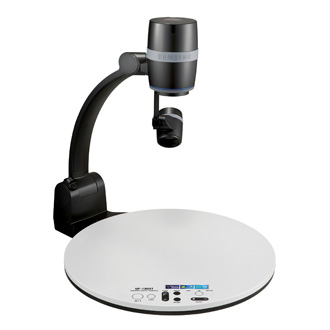
Document Cameras at NSCC


Document cameras are a classroom technology that are becoming more and more a standard part of the physical classrooms.  The cameras are integrated into the Smart Classroom.  Whether you’ve used this technology before or are using it for the very first time, you can begin to learn or learn more about why the use of this technology in the classroom may help to enhance teaching and learning.  Below are several articles that will give you a glimpse into how you might consider integrating the use of this tool into your teaching.

If you’d like more information about document camera technology here at North Shore Community College and would like to discuss ways to use this in your teaching, please contact me, Dave Houle, at dhoule@northshore.edu or 978-739-5530.
Have you used document cameras in your classes before?  What did you find useful about them?  What worked and what didn't?  Let us know your thoughts by commenting below.

Thursday, October 4, 2012

Engaging Students with Web 2.0 Tools

In June, Academic Technology and the Information Technology Fluency Across the Curriculum Committee facilitated the 2nd Annual Faculty Technology Summer Institute.  15 faculty attended the Summer Institute to learn more about student-centered uses of technology in a variety of disciplines.  Several sessions focused on various Web 2.0 and instructional technology tools that could be used to engage students inside and outside of the classroom or for student-based projects or assignments that would allow students to use technology critically and creatively.
The following resources (with information to learn more) were highlighted at the Summer Institute.
Google Documents: A free online word processor, spreadsheet and presentation editor that enables students to collaborate online in real time.  Google Documents is available to everyone at North Shore Community College.
Prezi: Online software that enables students to create “visually captivating presentations”.
VoiceThread:  An online program that enables students to have “conversations in the cloud” around images, documents and videos.  North Shore Community College has a departmental license to VoiceThread.  Please contact ITD if you are interested in using VoiceThread with your students.
Diigo:  An online collaborative research tool that enables students to bookmark and share Web resources.
Screencast-o-matic:  A simple screen capture program that enables students to create online presentations with voice.
Glogster:  A Web program that enables students to create online multimedia posters.
Quizlet: An online site that allows students to create and share flashcard sets.  Mobile apps are available for on-the-go studying.
Wordle: A web site to create word clouds to visually display prominence of words in texts.
Poll Everywhere: A Web-based classroom response system that allows instructors to get instant feedback from students.
Dipity: A Web site to Create and share “interactive, visually engaging timelines that integrate video, audio, images, text, links, and social media”.
If you are interested in learning how to integrate any of these resources into your classes, please contact us at itd@northshore.edu.

• Have you used any of these Web 2.0 tools?  If so, how are you using them to engage your students?
• What other Web 2.0 tools have you used in your classroom?  What are the benefits to using Web 2.0 tools?

• What challenges do you run into when using Web 2.0 tools?