Showing posts with label Communication. Show all posts

Tuesday, April 13, 2021

iDevelop – NSCC’s Faculty Professional Development eNewsletter (4/12/2021)

Welcome to iDevelop, a weekly eNewsletter providing faculty with information about professional development opportunities at NSCC. The intent of this eNewsletter is to spotlight the various professional development events for faculty in one convenient location as well as share best practices, resources and tips related to the teaching practice. iDevelop is being brought to you by the Center for Teaching, Learning, and Innovation (CTLI).  
  
Sign reads:  Got 20 minutes?  Then you have time to learn with the Monday Morning Mentor
  
20 Minute Online Professional Development
The Monday Morning Mentor series will be available over the spring semester to bring you professional development in twenty minute snippets. The topic for the week of April 12th is What Are 5 Easy-to-use Technologies That Have a Big Impact on Learning in the Online Classroom? The presentation is available Monday at 10:00am and is accessible through Sunday of that week. For information on accessing the presentation and supplemental materials, please view the Bulletin or the email version of iDevelop.

More information about this session (including description, topics, and learning goals) is available at  https://www.magnapubs.com/product/program/5-easy-to-use-technologies-that-have-a-big-impact-on-learning-online.

The following easy-to-use, free technologies are discussed in this week’s Monday Morning Mentor session. If you are interested in exploring any of these more, please feel free to reach out to the CTLI at ctli@northshore.edu. We would be happy to help.
The complete spring 2021 schedule of Monday Morning Mentor sessions is available at http://nscclets.blogspot.com/2020/12/20-minute-mentor-online-faculty.html. 

Looking for transcripts of past Monday Morning Mentor sessions? Please email ctli@northshore.edu with the session title and we can provide you with the transcript and supplementary materials. 

Other Professional Development Opportunities
  • Salem State University Earth Day Events. The Salem State Earth Days Planning Committee has extended an invitation to the NSCC community to participate in their Earth Days events. Their theme this year is “There is No Planet B.” The schedule of free events and registration information is available on the Earth Days webpage at https://www.salemstate.edu/earthday. 
  • 45th Forum on Tolerance. This spring, the Forum on Tolerance is focusing on "Black Lives Matter: the U.S. Journey towards Justice and Healing Part 2" and will take place in individual segments that will be broadcast over Zoom Monday, April 12th through Friday, April 16th. A schedule of events as well as the links to register for each segment is available at http://www.northshore.edu/tolerance/.
  • Digital Teaching Symposium 2021. Blackboard is sponsoring this free virtual event focusing on best practices for what’s next in digital teaching on Friday, April 16, 2021. More information as well as the registration link is available at https://events.bizzabo.com/DTS2021/home.
  • 2021 NSCC Visiting Writer Event. During Arts in April, visiting writer and North Shore alumnus John R. Nelson will present a slide show and read from his new collection of essays, Flight Calls: Exploring Massachusetts through Birds, described as "somewhere between a personal memoir, a true-life adventure, and a birder's personal journey." This event will take place on Zoom on Tuesday, April 20, 9:30-10:45 AM and Wednesday, April 21, 9:30-10:45 AM. More information as well as Zoom links are available at https://www.northshore.edu/arts-in-april/writing-events.html. A full schedule of Arts in April events is available at https://www.northshore.edu/arts-in-april/.
  • 2021 Northeast OER Summit. Registration is now open for the 4th Annual Northeast OER Summit. The Summit is free and will take place Monday, May 24 – Wednesday, May 26, 2021 virtually through University of Massachusetts Amherst Conference Services. If you are interested in attending, you can register at https://umass.irisregistration.com/Site/OER.    
  • Dis/Misinformation: Perspectives and Pedagogies for Educators in the Post-Truth Era. Harvard University's Global Studies Outreach Center is offering their 9th annual free summer educator workshop virtually over a two-week period: July 26 - August 6. Participants can join for all or some of the sessions offered over those two weeks. More information is available at https://globalstudiesoutreach.harvard.edu/. 
Upcoming Webinars of Interest
  • K-12 and Community Colleges Collaborate on OER (CCCOER webinar) on Wednesday, April 14 at 3:00 PM EST. “Open Educational Resources (OER) can make education more equitable and inclusive at any level of education. Hear from a panel of K-12 and community college educators as they compare and contrast the benefits and challenges of transforming learning with open practices and open content that is adaptable by teachers and students.  The topic of why and how faculty can work together across school sectors to support students in their local community will be explored.” (webinar description) More information as well as the registration link is available at https://www.cccoer.org/webinar/k-12-and-community-colleges-collaborate-on-oer/. 
Interesting Articles and Resources
Share Your Teaching Resources and Professional Development Opportunities
If you have any teaching resources that you would like to share with other NSCC faculty or know of any other professional development opportunities that NSCC faculty might be interested in, please feel free to send them to ctli@northshore.edu and we will share them in the upcoming issues of iDevelop.

We hope you have enjoyed this weekly eNewsletter and would love your input. Please let us know if you have any feedback on the format, content, and resources or if there is anything else you would like to see in the eNewsletter.

Thank you,
CTLI 

Tuesday, February 23, 2021

iDevelop – NSCC’s Faculty Professional Development eNewsletter (2/22/2021)

Welcome to iDevelop, a weekly eNewsletter providing faculty with information about professional development opportunities at NSCC. The intent of this eNewsletter is to spotlight the various professional development events for faculty in one convenient location as well as share best practices, resources and tips related to the teaching practice. iDevelop is being brought to you by the Center for Teaching, Learning, and Innovation (CTLI).  

  
Sign reads:  Got 20 minutes?  Then you have time to learn with the Monday Morning Mentor
  
20 Minute Online Professional Development
The Monday Morning Mentor series will be available over the spring semester to bring you professional development in twenty minute snippets. The topic for the week of February 22nd is How Can I Optimize Announcements to Help Online Students Navigate My Class? The presentation is available Monday at 10:00am and is accessible through Sunday of that week. For information on accessing the presentation and supplemental materials, please view the Bulletin or the email version of iDevelop.

More information about this session (including description, topics, and learning goals) is available at https://www.magnapubs.com/product/program/optimize-annoucements-help-online-students-navigate-my-class/. The complete spring 2021 schedule of Monday Morning Mentor sessions is available at http://nscclets.blogspot.com/2020/12/20-minute-mentor-online-faculty.html. 

Looking for transcripts of past Monday Morning Mentor sessions? Please email ctli@northshore.edu with the session title and we can provide you with the transcript and supplementary materials. 

Upcoming Webinars of Interest
  • How to Create Active and Engaging Learning Experiences with Zoom Breakout Rooms (Contact North webinar) on Friday, February 26, 2021 from 10:00 a.m. to 11:00 a.m. (ET). "Zoom’s breakout rooms provide a unique opportunity to learn to create active and engaging learning experiences for students. Join Contact North | Contact Nord’s Research Associate, Dr. Ron Owston, who describes how educators can: move beyond holding ineffective, unstructured breakout room discussions; create distinctive breakout room roles for students to promote active participation; employ a variety of tools and techniques to enhance breakout room experiences; pre-assign students to breakout rooms or allow them to choose their own; design creative ways for students to report breakout room outcomes to the whole class; and make use of breakout rooms in large enrolment courses. Participants have ample opportunity to ask questions during the webinar. NOTE: Registrants are expected to have a basic knowledge of how to use Zoom." (webinar marketing materials on the Contact North website) Register at https://contactnorth.zoom.us/webinar/register/WN_gwI7k-5-S5SAlxtW5zTx6w.
NSCC Library's Anti-Racism Resource Page
"The purpose of this guide is to provide a centralized location for resources and information to start exploring issues of oppression, privilege, and allyship.  This guide is meant to support and extend conversations happening on our campuses and in our communities and to facilitate organization and action. By covering a wide range of issues, we  hope to provide a resource for people with all levels of prior knowledge and involvement in anti-oppression and allyship work."  
The resource page is available at https://library.northshore.edu/antiracism_resources.

Interesting Articles and Resources
Share Your Teaching Resources and Professional Development Opportunities
If you have any teaching resources that you would like to share with other NSCC faculty or know of any other professional development opportunities that NSCC faculty might be interested in, please feel free to send them to ctli@northshore.edu and we will share them in the upcoming issues of iDevelop.

We hope you have enjoyed this weekly eNewsletter and would love your input. Please let us know if you have any feedback on the format, content, and resources or if there is anything else you would like to see in the eNewsletter.

Thank you,
CTLI 

Monday, September 23, 2019

iDevelop – NSCC’s Faculty Professional Development eNewsletter (9/23/2019)

Welcome to iDevelop, a weekly eNewsletter providing faculty with information about professional development opportunities at NSCC. The intent of this eNewsletter is to spotlight the various professional development events for faculty in one convenient location as well as share best practices, resources and tips related to the teaching practice. iDevelop is being brought to you by the Center for Teaching, Learning, and Innovation (CTLI).
  
Sign reads:  Got 20 minutes?  Then you have time to learn with the Monday Morning Mentor

20 Minute Online Professional Development
The topic for the week of September 23rd is How Can I Increase Student Completion Rates in Online Learning? The presentation is available Monday at 10:00am and is accessible through Sunday of that week. For information on accessing the presentation and supplemental materials, please view the Bulletin or the email version of iDevelop.

More information about this session (including description, topics, and learning goals) is available at https://www.magnapubs.com/online/mentor/how-can-i-increase-student-completion-rates-in-online-learning-15206-1.html.

Looking for transcripts of past Monday Morning Mentor sessions? Please email ctli@northshore.edu with the session title and we can provide you with the transcript and supplementary materials.   

Other Professional Development Opportunities
  • Faculty Conversations: Small Teaching Online. This fall, the CTLI will host informal faculty conversations around making small changes in your teaching practice that can increase student engagement and learning. The first meeting is Thursday, September 26th from 2:30pm to 3:30pm in the Danvers CTLI Conference Room, DB301. More information is available in the email invitation (sent September 13th). Please RSVP at https://forms.gle/GnJ5kodGukP9MFub6 to let us know you are coming. 
     
Upcoming Webinars of Interest
  • How Successful Students Take Advantage of Classroom Technology [Blackboard Innovative Teaching Series (BITS)] on Thursday, September 26th at 11:00am EST. "Students today expect technology-enhanced learning experiences. Whether it’s how they view grades, assignments, communicate with the instructor or fellow students. This session highlights how Blackboard can partner with faculty and more importantly the student during their class." Presenter: Letitia Davis, University of Texas at Dallas. Register at https://go.blackboard.com/bits-webinars.    
      
Resources
Share Your Teaching Resources and Professional Development Opportunities
If you have any teaching resources that you would like to share with other NSCC faculty or know of any other professional development opportunities that NSCC faculty might be interested in, please feel free to send them to ctli@northshore.edu and we will share them in the upcoming issues of iDevelop.

We hope you have enjoyed this weekly eNewsletter and would love your input. Please let us know if you have any feedback on the format, content, and resources or if there is anything else you would like to see in the eNewsletter.

Thank you,
CTLI

Friday, August 16, 2019

20 Minute Mentor - Online Faculty Professional Development - Fall 2019 Schedule

The Center for Teaching, Learning, and Innovation (CTLI) offers faculty a professional development series from Magna Publications, called the 20 Minute Mentor. The goal of the 20 Minute Mentor series is to offer faculty practical professional development opportunities in twenty minute snippets that can be accessed from anywhere and at any time during the given week. Session topics cover the areas of student engagement, teaching and learning, teaching online, assessment and learning goals, and classroom management.

Information on how to access the 20 Minute Mentor sessions is available each week in the Bulletin and the iDevelop e-newsletter.

New video presentations (with supplementary materials) go live at 10:00am each Monday morning and are only accessible through Sunday. 

Banner with "Got 20 Minutes?  Then you have time to learn with the Monday Morning Mentor!"

The following sessions are on the schedule for fall 2019. For session descriptions, objectives, and mentor bios, click on the titles below. 
We would love to hear your feedback on the usefulness of these sessions. Please send your input to ctli@northshore.edu.

Tuesday, November 12, 2013

Phase 1 Report of College Instructional Technology Study

In Fall 2012, the Instructional Technology and Design (ITD) team from the Academic Technology Department at North Shore Community College initiated a campus-wide project to investigate the uses and needs of faculty as it relates to instructional technology at the college.  The public document of this project can be found at this link http://goo.gl/mUZ7u.  After a year of successful discussion and work, we are proud to announce our findings on Phase 1 of this project.  We had the benefit of hearing from more than 75% of the academic departments.  This has been a very successful experience and we are greatly appreciative of all the feedback from faculty and administration.  Before moving into Phase 2 of the project, we wanted to reach out to the community to share our findings and, even more important, some of the actions and plans we will be implementing based on faculty input.  The Report on Phase 1 can be found here at this link http://goo.gl/B6gsYR.

This report captures the findings of the first phase of a two year study of instructional technology use at North Shore Community College, conducted by the ITD team.  Over the 2012-2013 academic year, the team met with and discussed instructional technology with representatives from 35 academic departments.  These meetings were largely focused on gathering information about faculty's use, challenges, and concerns around instructional technology.

The overall positive findings of the project revealed that a significant majority of the faculty are using a wide array of instructional technology with their courses including regular use of our learning management system, ANGEL, and the suite of Google tools.  It was also clear that faculty  utilized and appreciated the support regularly provided by ITD.  Faculty also showed significant interest in pursuing additional instructional technologies such as publisher and other third party eContent, library-supported digital resources, social media, Web 2.0 tools, ePortfolio, and web conferencing platforms.

The challenges encountered by faculty fell into three main areas: clarity around the roles of  Information Systems (IS) and Academic Technology (AT), technical issues within the classrooms, and faculty/student interactive technology challenges.  Given these concerns, this report identifies the different actions that AT will pursue in the next year. These actions include the following:

  • Pursue a two-tiered approach to address and improve student preparedness for online learning.
    • Investigate and choose a survey that accurately assesses online preparedness
    • Develop an Online Learning orientation course to address the most common gaps in preparedness.
  • Develop a Mobile Guide for faculty and students to increase awareness of what is available and useful, and to assist in troubleshooting mobile usage within the college.
  • Establish the Learning Environment Modeling Lab (DB234) where faculty can try out new methodologies and technologies before deploying them in the classroom. This is an initiative of the Classroom Architecture Group comprised of key Academic Technology staff from ITD and Instructional Media Services (IMS). This initiative will work in conjunction with the newly established Education Technology Innovations Group.
  • Develop an Open Educational Resources Guide in partnership with the Library and the Education Technology Innovation Group.
  • Promote and integrate the recently acquired college-subscription to Atomic Learning which provides instructional videos on technology with over 50,000 tutorials of 1-5 minute walk-through videos.

To check out the various materials we have been using for this project, visit this Google Folder at this link http://goo.gl/5jBP15.

Thursday, August 8, 2013

Best Apps for Teaching

In May, I went to a 1-day conference on by "Tablets, Handhelds, Smartphones; Oh My: Challenges and Solutions in Supporting Mobile Devices and on Campus" by NERCOMP.  In one session, they spoke about great apps for teaching that are certainly worth sharing:

Poll Everywhere
http://www.polleverywhere.com
Platform(s):  Any device with internet access.
Cost:  Free account with limitations on size of polls.
This a classroom response system that uses mobile phones, Twitter, and the web.  This is similar to clicker technology except online and without having to use clickers.

Socrative
http://www.socrative.com
Platform(s):  Works on all platforms and web-enabled devices.
Cost:  Free with registration.
This is a smart classroom response system that empowers teachers to engage their classrooms through a series of educational exercises and games via smart phones, laptops, and tablets.

Flipboard
http://www.flipboard.com
Platform(s):  Apple & Android Devices
Cost:  Free with registration.
With the latest version of this (2.0), you can not only look at the news that you care about but you can save and collect things that you love into your own magazines.  Examples: "Cars I Like" "Best Vacation Offers."

Evernote
http://www.evernote.com
Platform(s):  Any device with internet access.
Cost:  Free with registration.
This is a suite of software and services that allows you to take notes and archive.  It supports many operating platforms.

Cloud On
http://site.cloudon.com
Platform(s): Apple & Android Devices
Cost:  Free with registration.
This brings Microsoft Office to your iPhone and iPad and links it to your Box, Dropbox, Google Drive, and SkyDrive accounts.


Air Sketch
http://www.qrayon.com/home/airsketch/default.aspx
Platform(s): iTunes
Cost: $9.99
This allows you to turn your iPad into a wireless whiteboard.  You can also annotate PDF documents and images live.
1-2 Educational Uses


What apps to you use in the classroom to help with student engagement?

Monday, July 29, 2013

August Instructional Technology Workshops

We hope everyone is having a great summer!

In August, Instructional Technology and Design will be sponsoring a series of workshops on a variety of topics around integrating technology into the teaching and learning environment.  All North Shore Community College faculty are welcome to attend.  The workshops will be in Danvers Berry 202 unless otherwise indicated.  Check out the workshop descriptions to learn more about each workshop.

If you are interested in attending any of the workshops, please take a moment to RSVP.

Tuesday, August 20th

9:00am to 10:15am, New to ANGEL
10:30am to 12:00pm, ANGEL Discussion Forum*
1:00pm to 2:00pm, Blogger
2:15pm to 3:30pm, Flipping the Classroom [DB304]

Wednesday, August 21st

1:00pm to 2:00pm, Communicating with your Students Virtually (Google Chat, Skype, Google
Hangout, etc.)
2:15pm to 3:30pm,  Screencasting – Creating Videos

Thursday, August 22nd

9:00am to 10:15am, ANGEL Rubrics*
10:30am to 12:00pm, ANGEL Gradebook*

Tuesday, August 27th

9:00am to 10:15am, Smart Classroom [DB304]
10:30am to 12:00pm, Encouraging Student Collaboration with Google Documents and Google Sites
1:00pm to 2:15pm, New to ANGEL
2:30pm to 3:30pm, Advanced ANGEL - RSS Feeds, Automated Agents, etc.*

Wednesday, August 28th

9:00am to 10:15am, Getting Started with Clickers [DB304]
10:30am to 12:00pm, Creating Accessible Online Course Content [DB304]
1:00pm to 2:00pm, ANGEL Assessment* [TBD]

*Note: Participants attending these ANGEL workshops should have already attended a New to ANGEL workshop or have experience in using ANGEL. 

Please let us know if you have any questions. We look forward to seeing you at the workshops!

What workshops are you planning to attend? What other workshops would you like us to offer?

Monday, May 20, 2013

3 Steps to Video Excellence

Over the last few months I've been presenting in several classrooms where faculty were looking to introduce students to instructional technology of some sort, which usually fall into the category of digital or face-to-face presentations.  In preparing and developing for these classes, I let my mind wander a bit on how to do this in a way that balanced the students' need to understand the tools, exciting enough for them to want to use the tools, and manageable for them to actually integrate the tools.  Here is the triangulation that I developed that can be done with using nothing more than your computer (an maybe an external microphone if you don't have an internal one) and little knowledge of basic programs.  In total, this entails creating a presentation that can be engaging and easily moved into a video for later use.

This process requires 3 programs--all of which are web-based (and free).  The only obstacles are that two require registration (Google and Prezi--though if you have a North Shore Community College account that is your Google account and Prezi offers an Educational License that is free when you use your school email account) and the video can be no longer that 15 minutes.  But for videos that are going in an online environment (for either face to face or online teaching), this is good because it helps the instructor or student keep focus on what they need to communicate is a confined time.

Step 1:  Google Slides (Presentation Tool)

We're talking primarily about Google Slides here, but Powerpoint works just as well for this part.  Either way, you'll need to opt to select "Download as a Powerpoint" when you are done with the Google Presentation in order to integrate it into Prezi.   For a good primer on Google Slides, check out their help feature which has really good information.

In Google Slides, you can compose your  specific content and information.  This might include images, videos, and text.  You can think of them as your "scenes" and what you want to convey in each scene.  When completed with the content, this is also a good time to work through the presentation to get a sense of how long it will take you and the flow of it.   

Step 2:  Prezi  (Optional)
Once you have  content settled into scenes in Google Slides, you'll want to download it as a Powerpoint file (pptx).  (If you've been using Powerpoint; you are all set).  Then you'll want to go to Prezi.com and create an account.  Be sure to sign up for an educational license if you are a college student or instructor.   This will provided you with additional benefits.  Like Google, Prezi has great support and guidance for learning the tool and for something like this, you don't need to know much about Prezi beyond the basics.  

Once you have created an account, and started a new Prezi, you'll want to select the "Insert" menu and choose "Powerpoint."  You'll be given the option of how many of your slides you want to import as well as the design you want to use.  Those are aesthetic choices you will need to consider in terms of what the information is you are conveying and how it should look laid out on Prezi.  

When you have sequenced and aligned your scenes in a way that works for you, you'll want to run through the sequence from start to finish at full screen.  This will benefit you in two ways.  The first is that it will make sure everything runs smoothly.  It will also give you another opportunity to pace through it and see how it works in terms of time.  

It should be noted that this is an optional step and one that you might not be ready to tackle with your first video or two.  Prezi can be a little overwhelming if you haven't used it much or are still not comfortable with Web 2.0 tools.  However, if you're just importing your entire Powerpoint and not necessarily manipulating much of the content besides cleaning it up any glitches in the transfer, it can be easy to do in an hour or so (at least the first time).  I've added it as a step here because the moving and fading tool features allow for your Powerpoint to come alive a bit more than just a typical Powerpoint.   We'd also recommend you check out our previous post on Prezi to get a better sense if the tool if you haven't used it before.  

Step 3:  Screencast-o-matic 
 Once you have created an excellent Prezi, now you can get ready to make a video of it with the use of Screencast-O-Matic.   We're big fans here of Screencast-O-Matic as we've mentioned before. Screencast-O-matic is a free tool that only requires a brief and easy installation of a browser applet in order to run.  The program will record what's on your screen (screencast) and whatever sound you create (or you can keep it mute).  

At this point, you'll want to have a tab on your browser to open up the Screencast-O-Matic tool while also having a tab open on your browser with your Prezi that you want to record.  Set your Screencast-O-Matic to capture the full screen and then set your Prezi to full screen.  When you are ready, press the big red button on Screencast-O-Matic and begin recording.  

3 Notes about recording:
  1. Don't expect to get it right the first time.  You'll probably need to restart at least once.
  2. Don't aim for perfection.  Look for a conversational voice and don't worry about a few mistakes.  If you aim for perfection, you will lose your mind and lots of time trying to get it "just right."
  3. Do your best to prepare a script that you work from.  This is useful not just for you to follow along but you can make the script available so that it meets accessibility requirements for your students. 
Storage
This is not so much a step but a consideration. Now that you've made a great video, the question is where to put it.  You can certainly store it in your ANGEL course.  However, I find it useful to upload it to my Google Drive and then embed it into an ANGEL page.  This allows me to also share the video out with other people and places as I see fit.  If comfortable, you can also put it on YouTube.  The one challenge if you are going to use YouTube is that you would need to create a separate account since your NSCC account can't be used for Youtube accounts. 

Here is an example of a video (also reiterating much of what's in this blog post). 

Have you tried any of these tools?  How do you like them?  What challenges have you run into?  Have you produced any interesting content that's available to see (share the link below!)?

Tuesday, April 23, 2013

Best Practices for Smart Classrooms: Environmental Factors

When presenting in the classroom using technology, it’s always a great idea to see what might be getting in the way of good teaching and learning.  It really helps to visualize what a good learning space might look like for your particular needs. 
  • How should desks or tables be arranged?
  • Does it make sense to project on a screen or a whiteboard?
  • What kind of flexibility exists for lighting in the room?
  • How should I set those lights for note taking yet visibility of any projected materials?
  • How should the shades in the room be positioned?
  • Are there noise factors in the room?  If so, how can they be minimized?
  • Am I able to be mobile in the classroom as I present?  How can I be less tethered to the podium in the room?
  • What else gets in the way of great teaching and learning?
Here are some good links that address the issue of the learning space as it relates to good pedagogy:

What Makes A Great Learning Space?

Learning Spaces

What have you done in your classroom to minimize how environmental factors affect teaching and learning?

Please let us know how we can help you show your best teaching in the classroom by minimizing learning space issues.   Contact us at itd@northshore.edu.

Friday, February 22, 2013

Infographics To Think About: Part 1

The rise of Web 2.0 tools, access to big data, and availability of easy-to-use image editors have produced a plethora of infographics in the last few years.  One can find infographics on anything from Star Wars profits to world water usage to real and artificial Christmas tree usage.  They can be quite useful in creating a visual summation on a range of complex information and data. 

In fact, there is even an infographic explaining just "What Is an Infographic."
What Is an Infographic - http://www.customermagnetism.com/infographics/imgs/what-is-an-infographic.jpg
Click to see full graphic. Source: http://www.customermagnetism.com/infographics/imgs/what-is-an-infographic.jpg
In this blog post, we're going to take a look at some of our favorite infographics that deal with technology, education and college.  This first infographic actual identifies and explains different concepts and elements of technology and education.  It professes to be an "Edtech Cheatsheet."
EdTech Cheatsheet Infographic http://jeffhurtblog.com/wp-content/uploads/2012/08/EdTechCheatSheetInfographic.jpg
Click to see full graphic. Source: http://jeffhurtblog.com/wp-content/uploads/2012/08/EdTechCheatSheetInfographic.jpg 
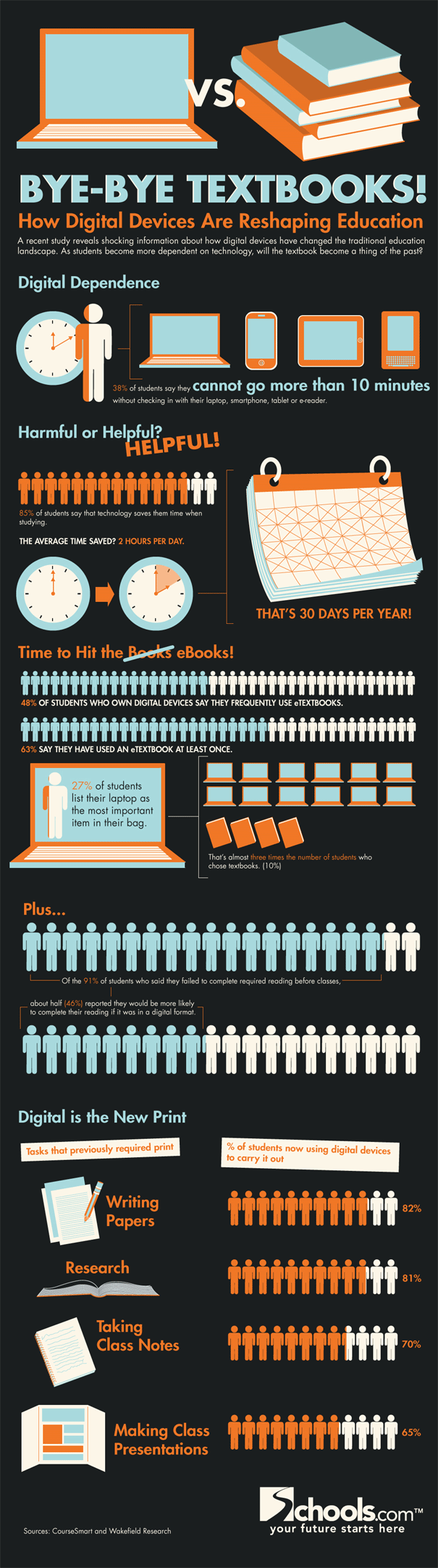
Next, let's take a look at textbooks.  Those costly but sometimes essential resources for a college course.  This infographic explores the benefits and challenges of digital textbooks.
Digital Textbooks Infographic  - http://hbculifestyle.com/wp-content/uploads/2011/08/digital-textbooks.gif
Click to see full graphic. Source: http://hbculifestyle.com/wp-content/uploads/2011/08/digital-textbooks.gif
This infographic looks at how the digital world is impacting student experiences and learning.  
Student Cyborg Infographic - http://thumbnails.visually.netdna-cdn.com/infographic-how-technology-is-facilitating-education_50290f237b01d.jpg
Click to see full graphic. Source: http://thumbnails.visually.netdna-cdn.com/infographic-how-technology-is-facilitating-education_50290f237b01d.jpg
Similar to the one above, this infographic considers the go-to Apps that are impacting education for students and educators alike.
Apps & Education Infographic http://www.collegerecruiter.com/blog/wp-content/uploads/2012/08/Apps-and-Education-Infographic.png
Click to see full graphic. Source: http://www.collegerecruiter.com/blog/wp-content/uploads/2012/08/Apps-and-Education-Infographic.png
Continuing along these lines, this infographic considers the impact on the classroom that digital technology is impacting. 
Digital Classroom Infographic http://techloy.com/wp-content/uploads/2012/02/Digital-Classroom-Infographic.png
Click to see full graphic. Source: http://techloy.com/wp-content/uploads/2012/02/Digital-Classroom-Infographic.png
Here, we have an infographic on gamification in education (which if you want a sense of what that looks like, I encourage you to check out Jane McGonical's TED Talk, Gaming Can Make a Better World).

Gamification in Education Infographic http://s.knewton.com/wp-content/uploads/gamification-education.png
Click to see full graphic. Source: http://s.knewton.com/wp-content/uploads/gamification-education.png
 Interestingly, this infographic explores usage and interest among faculty and instructors with regards to social media.  We're familiar with students' usage, but there isn't much talking about instructor usage.  
Instructors and Social Media Infographic http://www.saltywaffle.com/wp-content/uploads/2011/10/social-media-2011-2010-infographic.gif
Click to see full graphic. Source: http://www.saltywaffle.com/wp-content/uploads/2011/10/social-media-2011-2010-infographic.gif
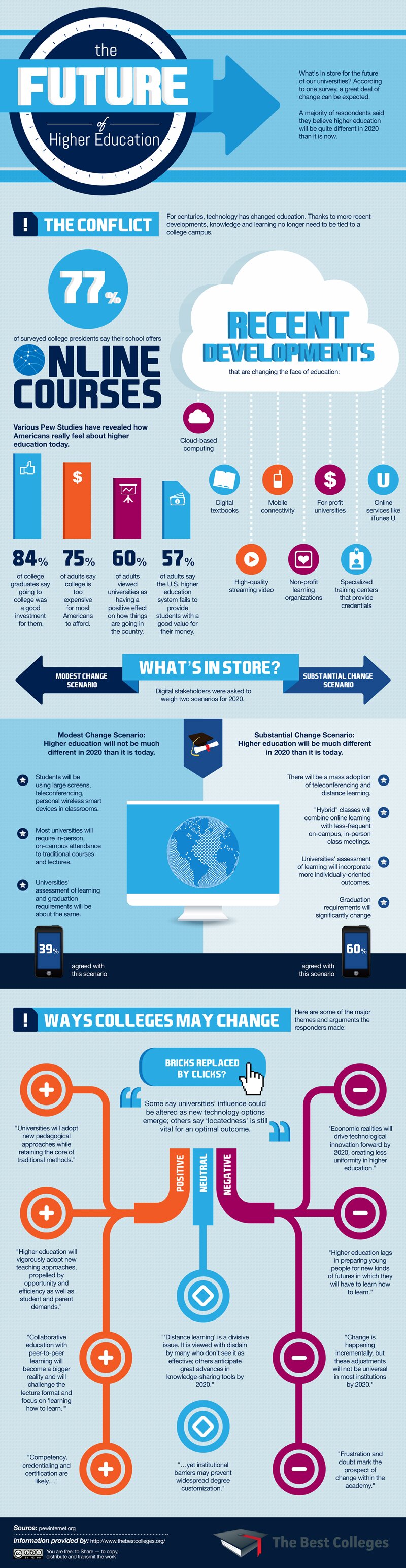
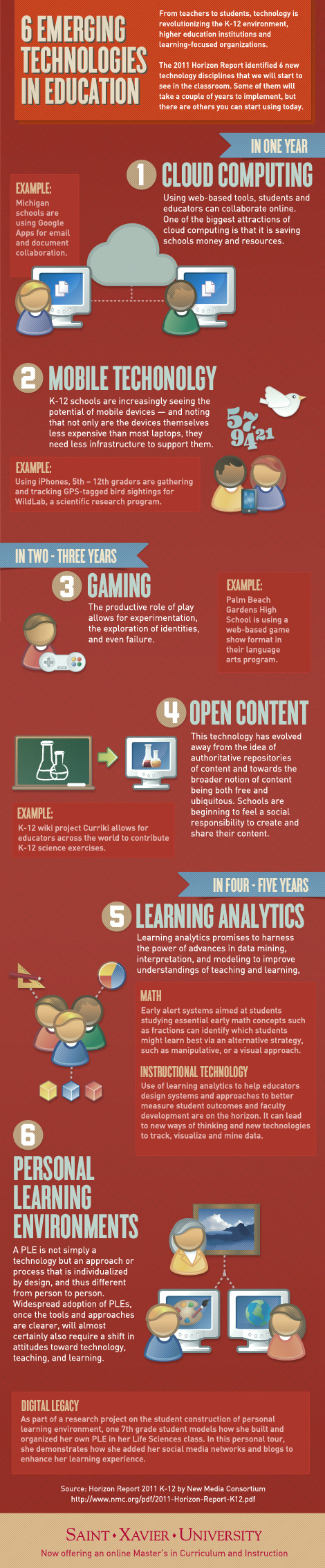
These last two infographics explore the future of higher education.  
Future of Higher Education Infographic - http://collegeof2020.com/wp-content/uploads/2012/12/The-Future-Of-Higher-Education-800.jpeg
Click to see full graphic. Source: http://collegeof2020.com/wp-content/uploads/2012/12/The-Future-Of-Higher-Education-800.jpeg
6 Emerging Trends in Higher Education - http://www.peterpappas.com/images//2012/02/six-emerging-technologies-in-education.jpg
Click to see full graphic. Source: http://www.peterpappas.com/images//2012/02/six-emerging-technologies-in-education.jpg
Infographics are not beyond your own abilities.  There's lots of advice about what makes a good infographic.  There's also resources and tools out there to help you make an infographic. 

What infographics do you enjoy?  What are some of your favorite sources for infographics?

Thursday, January 31, 2013

Mobile Devices in the Classroom

This blog post was developed by the ITD Team (Andrea Milligan, David Houle, Lance Eaton and Pat Lavoie).

Though we should be deliberate in how we embrace mobile technology, what are some of the ways in which it can enhance our classroom experiences and student learning? In mid-January, the Instructional Technology and Design team facilitated a conversation with faculty on this topic during a Mobile Devices in the Classroom workshop. Potential benefits and challenges were explored along with a discussion around potential useful classroom applications.

When it comes to mobile devices in the classroom, it is clear that they can provide some great advantages to making it a more rewarding experience.  Mobile devices can be used to
  • Provide students with instant access to the world in the classroom. This is great for looking up words that they are unfamiliar with, translating words they do not know, incorporating data into the discussion, doing research on a topic being discussed in class and communicating with experts.
  • Provide students with opportunities to engage, interact, and create in a classroom environment and beyond that may not have been previously possible.  Students can create presentations on the fly, develop videos encapsulating a conceptual process, manipulate interactive course materials, or work together on writing something within the class without hovering over each others' shoulders.
However, there are definitely challenges to consider and overcome: 
  • Access to mobile devices:  Not every student will have access to a mobile device.  One way of overcoming this is having students work in groups around an activity that uses a mobile device.  Another way is to plan ahead and give students choices about doing the work in class or on their own in the computer labs or at home.
  • Cost of apps:  If you are going to be using various mobile tools, be careful about requiring students to purchase apps.  While students may be able to get financial aid for books, money for apps is likely to come out of their own pocket.  An alternative to this is to focus on free apps (of which there are plenty) or work with web-based free programs (e.g. Poll Everywhere).
  • Cost of data plans:  Be careful about how much demand you put on the students' mobile devices in terms of the data they need to use.  Some students pay per individual text or have limited texting plans and others may have smart phones but with limited data plans.  A good approach to this would be to remind students that they can log onto the school's Wi-Fi to avoid using their own data plans (texting charges would still apply).
  • Platform plurality:  There are many different platforms when it comes to mobile devices--it is not just Android, Apple, & Windows, but we are also dealing with smart phones, tablets, and laptops.  When you are looking to employ mobile devices in the classroom, it is important to find strategies that are platform agnostic in that they can be used on all platforms.  This might require some additional research to provide options for people on different platforms.  A tool like EdShelf allows you to seach for tools by platform.  Or, when trying to find particular apps, look beyond the platform-specific app store as many apps are available on multiple platforms.
  • Technical support:  Students are going to have technical issues with their devices and the software employed.  Be sure to have a reference guide for the different types of support (e.g. the school's Helpdesk, the app's support link, etc). 
  • Physical tech support:  It is important to think about battery life and access to power sources.  Some mobile devices will not last more than 3-4 hours of continued use.  Students will need to be aware of where the power outlets are.  You may need to consider different seating accomodations during a project to allow for access to power outlets.  You might also want to consider providing students with advance notice, if possible, of a mobile activity so they can come to class with their devices charged.
  • Printing support:  Be sure to direct students to this link so they know that mobile printing has now been enabled for certain mobile devices in certain locations on NSCC's campuses.  This would come in handy, particularly, for students using their mobile devices to write papers.
  • Projection support:  Depending on the device, you may or may not be able to hook it up to classroom projector (if in a smart classroom).  Additional cables might be needed to hook up your mobile device to the projector so you will want to think about this ahead of time and look at the nature of the classroom to determine what you should have. 
  • Instructional support:  Students' do not intuitively know what to do with the mobile devices for instructional purposes and they may not full understand what is expected of them in using a mobile device inside or outside of class.  As an instructor, you will want to provide clear guidelines about how students will be using the mobile devices and the means by which they can achieve "success" when using them in your course. 
  • Familiarity:  Some students are likely to be neophytes to the particular app or usage of technology that you are employing for class.  A good way to help students avoid feeling overwhelmed by mobile device use is to give them some time to play with the particular tool/app/device and gain some familiarity with it.  Additionally, you might create a low-stakes assignment for them to do so they will gain some confidence with the device.
  • Appropriate usage:  As tools, mobile devices can do wonderful things, but students are likely to be easily distracted by them so it is important to prepare for such challenges within the class.  Several recommendations for making mobile devices useful but not a distraction would include:
    • Clear guidelines and expectations about proper usage added into the syllabus and/or covered in class.
    • Direct work on mobile devices towards a particular goal or project (that is, require a "finished product" as proof of their usage).
    • Identify a particular window of time in which they can use the device and provide them with a challenge to accomplish in that limited time.
Resources:  Here are some great resources to consider for different ways of using mobile devices for the purposes of learning. 

Engage
Create
  • Evernote - "Makes it easy to remember things big and small from your everyday life using your computer, phone, tablet and the web."
    http://evernote.com/
  • Skitch - "Get your point across with fewer words using annotation, shapes and sketches".
    http://evernote.com/skitch/
  • Web Clipper - "From interests to research, save anything you see online—including text, links and images—into your Evernote account with a single click."
    http://evernote.com/webclipper/ 
  • Evernote Peek - "Turn your notes, audio and image in Evernote into study materials with Evernote Peek."
    http://evernote.com/peek/ 
  • EduCreations - "Teach what you know. Learn what you don't."
    http://www.educreations.com/ 
  • Prezi - "A presentation tool that helps you organize and share your ideas."
    http://prezi.com/
Collaborate
  • Google+ - "Share the right things with the right people."
    http://plus.google.com
  • Google Drive - "Do more than just store your files. Share files with exactly who you want and edit them together, from any device."
    http://drive.google.com
  • DropBox - "A service that lets you bring your photos, docs, and videos anywhere and share them easily."
    https://www.dropbox.com/
  • Trello - "A collaboration tool that organizes your projects into boards. In one glance, Trello tells you what's being worked on, who's working on what, and where something is in a process."
    https://trello.com/ 
  • inClass - "Organize your schedule.  Share your notes."
    http://www.inclassapp.com/
Research
For More
You can also check out our Prezi presentation:


We would love to hear from you.  Are you using mobile devices in the classroom?  If so, how are you using them?  What benefits or challenges do you see around using mobile devices in the classroom?  What apps are you or your students using?