Showing posts with label tips. Show all posts

Friday, January 3, 2020

Preparing for Spring 2020 Courses in Blackboard Learn

As you start to think about your spring courses, we wanted to share with you the following important information that will help you prepare your course site in Blackboard Learn.

Copying a Course
To copy a previous course site into a new one in Blackboard Learn:
  1. Go into the course site that has the content to copy. In the Control Panel, expand the "Packages and Utilities" section and click Course Copy.
  2. On the next screen, in the “Select Copy Type” section, make sure Copy Course Materials into Existing Course is selected in the drop down menu.
  3. Now, in the “Select Copy Options” section, next to the Destination Course ID field, click Browse. Then, find and select the Course ID for the new course (the one you want to put the content into). Click Submit.
  4. Select the Course Materials that you want to copy over to the new course. Usually, Select All is the best choice, although you might not want to copy announcements.
    1. If Select All is not used, make sure to include Grade Center Columns and Settings if Assignments and/or Tests are being copied.
    2. Also, under Discussion Board, select Include only the forums, with no starter posts if threads are not created by the instructor for students to respond to. If not, all student threads will copy over as anonymous and they will need to be deleted.
  5. In the “File Attachments” section, keep the default settings.
  6. Click Submit.
Please note: When a previous course site is copied over into a new course site, any new or changed content areas will be added to the bottom of the course menu.

Make Your Course Available
All Blackboard Learn course sites are unavailable to students by default. Here are the directions for making the course site available to your students. If you are in your course site, you should see a lock icon up at the top of your course site (to the left of Edit Mode). If you click that lock icon, it will make the course available to students. 

If you do not see the lock icon, here are the directions for making it available to your students.

To open your course:
  1. Go into the course site.
  2. On the Control Panel, expand the "Customization" section and click Properties.
  3. On the next screen, in the "Set Availability" section, select Yes to make the course available.
  4. Click Submit.
Preparing a Blackboard Learn Course Site for a New Semester
Please check out this handy reference at http://goo.gl/pZbUZ8 to help you prepare a  Blackboard Learn course site for a new semester.

Blackboard Learn Pre-Semester Course Checklist
Once you course has been copied over, please review this checklist at https://goo.gl/18q3r5 to help you make sure your course site in Blackboard Learn is ready to go for the upcoming semester. 


Please do not hesitate to contact the Blackboard Learn Helpdesk at bbhelp@northshore.edu if there are any issues with Blackboard Learn.

Friday, August 16, 2019

Preparing for Fall 2019 Courses in Blackboard Learn

As you start to think about your fall courses, we wanted to share with you the following important information that will help you prepare your course site in Blackboard Learn.

Copying a Course
To copy a previous course site into a new one in Blackboard Learn:
  1. Go into the course site that has the content to copy. In the Control Panel, expand the "Packages and Utilities" section and click Course Copy.
  2. On the next screen, in the “Select Copy Type” section, make sure Copy Course Materials into Existing Course is selected in the drop down menu.
  3. Now, in the “Select Copy Options” section, next to the Destination Course ID field, click Browse. Then, find and select the Course ID for the new course (the one you want to put the content into). Click Submit.
  4. Select the Course Materials that you want to copy over to the new course. Usually, Select All is the best choice, although you might not want to copy announcements.
    1. If Select All is not used, make sure to include Grade Center Columns and Settings if Assignments and/or Tests are being copied.
    2. Also, under Discussion Board, select Include only the forums, with no starter posts if threads are not created by the instructor for students to respond to. If not, all student threads will copy over as anonymous and they will need to be deleted.
  5. In the “File Attachments” section, keep the default settings.
  6. Click Submit.
Please note: When a previous course site is copied over into a new course site, any new or changed content areas will be added to the bottom of the course menu.

Make Your Course Available
All Blackboard Learn course sites are unavailable to students by default. Here are the directions for making the course site available to your students. If you are in your course site, you should see a lock icon up at the top of your course site (to the left of Edit Mode). If you click that lock icon, it will make the course available to students. 

If you do not see the lock icon, here are the directions for making it available to your students.

To open your course:
  1. Go into the course site.
  2. On the Control Panel, expand the "Customization" section and click Properties.
  3. On the next screen, in the "Set Availability" section, select Yes to make the course available.
  4. Click Submit.
Preparing a Blackboard Learn Course Site for a New Semester
Please check out this handy reference at http://goo.gl/pZbUZ8 to help you prepare a  Blackboard Learn course site for a new semester.

Blackboard Learn Pre-Semester Course Checklist
Once you course has been copied over, please review this checklist at https://goo.gl/18q3r5 to help you make sure your course site in Blackboard Learn is ready to go for the upcoming semester. 


Please do not hesitate to contact the Blackboard Learn Helpdesk at bbhelp@northshore.edu if there are any issues with Blackboard Learn.

September Blackboard Learn Open Labs

CTLI's Instructional Technology and Design (ITD) team will be hosting a series of Blackboard Learn Open Labs during the first two weeks of the semester.

Faculty are welcome to drop by the open labs if they have any questions/issues or would like to come in to work on your courses and get assistance from CTLI ITD staff. CTLI ITD team members will be available to assist on both the Danvers and Lynn campuses.

Week of September 2nd
  • Tuesday, September 3rd from 9:00am-3:00pm in DB387 and LS314
  • Thursday, September 5th from 9:00am-3:00pm in DB387 and LS314
  • Friday, September 6th from 9:00am-3:00pm in DB387 and LS314   
Week of September 9th
  • Monday, September 9th from 9:00am-3:00pm in DB387 and LS313
  • Tuesday, September 10th from 9:00am-2:00pm in DB387 and LS313
  • Wednesday, September 11th from 9:00am-3:00pm in DB387 and LS313
  • Thursday, September 12th from 9:00am-3:00pm in DB387 and LS313
 
Also, please do not hesitate to contact the Blackboard Learn Helpdesk at bbhelp@northshore.edu if there are any issues with Blackboard Learn.

Tuesday, May 14, 2019

Preparing for Summer 2019 Courses in Blackboard Learn

As you start to think about your summer courses, we wanted to share with you the following important information that will help you prepare your course site in Blackboard Learn.

Copying a Course
To copy a previous course site into a new one in Blackboard Learn:
  1. Go into the course site that has the content to copy. In the Control Panel, expand the "Packages and Utilities" section and click Course Copy.
  2. On the next screen, in the “Select Copy Type” section, make sure Copy Course Materials into Existing Course is selected in the drop down menu.
  3. Now, in the “Select Copy Options” section, next to the Destination Course ID field, click Browse. Then, find and select the Course ID for the new course (the one you want to put the content into). Click Submit.
  4. Select the Course Materials that you want to copy over to the new course. Usually, Select All is the best choice, although you might not want to copy announcements.
    1. If Select All is not used, make sure to include Grade Center Columns and Settings if Assignments and/or Tests are being copied.
    2. Also, under Discussion Board, select Include only the forums, with no starter posts if threads are not created by the instructor for students to respond to. If not, all student threads will copy over as anonymous and they will need to be deleted.
  5. In the “File Attachments” section, keep the default settings.
  6. Click Submit.
Please note: When a previous course site is copied over into a new course site, any new or changed content areas will be added to the bottom of the course menu.

Make Your Course Available
All Blackboard Learn course sites are unavailable to students by default. Here are the directions for making the course site available to your students. If you are in your course site, you should see a lock icon up at the top of your course site (to the left of Edit Mode). If you click that lock icon, it will make the course available to students. 

If you do not see the lock icon, here are the directions for making it available to your students.

To open your course:
  1. Go into the course site.
  2. On the Control Panel, expand the "Customization" section and click Properties.
  3. On the next screen, in the "Set Availability" section, select Yes to make the course available.
  4. Click Submit.
Preparing a Blackboard Learn Course Site for a New Semester
Please check out this handy reference at http://goo.gl/pZbUZ8 to help you prepare a  Blackboard Learn course site for a new semester.
 
Blackboard Learn Pre-Semester Course Checklist
Once you course has been copied over, please review this checklist at https://goo.gl/18q3r5 to help you make sure your course site in Blackboard Learn is ready to go for the upcoming semester. 


Please do not hesitate to contact the Blackboard Learn Helpdesk at bbhelp@northshore.edu if there are any issues with Blackboard Learn.

Monday, January 7, 2019

Preparing for Spring 2019 Courses in Blackboard Learn

As you start to think about your spring courses, we wanted to share with you the following important information that will help you prepare your course site in Blackboard Learn.

Copying a Course
To copy a previous course site into a new one in Blackboard Learn:
  1. Go into the course site that has the content to copy. In the Control Panel, expand the "Packages and Utilities" section and click Course Copy.
  2. On the next screen, in the “Select Copy Type” section, make sure Copy Course Materials into Existing Course is selected in the drop down menu.
  3. Now, in the “Select Copy Options” section, next to the Destination Course ID field, click Browse. Then, find and select the Course ID for the new course (the one you want to put the content into). Click Submit.
  4. Select the Course Materials that you want to copy over to the new course. Usually, Select All is the best choice, although you might not want to copy announcements.
    1. If Select All is not used, make sure to include Grade Center Columns and Settings if Assignments and/or Tests are being copied.
    2. Also, under Discussion Board, select Include only the forums, with no starter posts if threads are not created by the instructor for students to respond to. If not, all student threads will copy over as anonymous and they will need to be deleted.
  5. In the “File Attachments” section, keep the default settings.
  6. Click Submit.
Please note: When a previous course site is copied over into a new course site, any new or changed content areas will be added to the bottom of the course menu.

Make Your Course Available
All Blackboard Learn course sites are unavailable to students by default. Here are the directions for making the course site available to your students. If you are in your course site, you should see a lock icon up at the top of your course site (to the left of Edit Mode). If you click that lock icon, it will make the course available to students. 

If you do not see the lock icon, here are the directions for making it available to your students.

To open your course:
  1. Go into the course site.
  2. On the Control Panel, expand the "Customization" section and click Properties.
  3. On the next screen, in the "Set Availability" section, select Yes to make the course available.
  4. Click Submit.
Preparing a Blackboard Learn Course Site for a New Semester
Please check out this handy reference at http://goo.gl/pZbUZ8 to help you prepare a  Blackboard Learn course site for a new semester.

Please do not hesitate to contact the Blackboard Learn Helpdesk at bbhelp@northshore.edu if there are any issues with Blackboard Learn.

Thursday, August 23, 2018

September Blackboard Learn Open Labs

CTLI's Instructional Technology and Design (ITD) team will be hosting a series of Blackboard Learn Open Labs during the first two weeks of the semester.

Faculty are welcome to drop by the open labs if they have any questions/issues or would like to come in to work on your courses and get assistance from CTLI ITD staff. CTLI ITD team members will be available to assist on both the Danvers and Lynn campuses.

Week of September 3rd
  • Tuesday, September 4th from 9:00am-3:00pm in DB387 and LS319
  • Thursday, September 6th from 9:00am-3:00pm in DB387 and LS319
  • Friday, September 7th from 9:00am-3:00pm in DB387 and LS319    
Week of September 10th
  • Monday, September 10th from 9:00am-3:00pm in DB387 and LS319
  • Tuesday, September 11th from 9:00am-2:00pm in DB387 and LS319
  • Wednesday, September 12th from 9:00am-3:00pm in DB387 and LS319
  • Thursday, September 13th from 9:00am-3:00pm in DB387 and LS319 
   
Also, please do not hesitate to contact the Blackboard Learn Helpdesk at bbhelp@northshore.edu if there are any issues with Blackboard Learn.

Friday, August 17, 2018

Preparing for Fall 2018 Courses in Blackboard Learn

As you start to think about your fall courses, we wanted to share with you the following important information that will help you prepare your course site in Blackboard Learn.

Copying a Course
To copy a previous course site into a new one in Blackboard Learn:
  1. Go into the course site that has the content to copy. In the Control Panel, expand the "Packages and Utilities" section and click Course Copy.
  2. On the next screen, in the “Select Copy Type” section, make sure Copy Course Materials into Existing Course is selected in the drop down menu.
  3. Now, in the “Select Copy Options” section, next to the Destination Course ID field, click Browse. Then, find and select the Course ID for the new course (the one you want to put the content into). Click Submit.
  4. Select the Course Materials that you want to copy over to the new course. Usually, Select All is the best choice, although you might not want to copy announcements.
    1. If Select All is not used, make sure to include Grade Center Columns and Settings if Assignments and/or Tests are being copied.
    2. Also, under Discussion Board, select Include only the forums, with no starter posts if threads are not created by the instructor for students to respond to. If not, all student threads will copy over as anonymous and they will need to be deleted.
  5. In the “File Attachments” section, keep the default settings.
  6. Click Submit.
Please note: When a previous course site is copied over into a new course site, any new or changed content areas will be added to the bottom of the course menu.

Make Your Course Available
All Blackboard Learn course sites are unavailable to students by default. Here are the directions for making the course site available to your students. To open your course:
  1. Go into the course site.
  2. On the Control Panel, expand the "Customization" section and click Properties.
  3. On the next screen, in the "Set Availability" section, select Yes to make the course available.
  4. Click Submit.
Preparing a Blackboard Learn Course Site for a New Semester
Please check out this handy reference at http://goo.gl/pZbUZ8 to help you prepare a  Blackboard Learn course site for a new semester.

Please do not hesitate to contact the Blackboard Learn Helpdesk at bbhelp@northshore.edu if there are any issues with Blackboard Learn.

Monday, May 7, 2018

Preparing for Summer 2018 Courses in Blackboard Learn

As you start to think about your summer courses, we wanted to share with you the following important information that will help you prepare your course site in Blackboard Learn.

Copying a Course
To copy a previous course site into a new one in Blackboard Learn:
  1. Go into the course site that has the content to copy. In the Control Panel, expand the "Packages and Utilities" section and click Course Copy.
  2. On the next screen, in the “Select Copy Type” section, make sure Copy Course Materials into Existing Course is selected in the drop down menu.
  3. Now, in the “Select Copy Options” section, next to the Destination Course ID field, click Browse. Then, find and select the Course ID for the new course (the one you want to put the content into). Click Submit.
  4. Select the Course Materials that you want to copy over to the new course. Usually, Select All is the best choice, although you might not want to copy announcements.
    1. If Select All is not used, make sure to include Grade Center Columns and Settings if Assignments and/or Tests are being copied.
    2. Also, under Discussion Board, select Include only the forums, with no starter posts if threads are not created by the instructor for students to respond to. If not, all student threads will copy over as anonymous and they will need to be deleted.
  5. In the “File Attachments” section, keep the default settings.
  6. Click Submit.
Please note: When a previous course site is copied over into a new course site, any new or changed content areas will be added to the bottom of the course menu.
    
Making your Course Shell Available to Students
When your course shell is ready for students to view, you will need to give them access. All course sites are unavailable to students by default. You can easily make your course sites available from the My Home page using the Qwickly multi-course tool.

If you are in your course site, here are the directions for making it available to your students. To open your course:

  1. In your Blackboard Learn course shell, in the Control Panel, expand the Customization section and click Properties. 
  2. On the next screen, scroll down to the “Set Availability” section and select Yes to make the course available.Note: We recommend that you select Yes instead of Use Term Availability. Term Availability is set to the last day of classes and will close your course site that day (even though your students might still need access to finish up the course). 
  3. Click Submit to enable your students to see and access your course shell.
     
Preparing your Blackboard Learn Course Site for a New Semester
If you have already been using Blackboard Learn for your courses, please check out this handy reference to help you prepare your Blackboard Learn course site for a new semester at http://goo.gl/pZbUZ8.
  
Blackboard Learn Pre-semester Course Checklist
Once you course has been copied over, please review this checklist at https://goo.gl/18q3r5 to help you make sure your course site in Blackboard Learn is ready to go for the upcoming semester. 

   
Please do not hesitate to contact the Blackboard Learn Helpdesk at bbhelp@northshore.edu if there are any issues with Blackboard Learn.

Tuesday, January 2, 2018

Preparing for Spring 2018 Courses in Blackboard Learn

As you start to think about your spring courses, we wanted to share with you the following important information that will help you prepare your course site in Blackboard Learn.

Copying a Course
To copy a previous course site into a new one in Blackboard Learn:
  1. Go into the course site that has the content to copy. In the Control Panel, expand the "Packages and Utilities" section and click Course Copy.
  2. On the next screen, in the “Select Copy Type” section, make sure Copy Course Materials into Existing Course is selected in the drop down menu.
  3. Now, in the “Select Copy Options” section, next to the Destination Course ID field, click Browse. Then, find and select the Course ID for the new course (the one you want to put the content into). Click Submit.
  4. Select the Course Materials that you want to copy over to the new course. Usually, Select All is the best choice, although you might not want to copy announcements.
    1. If Select All is not used, make sure to include Grade Center Columns and Settings if Assignments and/or Tests are being copied.
    2. Also, under Discussion Board, select Include only the forums, with no starter posts if threads are not created by the instructor for students to respond to. If not, all student threads will copy over as anonymous and they will need to be deleted.
  5. In the “File Attachments” section, keep the default settings.
  6. Click Submit.
Please note: When a previous course site is copied over into a new course site, any new or changed content areas will be added to the bottom of the course menu.
    
Making your Course Shell Available to Students
When your course shell is ready for students to view, you will need to give them access. All course sites are unavailable to students by default. You can easily make your course sites available from the My Home page using the Qwickly multi-course tool.

If you are in your course site, here are the directions for making it available to your students. To open your course:

  1. In your Blackboard Learn course shell, in the Control Panel, expand the Customization section and click Properties. 
  2. On the next screen, scroll down to the “Set Availability” section and select Yes to make the course available. Note: We recommend that you select Yes instead of Use Term Availability. Term Availability is set to the last day of classes and will close your course site that day (even though your students might still need access to finish up the course). 
  3. Click Submit to enable your students to see and access your course shell.
     
Preparing your Blackboard Learn Course Site for a New Semester
If you have already been using Blackboard Learn for your courses, please check out this handy reference to help you prepare your Blackboard Learn course site for a new semester at http://goo.gl/pZbUZ8.
  
Blackboard Learn Pre-semester Course Checklist
Once you course has been copied over, please review this checklist at https://goo.gl/18q3r5 to help you make sure your course site in Blackboard Learn is ready to go for the upcoming semester. 

   
Please do not hesitate to contact the Blackboard Learn Helpdesk at bbhelp@northshore.edu if there are any issues with Blackboard Learn.

Friday, December 16, 2016

Preparing for January Intersession and Spring 2017 Courses in Blackboard Learn

As you start to think about your January intersession and spring courses, we wanted to share with you the following important information that will help you prepare your course site in Blackboard Learn.

Copying a Course
To copy a previous course site into a new one in Blackboard Learn:
  1. Go into the course site that has the content to copy. In the Control Panel, expand the "Packages and Utilities" section and click Course Copy.
  2. On the next screen, in the “Select Copy Type” section, make sure Copy Course Materials into Existing Course is selected in the drop down menu.
  3. Now, in the “Select Copy Options” section, next to the Destination Course ID field, click Browse. Then, find and select the Course ID for the new course (the one you want to put the content into). Click Submit.
  4. Select the Course Materials that you want to copy over to the new course. Usually, Select All is the best choice, although you might not want to copy announcements.
    1. If Select All is not used, make sure to include Grade Center Columns and Settings if Assignments and/or Tests are being copied.
    2. Also, under Discussion Board, select Include only the forums, with no starter posts if threads are not created by the instructor for students to respond to. If not, all student threads will copy over as anonymous and they will need to be deleted.
  5. In the “File Attachments” section, keep the default settings.
  6. Click Submit.
Please note: When a previous course site is copied over into a new course site, any new or changed content areas will be added to the bottom of the course menu.

Make Your Course Available
All Blackboard Learn course sites are unavailable to students by default. Here are the directions for making the course site available to your students. To open your course:
  1. Go into the course site.
  2. On the Control Panel, expand the "Customization" section and click Properties.
  3. On the next screen, in the "Set Availability" section, select Yes to make the course available.
  4. Click Submit.
Preparing a Blackboard Learn Course Site for a New Semester
Please check out this handy reference at http://goo.gl/pZbUZ8 to help you prepare a  Blackboard Learn course site for a new semester.

Please do not hesitate to contact the Blackboard Learn Helpdesk at bbhelp@northshore.edu if there are any issues with Blackboard Learn.

Wednesday, November 2, 2016

iDevelop – NSCC’s Faculty Professional Development eNewsletter (10/31/2016)

Welcome to iDevelop, a weekly eNewsletter providing faculty with information about professional development opportunities at NSCC. The intent of this eNewsletter is to spotlight the various professional development events for faculty in one convenient location as well as share best practices, resources and tips related to the teaching practice. iDevelop is being brought to you by the Center for Teaching, Learning, and Innovation (CTLI).
  
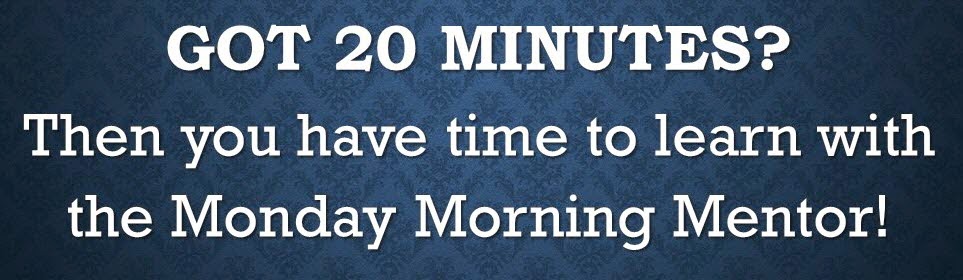
Sign reads:  Got 20 minutes?  Then you have time to learn with the Monday Morning Mentor

20 Minute Online Professional Development: Beyond the Discussion Board: How Can I Engage Online Students?
The Monday Morning Mentor series will be available over the fall semester to bring you professional development in twenty minute snippets. The topic for the week of October 31st is Beyond the Discussion Board: How Can I Engage Online Students? The presentation is available Monday at 10:00am and is accessible through Sunday of that week. For information on accessing the presentation and supplemental materials, please view the Bulletin or the email version of iDevelop. 

More information about this session (including description, topics, and learning goals) is available at http://www.magnapubs.com/online/mentor/beyond-the-discussion-board-how-can-i-engage-online-students-13725-1.html. The complete fall schedule of Monday Morning Mentor sessions is available at http://nscclets.blogspot.com/2016/08/20-minute-mentor-online-faculty.html. Looking for transcripts of past Monday Morning Mentor sessions? Please email ctli@northshore.edu with the session title and we can provide you with the transcript and supplementary materials.

Other Professional Development Opportunities
  • Technology Across the Curriculum Grants. The Technology Across the Curriculum (TAC) Committee invites all NSCC full-time faculty, part-time faculty, and professional teaching staff to submit applications to develop a TAC project in the spring of 2017 with implementation in the summer or fall of 2017. Fall application materials are now available and proposals are due by 11:59PM on Tuesday, November 15th. More information on the TAC Grants is available at http://nscclets.blogspot.com/2016/10/technology-across-curriculum-grant.html.
     
Upcoming Webinars of Interest Resources
Share Teaching Resources or Professional Development Opportunities
If you have any teaching resources that you would like to share with other NSCC faculty or know of any other professional development opportunities that NSCC faculty might be interested in, please feel free to send them to ctli@northshore.edu and we will share them in the upcomimg issues of iDevelop.


We hope you enjoy this weekly eNewsletter and would love your input. Please let us know if you have any feedback on the format, content, and resources or if there is anything else you would like to see in the eNewsletter.

Thank you,
Center for Teaching, Learning, and Innovation

Monday, September 26, 2016

Upcoming Archive/Re​moval of Blackboard Learn Course Sites

As outlined in the NSCC Blackboard Learn Course Archive Policy, Instructional Technology and Design (ITD) is in the process of archiving older Blackboard Learn course sites and removing them from the Blackboard Learn server. We wanted to provide you with advanced notice before any course sites are deleted from the Blackboard Learn server. 

Below is an outline of the timeline for archiving and deleting courses from the Blackboard Learn server.
  • Course sites from Summer 2015 - Will be removed from the Blackboard Learn server and placed in archive on October 1, 2016. Summer 2015 courses are scheduled to be permanently deleted from archive on February 1, 2020.
  • Archived course sites from Spring 2012 - These ANGEL archived course sites will be permanently deleted from our archive drive on October 1st.
As a best practice, we always recommend that you download a copy of your Grade Center for each course at the end of the semester. This can be done in Blackboard Learn under the Full Grade Center > Work Offline > Download.

You always have the option of generating your own archive and there are several available options for storage, including:
  • Your P: Drive network folder (only accessible on campus)
  • Your Google Drive, accessible through the your  NSCC email account
  • A personal storage medium, i.e. USB drive, portable hard disk, computer, CD
  • External cloud storage solutions, available at little to no cost (such as Dropbox or SkyDrive)
Directions for generating your own course archive (content and student data) package are available at: https://goo.gl/JTwvzE. Staff members from ITD are available to assist you in archiving your Blackboard Learn course sites. If you need assistance, please email the Blackboard Learn Helpdesk at bbhelp@northshore.edu.

If you have any questions about this, please do not hesitate to contact us at itd@northshore.edu.

Thursday, September 15, 2016

iDevelop – NSCC’s Faculty Professional Development eNewsletter (9/12/2016)

Welcome to iDevelop, a weekly eNewsletter providing faculty with information about professional development opportunities at NSCC. The intent of this eNewsletter is to spotlight the various professional development events for faculty in one convenient location as well as share best practices, resources and tips related to the teaching practice. iDevelop is being brought to you by Instructional Technology and Design (ITD) and the Center for Teaching, Learning, and Assessment (CTLA).
  
Sign reads:  Got 20 minutes?  Then you have time to learn with the Monday Morning Mentor

20 Minute Online Professional Development: How Can I Save Time and Money by Repurposing Online Content?
The Monday Morning Mentor series will be available over the fall semester to bring you professional development in twenty minute snippets. The topic for the week of September 12th is How Can I Save Time and Money by Repurposing Online Content? The presentation is available Monday at 10:00am and is accessible through Sunday of that week. For information on accessing the presentation and supplemental materials, please view the Bulletin or the email version of iDevelop. 

More information about this session (including description, topics, and learning goals) is available at http://www.magnapubs.com/online/mentor/how-can-i-save-time-and-money-by-repurposing-online-content-13768-1.html. The complete fall schedule of Monday Morning Mentor sessions is available at http://nscclets.blogspot.com/2016/08/20-minute-mentor-online-faculty.html.

Other Professional Development Opportunities
  • Blackboard Learn Open Labs. Need help with Blackboard Learn? Over the next week, ITD will be offering a series of Open Labs in Danvers and Lynn. Please feel free to stop by for assistance. View the complete Open Lab Schedule at http://nscclets.blogspot.com/2016/08/august-and-september-blackboard-learn.html.
  • Smart Classroom Workshops. ITD will be offering two Smart Classroom workshops this week in Lynn. One will be on Tuesday, September 13th from 5:30 p.m. to 6:30 p.m. in LW329 and the other will be on Wednesday, September 14th from 7:30 a.m. to 8:30 a.m. in LW329. If you are interested in attending, please RSVP to itd@northshore.edu.
To stay current on professional development opportunities offered by Instructional Technology and Design over the academic year, be sure to:
  • Read the Learning, Education, Technology and Support (LETS) Blog at http://nscclets.blogspot.com/. ITD’s goal with this blog is to provide an informative and useful resource for faculty and staff by highlighting events, spotlighting projects, and presenting current information around instructional technology while also providing a growing pool of resources, recommendations, tools, and materials for teaching and learning purposes.
  • "Like" the North Shore Community College Instructional Technology and Design page on Facebook at https://www.facebook.com/myNSCC.acadtech. On the Instructional Technology and Design Facebook page, ITD provides information about upcoming professional development opportunities, links to interesting articles on integrating technology into the teaching and learning environment, and presents tips on using the various instructional technology resources.
Resources
Looking for a great resource to locate online content that you can reuse and recycle, check out the NSCC Open Educational Resources LibGuide at http://libguides.northshore.edu/open.
 

Share Teaching Resources or Professional Development Opportunities
If you have any teaching resources that you would like to share with other NSCC faculty or know of any other professional development opportunities that NSCC faculty might be interested in, please feel free to send them to itd@northshore.edu and we will share them in the upcomimg issues of iDevelop.

We hope you enjoy this weekly eNewsletter and would love your input. Please let us know if you have any feedback on the format, content, and resources or if there is anything else you would like to see in the eNewsletter.

Good luck with the start of the semester!

Thank you,
Instructional Technology and Design and the Center for Teaching, Learning, and Assessment

Thursday, September 8, 2016

iDevelop – NSCC’s Faculty Professional Development eNewsletter (9/5/2016)

Welcome to iDevelop, a weekly eNewsletter providing faculty with information about professional development opportunities at NSCC. The intent of this eNewsletter is to spotlight the various professional development events for faculty in one convenient location as well as share best practices, resources and tips related to the teaching practice. iDevelop is being brought to you by Instructional Technology and Design (ITD) and the Center for Teaching, Learning, and Assessment (CTLA).
  
Sign reads:  Got 20 minutes?  Then you have time to learn with the Monday Morning Mentor

20 Minute Online Professional Development: What is Essential in a Grading Policy?
The Monday Morning Mentor series will be available over the fall semester to bring you professional development in twenty minute snippets. The topic for the week of September 5th is What is Essential in a Grading Policy? The presentation is available Monday at 10:00am and is accessible through Sunday of that week. For information on accessing the presentation and supplemental materials, please view the Bulletin or the email version of iDevelop. 

More information about this session (including description, topics, and learning goals) is available at http://www.magnapubs.com/online/mentor/what-is-essential-in-a-grading-policy-13724-1.html The complete fall schedule of Monday Morning Mentor sessions is available at http://nscclets.blogspot.com/2016/08/20-minute-mentor-online-faculty.html.

Other Professional Development Opportunities
  • Blackboard Learn Open Labs. Need help with Blackboard Learn? Over the next 2 weeks, ITD will be offering a series of Open Labs in Danvers and Lynn. Please feel free to stop by for assistance. View the complete Open Lab Schedule at http://nscclets.blogspot.com/2016/08/august-and-september-blackboard-learn.html.
  • Smart Classroom Workshops. On Friday, September 9th, ITD will be offering a Smart Classroom workshop from 7:30 a.m. to 8:30 a.m. in Danvers Health, DH227. If you are interested in attending, please RSVP to itd@northshore.edu.
To stay current on professional development opportunities offered by Instructional Technology and Design over the academic year, be sure to:

  • Read the Learning, Education, Technology and Support (LETS) Blog at http://nscclets.blogspot.com/. ITD’s goal with this blog is to provide an informative and useful resource for faculty and staff by highlighting events, spotlighting projects, and presenting current information around instructional technology while also providing a growing pool of resources, recommendations, tools, and materials for teaching and learning purposes.
  • "Like" the North Shore Community College Instructional Technology and Design page on Facebook at https://www.facebook.com/myNSCC.acadtech. On the Instructional Technology and Design Facebook page, ITD provides information about upcoming professional development opportunities, links to interesting articles on integrating technology into the teaching and learning environment, and presents tips on using the various instructional technology resources.

Resources


Share Teaching Resources or Professional Development Opportunities
If you have any teaching resources that you would like to share with other NSCC faculty or know of any other professional development opportunities that NSCC faculty might be interested in, please feel free to send them to itd@northshore.edu and we will share them in the upcomimg issues of iDevelop.


We hope you enjoy this weekly eNewsletter and would love your input. Please let us know if you have any feedback on the format, content, and resources or if there is anything else you would like to see in the eNewsletter.

Good luck with the start of the semester!

Thank you,
Instructional Technology and Design and the Center for Teaching, Learning, and Assessment

Wednesday, August 24, 2016

iDevelop – NSCC’s Faculty Professional Development eNewsletter (8/22/2016)

Welcome to iDevelop, a weekly eNewsletter providing faculty with information about professional development opportunities at NSCC. The intent of this eNewsletter is to spotlight the various professional development events for faculty in one convenient location as well as share best practices, resources and tips related to the teaching practice. iDevelop is being brought to you by Instructional Technology and Design (ITD) and the Center for Teaching, Learning, and Assessment (CTLA).
  
Sign reads:  Got 20 minutes?  Then you have time to learn with the Monday Morning Mentor

20 Minute Online Professional Development: How Can I Communicate to Engage Students and Encourage Learning? The Monday Morning Mentor series will be available over the fall semester to bring you professional development in twenty minute snippets. The topic for the week of August 22nd is How Can I Communicate to Engage Students and Encourage Learning? The presentation is available Monday at 10:00am and is accessible through Sunday of that week. For information on accessing the presentation and supplemental materials, please view the Bulletin or the email version of iDevelop.

More information about this session (including description, topics, and learning goals) is available at http://www.magnapubs.com/online/mentor/How-can-i-communicate-to-engage-students-and-encourage-learning-13769-1.html. The complete fall schedule of Monday Morning Mentor sessions is available at http://nscclets.blogspot.com/2016/08/20-minute-mentor-online-faculty.html.
 
Other Professional Development Opportunities
  • Blackboard Learn and Smart Classroom Workshops. ITD is offering a series of Blackboard Learn workshops this week on Tuesday, Wednesday, and Thursday as well as Smart Classroom workshops in September. To view the complete schedule of workshop sessions (with descriptions) and to RSVP, please visit this web site: http://goo.gl/forms/rvefjBn85rmw1vyn1.
To stay current on professional development opportunities offered by Instructional Technology and Design over the academic year, be sure to:
  • Read the Learning, Education, Technology and Support (LETS) Blog at http://nscclets.blogspot.com/. ITD’s goal with this blog is to provide an informative and useful resource for faculty and staff by highlighting events, spotlighting projects, and presenting current information around instructional technology while also providing a growing pool of resources, recommendations, tools, and materials for teaching and learning purposes.
  • "Like" the North Shore Community College Instructional Technology and Design Page on Facebook at https://www.facebook.com/myNSCC.acadtech. On the Instructional Technology and Design Facebook page, ITD provides information about upcoming professional development opportunities, links to interesting articles on integrating technology into the teaching and learning environment, and presents tips on using the various instructional technology resources.
Resources
Share your Teaching Strategies – We Want your Ideas
With classes starting next week, we wanted to invite you to share your teaching strategies with each other, especially new faculty who are preparing for their first classes here at NSCC. If you could provide any advice, tips, best practices, or teaching strategies to new faculty to help them get started in their classes successfully what would it be? What do you wish someone told you during those first classes? Send an email with your teaching strategies to itd@northshore.edu and we will share them in the next few issues of iDevelop.

We hope you enjoy this weekly eNewsletter and would love your input. Please let us know if you have any feedback on the format, content, and resources or if there is anything else you would like to see in the eNewsletter.

Thank you,
Instructional Technology and Design and the Center for Teaching, Learning, and Assessment

Monday, August 15, 2016

Preparing for Fall 2016 Courses in Blackboard Learn

As you start to think about your fall courses, we wanted to share with you the following important information that will help you prepare your course site in Blackboard Learn.

Copying a Course
To copy a previous course site into a new one in Blackboard Learn:
  1. Go into the course site that has the content to copy. In the Control Panel, expand the "Packages and Utilities" section and click Course Copy.
  2. On the next screen, in the “Select Copy Type” section, make sure Copy Course Materials into Existing Course is selected in the drop down menu.
  3. Now, in the “Select Copy Options” section, next to the Destination Course ID field, click Browse. Then, find and select the Course ID for the new course (the one you want to put the content into). Click Submit.
  4. Select the Course Materials that you want to copy over to the new course. Usually, Select All is the best choice, although you might not want to copy announcements.
    1. If Select All is not used, make sure to include Grade Center Columns and Settings if Assignments and/or Tests are being copied.
    2. Also, under Discussion Board, select Include only the forums, with no starter posts if threads are not created by the instructor for students to respond to. If not, all student threads will copy over as anonymous and they will need to be deleted.
  5. In the “File Attachments” section, keep the default settings.
  6. Click Submit.
Please note: When a previous course site is copied over into a new course site, any new or changed content areas will be added to the bottom of the course menu.

Make Your Course Available
All Blackboard Learn course sites are unavailable to students by default. Here are the directions for making the course site available to your students. To open your course:
  1. Go into the course site.
  2. On the Control Panel, expand the "Customization" section and click Properties.
  3. On the next screen, in the "Set Availability" section, select Yes to make the course available.
  4. Click Submit.
Preparing a Blackboard Learn Course Site for a New Semester
Please check out this handy reference at http://goo.gl/pZbUZ8 to help prepare a  Blackboard Learn course site for a new semester.

Please do not hesitate to contact the Blackboard Learn Helpdesk at bbhelp@northshore.edu if there are any issues with Blackboard Learn.

Monday, November 30, 2015

Blackboard Learn Grade Center Tips

As you begin to record your grades you might to think about using the Blackboard Learn Grade Center. It can be a little complicated but all of us here in Instructional Technology and Design are more than happy to sit down with you and create a Grade Center that will work for you.

  1. For those of you that already use the Blackboard Learn Grade Center, I wanted to pass along a tip on how to “hide” information on other students if you want to show a student his/her grades in class. Go to the Grade Center and then to the Full Grade Center in your Course Management area. Look for the name of the student who wants to see his/her grade. If you click the chevron to the right of the student’s last name, you can select the option to “Hide Other Rows". This will display only that student’s grades. To return to the normal view of the Full Grade Center, click on the same chevron and select "Show All Rows" or you can visit another place within the course (e.g. Content) and then return to the Full Grade Center and it will be automatically repopulated with other students.  
  2. Sometimes I get emails in the Blackboard Learn Helpdesk from students saying that they cannot see a comment from the instructor in a particular assignment. In order for any comments to display in the student's My Grades, an instructor needs to have “graded” that assignment.
  3. Another email I get is from instructors who do not know what a particular icon in the Full Grade Center means. It can look like a triangle, an exclamation point, or even a shaded circle. If you notice this, you can click the “icon legend” to the bottom right of the Full Grade Center. All the icons are displayed there with their meanings.
  4. If you would like to print your Full Grade Center, go to the “Work Off Line” chevron in the upper right top of the Full Grade Center. Click “Download” and then "Submit" (you do not need to change any settings). This will download your Full Grade Center as a spreadsheet that can be opened in Excel and you should be able to access it wherever you typically have files download to.
I hope this helps as you get familiar with the Blackboard Learn Grade Center and, remember, you can always contact bbhelp@northshore.edu to set up an appointment for assistance.

Monday, September 14, 2015

Blackboard and You!

Ok, we have had Blackboard Learn for a year and it is going strong. For the most part, I have heard faculty say that they like the new system. They feel it is fairly easy to use and it offers so much more than the ANGEL system did.

However, as we use this new learning management system (LMS), there are a few things we need to keep in mind. It is ALWAYS important to read any notices that are posted on the Blackboard Learn "My Home" page under My Announcements. We will use that venue for any new information regarding Blackboard Learn. 

One example of the importance of checking those notices on Blackboard Learn is the recent post about Windows 10. If you are using Windows 10, you should be aware that the new “Edge” browser that accompanies Windows 10 does not work well with Blackboard Learn.

Probably the most important thing to look for is any post that contains browser information.  A very helpful section within Blackboard Learn is the “Check Your Browser” section. It is important to make sure you are using a supported browser when accessing the Blackboard Learn environment. Browsers receive updates frequently to ensure that they are secure to use. Blackboard Learn, on the other hand, receives major updates officially only twice a year. The upgrades can affect how Blackboard Learn interacts with the browser; and that is why it is so important to be aware of your browser’s compatibility with Blackboard Learn.

If one browser’s update causes issues, try another. For example, if you use Internet Explorer, try using Mozilla Firefox as your browser. In fact, Mozilla Firefox is probably the best browser for stability.

You might want make sure your settings are marked to notify you when there is an update and if you want to update. It is also important that you occasionally clear your cache, delete your cookies and cleanse any temporary Internet files.

That’s all for now. Enjoy the Blackboard Learn system and let us know if you have any questions. Contact us at bbhelp@northshore.edu.  

Wednesday, March 11, 2015

iDevelop – NSCC’s Faculty Professional Development eNewsletter (3/9/2015)

Welcome to iDevelop, a weekly eNewsletter providing faculty with information about professional development opportunities at NSCC. The intent of this eNewsletter is to spotlight the various professional development events for faculty in one convenient location as well as share best practices, resources and tips related to the teaching practice. iDevelop is being brought to you by Academic Technology and the Center for Teaching, Learning, and Assessment. 

20 Minute Online Professional Development: How Can I Use Twitter to Improve Teaching and Learning?

The Monday Morning Mentor series will be available over the spring semester to bring you professional development in twenty minute snippets. The topic for the week of March 9th is How Can I Use Twitter to Improve Teaching and Learning?

The presentation is available Monday at 10:00am and is accessible through Sunday of that week. For information on accessing the presentation and supplemental materials, please view the email version of iDevelop or the Bulletin notice.

More information about this session (including description, topics, and learning goals) is available at http://www.magnapubs.com/online/mentor/how-can-i-use-twitter-to-improve-teaching-and-learning-13265-1.html. The spring schedule of Monday Morning Mentor sessions is available at http://nscclets.blogspot.com/2015/01/20-minute-mentor-online-faculty.html.  


Other Professional Development Opportunities
  • TLSD Conference. This year's TLSD Conference will be held at Bristol Community College's Fall River campus on April 10th--that's just one month away! A number of NSCC staff, faculty, and administrators will be presenting (yay team NSCC!!) Because of the travel distance and conference registration costs (the CTLA is billed directly when people register and identify as NSCC employees), attendance is going to be really expensive this year. The CTLA can cover the cost of a limited number of NSCC attendees, so please contact the CTLA ASAP if you are certain that you will be attending. Presenters, we need to hear from you, too! Thank you! iDevelop is honored to serve such a selfless and knowledgeable community!
  • Blackboard Learn Workshops. Starting in summer 2015, Blackboard Learn will be available for faculty members teaching a face-to-face course that uses the learning management system as a supplement. ANGEL will no longer be available. If you teach a summer or fall course and currently use ANGEL, ITD will be offering a series of Blackboard Learn workshops over the March spring break. To view the complete schedule of workshop sessions (with descriptions) and to RSVP, please visit this web site: http://goo.gl/UIkoUk.
Resources
If you are interested in learning more about incorporating Twitter or other Web 2.0 tools into your classes, please contact ITD at itd@northshore.edu. We would be happy to brainstorm ideas and help you get started.

Share your Teaching Strategies

Do you use Twitter or other Web 2.0 tools in your classes to engage students? What tips and strategies do you have for other faculty who are interested in using some of these tools? Please send your teaching strategies to itd@northshore.edu and we will share them in the upcoming issues of iDevelop. 

iDevelop is being brought to you by Academic Technology and the Center for Teaching, Learning, and Assessment.  If you have any professional development events, best practices, resources or tips to share with other faculty, please send them our way.  Also, we would love your input on this eNewsletter.

Thank you,
Academic Technology and the Center for Teaching, Learning, and Assessment