Like many of us, I sometimes have a foreboding dread about opening my Gmail and being inundated with messages, both relevant and irrelevant to my work. For some, this probably prolongs opening it and further increasing the amount of potential emails in their inbox.
However, there are ways to mitigate email in efficient ways to save you time and the dread of opening an over-cluttered email box. This post examines how to get your email on mobile devices, how to forward your email, how to filter and organize your email, and finally, how to more quickly respond to certain perfunctory communications.
1. Email on Mobile Devices.
Faculty and staff are often interested in getting their school email on mobile devices, particularly their phones. This allows them to deal with the emails in smaller batches (a few at a time rather than scores). If you have a mobile device that is Internet enabled and would like to receive your email on it, the best place to go to is Pipeline. In Pipeline, one of the tabs is specifically dedicated to Gmail explaining a variety of great tools and information (The "Gmail Is Here" tab). Specifically, the tab contains step-by-step instructions on how to program your smartphones to receive email.
2. Forwarding Gmail
Some folks don't necessarily want to deal with several different email streams into their mobile devices. Instead, they would just prefer their email forwarded to their personal email. The advantage to this is that at least the person knows what's in the work email box, but does not feel obligated (real or imagined) to respond right at the moment he or she receives a work-related email. This works even better when you create filters to identify the email (see below).
You can get the step-by-step Google guide to forwarding your NSCC Gmail account here or you can also check out this video that shows how.
3. Labelling Email
A great method that I use to keep my email organized is labelling. Labels are akin to folders in other email systems. Email can be labelled to help you quickly determine where to put that email. For instance, I have all the newsletters, blog updates, etc that come in, labelled as "News." I'll create folders for different projects or types of correspondence (class related, order related, etc). As email come in, I can place it in the appropriate folder so that when I'm ready to look at that subject matter, all the emails are there waiting for me. But what's great about Gmail is that you can create filters to automatically label certain emails (from specific addresses, emails containing certain words, or other specific attributes).
You can get the step-by-step Google guide to labelling your NSCC Gmail account here or you can also check out this video that shows how.
4. Using Filters.
Filtering your email is a great way to save time and deal with only the most pressing emails as well as to organize everything coming into your inbox. This is a great way to either see your inbox highly organized or only filled with certain types of email. Maybe you serve on a committee; you can have any email from the people on that committee or any email containing the specific name of the committee (e.g. "Student Life Committee") be automatically tagged with a specific designation or moved out of your inbox and into label (that is, folder). Maybe you tell your students to always include the course title when emailing you and use that as a basis to filter those emails into a Student folder. This is a highly versatile tool for keeping that inbox from overloading you.
You can get the step-by-step Google guide to filters for your NSCC Gmail account here or you can also check out this video that shows how.
5. Canned Responses
Are there certain emails that you grow tired writing (and writing again and again)? There's a tool for that within Gmail. Faculty can create canned responses that they can quickly send off with just a few clicks. A good example for this is if you are taking submissions from students and want to confirm without writing the same email time and again, you can send a canned response already on hand and save yourself substantive time. It's useful to look past your older sent emails and see what types of emails have you had to send regularly and then script those canned responses, ready to go whenever needed.
To learn how to activate the Canned Responses in Gmail and then how to create them, check out this video.
How do you manage your email in a way that doesn't overwhelm you?
Monday, December 17, 2012

Thursday, December 13, 2012
Preparing Your ANGEL Course for the Spring Semester
As you start to think about your spring courses, we wanted to share with you the following important information that will help you prepare your course site in ANGEL.
Please review the “Preparing your ANGEL Course for a New Semester” checklist for directions on getting your course site set up for a new semester.
If you have any questions, please contact us at angel@northshore.edu.
Please review the “Preparing your ANGEL Course for a New Semester” checklist for directions on getting your course site set up for a new semester.
If you have any questions, please contact us at angel@northshore.edu.
Thursday, December 6, 2012
For Ever and Ever and Evernote...
I
thought I would deviate from my usual ANGEL tips and mention an app on the iPad I have
started using called Evernote. This free app allows you to capture and store a
variety of different things, such as pictures, notes, and articles and then
allows you to share them across your different devices. Evernote is a great tool for helping you organize your documents or "notes" into what
it calls “Notebooks”. You can have many notebooks and even notebooks within a
notebook.
Any apps that you would like to share? We would love hearing about them!
I
downloaded the app to both my office computer and my iPad and the program will sync
between the two automatically (or I can manually sync if I want to be doubly
sure!). I find it very useful when I am at a meeting and want to record my
notes but not carry a big, cumbersome laptop.
I bring my iPad, type my notes and then I can either email them or
access them on my PC when I get back to my office. Evernote automatically stores your notes in the
Cloud so you can find them on either device. Your “ notes"
automatically save and sync.
Evernote
also assigns you a custom email address that you can use within your account.
You can email pictures, notes, etc. to that account and it will show up in your
Evernote account. Or you can quickly email your notes to someone.
There
are a couple of apps that Evernote works with. It connects with the drawing tool, Skitch. You are able to annotate, label, and markup
with arrows, shapes, word phrases, etc. to make your point and then share it
with others. It can demonstrate a point quickly and highlight what is important. Again, what's great is that it will automatically sync across your devices too. Once you download the app, it will ask you if
you would like to create a new notebook in Evernote called “Skitch” to house
your images.
There are great ways that these tools can be used. Imagine
this – you are an instructor of horticulture. You are in a meeting and have a
really interesting speaker who is demonstrating how to diagnose a particular
plant disease. You can type your notes
on your iPad, take a snapshot of the plant, show the diseased leaves by
pointing to it with an arrow and voila, when you get back to your office it shows
up on your computer! Or you could email it to your class and quickly point out
the information!
Another interesting Evernote app is called WebClipper. It will easily clip part of or all of any webpage, including text, graphics and links. With it you could collect anything that interests you and keep it forever, even if the original site goes away. It is not a free app but an interesting one.
Another interesting Evernote app is called WebClipper. It will easily clip part of or all of any webpage, including text, graphics and links. With it you could collect anything that interests you and keep it forever, even if the original site goes away. It is not a free app but an interesting one.
Any apps that you would like to share? We would love hearing about them!
Monday, December 3, 2012
Using Clickers to Help Facilitate Controversial Topics in the Classroom
One great way to use clickers in the classroom is to help facilitate discussion around controversial issues. What are your students' opinions on such topics as drug and alcohol use, government services, taxes, same-sex marriage, abortion, etc? Is it difficult to get students to speak up around controversial issues? A simple technology tool--the clicker--can be used to help poll students on these and other subjects and stimulate class discussion. Clickers allow for students to participate and answer such questions without necessarily feeling vulnerable and exposed for their beliefs. This can also help build trust and designate the classroom as a safe space to have good discussions on such topics, allowing for more meaningful conversations.
Here are a few good websites on strategies for using clickers on controversial topics, if you're interested in knowing more:
If you've been grappling with the idea of using clickers here at North Shore, please contact me at dhoule@northshore.edu.
We're just a "click" away! (sorry couldn't resist)
Here are a few good websites on strategies for using clickers on controversial topics, if you're interested in knowing more:
- Clickers facilitate discussion on controversial topics: http://pennwic.wordpress.com/2007/06/01/clickers-facilitate-discussion-on-controversial-topics/
- Clicker Teaching Strategies: https://wikis.pepperdine.edu/display/GSBME/Clicker+Teaching+Strategies
- Teaching with Clickers : Types of Activities: http://www.crlt.umich.edu/inst/clickeractivities
If you've been grappling with the idea of using clickers here at North Shore, please contact me at dhoule@northshore.edu.
We're just a "click" away! (sorry couldn't resist)
Thursday, November 29, 2012
Interview with David Weinberger

Lance: Let’s start
with two fun questions: Have you looked
at your Wikipedia Page? Have you been
tempted to modify it?
David: Not in years.
Of course I'm tempted to modify it. I don't think anyone ever fully agrees with
anything anyone ever says about her/him :)
And at one point it said I'm a Canadian, which is factually wrong;
someone fixed that eventually.
Lance: So besides the
title, what would be the best tweet-length description of the book?
David: The Internet
is letting us scale up knowledge, which is changing knowledge's nature. #2b2k . Not very exciting, but under 140 characters.
Lance: What were some
of the surprises or unexpected information/responses you had in composing the
book?
David: Hmm. Writing
is how I think and learn, so the fun part is that it's almost all surprising to
me. To be specific: I don't know.
Lance: Do you think
copyright law will change? Do you feel organizations
like Creative Commons have it right or is there another uncharted arena with
which to explore?
David: CC works
within existing copyright law; it lets you specify a far more useful and human
set of terms, without requiring a change to copyright law. It's wonderful. But
as most CC'ers would agree, we also need to change the law.
I thought the Republican Study Committee's report on copyright law, issued last Friday and withdrawn on Saturday, was a terrific
starting place.
Lance: You argue that
the Net isn’t as much as an echo-chamber as naysayers like to pretend it
is. That is, that people don't easily
slip into mob-mentality to validate and encourage their groupthink. Yet how would your argument apply to
something like cyber-bullying, where the same (if not similar) dynamic is at
play?
David: That's not
exactly what I meant. Echo chambers are real. But the fear that the Net is
nothing but an echo chamber seems to me to be based in part on a
misunderstanding of how conversation and understanding work. Conversation requires a huge amount of
agreement over values and beliefs, just as in an echo chamber. But nasty
negative echo chambers certainly exist.
Lance: Though you
applaud the multiplicity of knowledge in your book, you also note that there is
some knowledge that is or can be clearly wrong (To be honest; I forget if this
was specifically in the book or just from your lecture; can’t seem to find the
passage, so I’m not sure). Do you feel
society is heading towards a “knowledge cliff” in some capacity?
David: If the
post-cliff position is that we are not able to come to agreement, then we've
been over that cliff from the beginning. The Net has made it clear that we're
not going to come to agreement, even when the facts are clear. But we are also
discovering/inventing ways to deal fruitfully with disagreement. Not always,
but sometimes. There is hope, therefore -- not hope that we'll all agree
someday, but hope that we may learn to benefit from those disagreements.
Lance: Do you see any leaders (cultural, political, etc) that are working from the vantage point of the innate common ground between different groups/views?
David: These are what my friend Ethan Zuckerman calls "bridge" figures. He's writing about people interpreting one culture to another, but there are bridge figures across most of our differences. And, not to be too much of a Reddit fanboy, but IAMA's are a forum designed as bridges. As for particular people, well, I'm terrible at that type of recall.
Lance: You discuss a
lot of the positive elements of the Internet, but what bothers/frustrates you
the most about the Internet and the new forms of “knowledge”?
David: Everything,
except info overload. I don't buy that we're overloaded. But I am deeply
disturbed by the fact that people now can more firmly believe wrong ideas.
Lance: What advice do
you have for those who encounter the Internet with trepidation about the
information potentially made available to them?
David: Grow up. If
you want your information spoon-fed by a bunch of white men, get in your time
machine and go back 20 years. Otherwise, if you genuinely don't know what to
believe on the Internet, find some real-world friends on the Net and find some
mainstream authorities on the Net, and listen to them.
Lance: What do you
think will be the characteristics of next phenomenon on the Internet?
David: We won't know
until it happens. It may perhaps have to do with something that we can do at
scale that we otherwise couldn't have imagined.
Lance: You talk about
the idea that human brains can't process the depth of knowledge and complexity
in the world and on the Internet? Are we
on the path to the singularity?
David: If
"singularity" means being able to transfer consciousness to
computers, then no. That dream is based on an unwarranted belief that brains
are purely formal, and that anything in that form -- i.e., that has the same
relationships among the neurons -- is conscious. That confuses the map with the
territory. If "singularity" means we can do amazing things due to
exponential growth, then we've been there for 20 years.
Lance: What
challenges does the new information frontier hold for educational institutes
big and small?
David: The focus on
educating individuals, learning as a private activity, the emphasis on
test-taking, the write-a-report model of learning, the evaluation of
individuals, the assumptions about long-form thinking, the reliance on
textbooks, the cost of education, the digital divide, the prestige of printed
journals...
Lance: How would
educators contend with this new frontier in an effective manner?
David: We'll know
when today's students are the senior teachers. But the most obvious things are:
1. Educate constantly in how to use the Web; 2. Encourage public, social,
web-form learning.
Lance: Besides of
course your own book, what recommendations for reading (books, articles, or
sites) might you have for an educator trying to get a better grasp around the
Internet and its implications for education?
David: I'm terrible
at this. I freeze. I worry about the stuff I forgot. So, I'll just point to
Brown and Thomas' A New Culture of Learning.Oh, and Clay Shirky.
- To keep up on David's work, be sure to check out his blog.
Monday, November 26, 2012
Pinging Students in the Online Environment
What follows is focused on online learning, but I think that it has weight with consideration to even face to face classes.
pinging: present participle of ping (Verb)
Verb:
Borrowing from the above, I'm going to discuss the idea of "pinging" our students. Herein, we'll talk about why to ping students, ways to ping students, and how to make pinging efficient. This is very important for online courses but also have value in the face to face classes.
Why Ping
The concern about pinging the students often centers on recognizing them as adults and determining that they can make rational clear choices and decisions--they don't need to be babied as the saying goes. But I don't know if that's entirely accurate (both that they can make rational clear choices and decisions AND that pinging them is equivalent to babying them).
Over the last 50 years the college environment has significantly changed. From researching in the library to researching at home at 3am in your pajamas, from dorms so students can live on campus to online education where students may never visit the campus, the context of learning continues to shift. What that means for the typical college student is the are given less cues to direct them to their learning. It's not them being lazy so much as there is less contextual cues for them to go do their work, because their personal, professional and school life are much more intertwined and shifting from one to another though easy in one sense, is still a cognitive shift that needs some nudging and direction.
Reluctant instructors often feel it's not their responsibility to remind their students and I have certainly felt that at times. Yet, I cannot deny my own experience that when I do send out reminders and such, I get more students submitting their work on time and more students willing to acknowledge and discuss the missing deadline. If scheduling an extra reminder or two generates better success for my students, I'm inclined to favor it as a practice.
Ultimately, it's about helping to prime the students so that they can make better choices in their lives. If we know that they are bombard with hundreds if not thousands of advertisements a day along with scores of emails, texts, and phone calls; it can be extremely hard to remember or recall or even shift focus onto course work. A reminder from the instructor can help nudge the student into the needed mindset to get the work done.
Finally, with particular attention to the online environment, students can feel awfully isolated. There is no physical classroom and much less human interaction. The instructor can use pinging as a way to provide a life-line to a student who is teetering on the edge of failing or passing, of staying or withdrawing from the class.
Ways to Ping
Class Recap Email & Announcement: One way to ping the students is to send a class email reminding them of what was gone over in the Face-to-Face or Online Class using the class-email feature and the announcement feature in Angel. This is a great opportunity reiterate reminders and identify important points from the class. It's also an opportunity to identify and validate their work and contributions to the course. It's useful to use both the Announcement in Angel as well as the Group Email to make sure that everyone gets the opportunity to see the message. It's often easy to compose the message in Announcements and then copy and paste it into an email.
Assignment Deadline Reminder: Whenever there is an approaching deadline for an assignment either due in class or online, I often send a 1 week reminder and a 24-hour reminder. As I'll talk about in the automate feature, this isn't particularly time consuming and again, serves as a useful way for students get in any last minute questions or map out their week better.
Create a Course Hashtag: You could also create a course hashtag for your class on Twitter so students can be reminded, ask questions, or interact while on the go. This can also be useful since peers might be able to respond more timely than you.
How to Make Pinging Efficient
Copy previous messages: There's no need to reinvent the wheel. Once you've created a message, copy it, being sure to change the dates, assignment, and other relevant information.
Create temples: Depending on how many different ways you want to ping your class, it might be useful to set up templates for each kind such as Assignment Reminders, Assignment Changes, Missing Assignments, Recommended Readings, Sharing Timely Research/Information Related to the Course, General Check In ("How are you doing?"), etc. This allows you to just plug in the specifics and send it off to students.
Automation in Angel: With both of those steps achieved, you could also create a series of automations within Angel which will automatically ping your students (with emails) upon different events within the course (submitting or failing to submitting an assignment, failing to log into the course for more than a determined period of time) or just general reminders in relation to course events (1 week prior reminder, etc). This is a great feature as it allows you to create the automation and it will run on its own at the correct time; you can also copy these over from semester to semester.
Ultimately, the goals are to make sure students do not feel they are out on the wild frontier with no real interaction from their instructors and to do the best we can to help guide and remind the student towards accomplishing the tasks and work within the course.
What ways have you found to ping your students? What combinations do you see most success with? For what reasons might you want to ping your students?
pinging: present participle of ping (Verb)
Verb:
- Make such a sound.
- Cause (something) to make a such a sound.
Borrowing from the above, I'm going to discuss the idea of "pinging" our students. Herein, we'll talk about why to ping students, ways to ping students, and how to make pinging efficient. This is very important for online courses but also have value in the face to face classes.
Why Ping
The concern about pinging the students often centers on recognizing them as adults and determining that they can make rational clear choices and decisions--they don't need to be babied as the saying goes. But I don't know if that's entirely accurate (both that they can make rational clear choices and decisions AND that pinging them is equivalent to babying them).
Over the last 50 years the college environment has significantly changed. From researching in the library to researching at home at 3am in your pajamas, from dorms so students can live on campus to online education where students may never visit the campus, the context of learning continues to shift. What that means for the typical college student is the are given less cues to direct them to their learning. It's not them being lazy so much as there is less contextual cues for them to go do their work, because their personal, professional and school life are much more intertwined and shifting from one to another though easy in one sense, is still a cognitive shift that needs some nudging and direction.
Reluctant instructors often feel it's not their responsibility to remind their students and I have certainly felt that at times. Yet, I cannot deny my own experience that when I do send out reminders and such, I get more students submitting their work on time and more students willing to acknowledge and discuss the missing deadline. If scheduling an extra reminder or two generates better success for my students, I'm inclined to favor it as a practice.
Ultimately, it's about helping to prime the students so that they can make better choices in their lives. If we know that they are bombard with hundreds if not thousands of advertisements a day along with scores of emails, texts, and phone calls; it can be extremely hard to remember or recall or even shift focus onto course work. A reminder from the instructor can help nudge the student into the needed mindset to get the work done.
Finally, with particular attention to the online environment, students can feel awfully isolated. There is no physical classroom and much less human interaction. The instructor can use pinging as a way to provide a life-line to a student who is teetering on the edge of failing or passing, of staying or withdrawing from the class.
Ways to Ping
Class Recap Email & Announcement: One way to ping the students is to send a class email reminding them of what was gone over in the Face-to-Face or Online Class using the class-email feature and the announcement feature in Angel. This is a great opportunity reiterate reminders and identify important points from the class. It's also an opportunity to identify and validate their work and contributions to the course. It's useful to use both the Announcement in Angel as well as the Group Email to make sure that everyone gets the opportunity to see the message. It's often easy to compose the message in Announcements and then copy and paste it into an email.
Assignment Deadline Reminder: Whenever there is an approaching deadline for an assignment either due in class or online, I often send a 1 week reminder and a 24-hour reminder. As I'll talk about in the automate feature, this isn't particularly time consuming and again, serves as a useful way for students get in any last minute questions or map out their week better.
Create a Course Hashtag: You could also create a course hashtag for your class on Twitter so students can be reminded, ask questions, or interact while on the go. This can also be useful since peers might be able to respond more timely than you.
How to Make Pinging Efficient
Copy previous messages: There's no need to reinvent the wheel. Once you've created a message, copy it, being sure to change the dates, assignment, and other relevant information.
Create temples: Depending on how many different ways you want to ping your class, it might be useful to set up templates for each kind such as Assignment Reminders, Assignment Changes, Missing Assignments, Recommended Readings, Sharing Timely Research/Information Related to the Course, General Check In ("How are you doing?"), etc. This allows you to just plug in the specifics and send it off to students.
Automation in Angel: With both of those steps achieved, you could also create a series of automations within Angel which will automatically ping your students (with emails) upon different events within the course (submitting or failing to submitting an assignment, failing to log into the course for more than a determined period of time) or just general reminders in relation to course events (1 week prior reminder, etc). This is a great feature as it allows you to create the automation and it will run on its own at the correct time; you can also copy these over from semester to semester.
Ultimately, the goals are to make sure students do not feel they are out on the wild frontier with no real interaction from their instructors and to do the best we can to help guide and remind the student towards accomplishing the tasks and work within the course.
What ways have you found to ping your students? What combinations do you see most success with? For what reasons might you want to ping your students?
ANGEL Tip #6: Adding Icons
As you look at how you have organized your course materials
in ANGEL, you might want to think about further customizing it.
Icons are a great way of adding a bit of particular detail to your course. You can use specific
icons to point your students to specific content. For example, you might want
to use an arrow for the “start here” section.
I like a "group" icon to designate the Discussion Board Folder or
one that shows a box for the Drop Box folder. A student would clearly know what type of
content is located in these folders.
Once in the folder, you can use an icon to designate a particular week .
You can use icons of your own or there are plenty of free
sites on the web for you to choose from. I found
some fun icons at iconbazar and findicons. Note:
Make sure you only use images that are free and not copyright protected. A good site for free and open icons is Open Icon Library.
 | |
| A great "HELP" icon? |
It is important to be consistent with your icons. Too many
different ones would make it confusing for your students.
ANGEL has a few icons you can use but, to add a specialized
icon for a folder, you will need to download icon images to your desktop and
then upload them into ANGEL. The
icon must be saved as a GIF or JPEG file. If, after you upload them, you notice the image is not clear it means
the image is too small. You might have
to either resize it or find another image.
 |
| A great "Video" icon. |
To add customization icons for a content item:
- Always select the Advanced option under that item’s Settings link.
- Under the Content tab scroll to the “Link Settings” area. There are two ways to add your icon image:
(1) Use one already
in ANGEL by clicking on “Browse” in the Link Settings area. Click the Icons tab, select one of the folders, and then click on an icon. Lastly, click Save.
(2)
Or to add a special icon, click on “Browse” in the Link Settings area and then the Browse button. Find the location where you saved
the icon on your computer (remember to save it as a jpeg), click Open, and then Upload File. Click
the icon link in the path box and then Save.
If you have special icons that you might use frequently, you
might want to upload the icon image to your personal content links in ANGEL. You can do this by going to the content
settings URL link settings area again and click browse. You will see a tab called Personal
where you can upload icons you might use consistently.
Hope you enjoy the tip and please let us know of any
interesting things you do in ANGEL so we can pass it along!
Friday, November 9, 2012
Document Cameras at NSCC
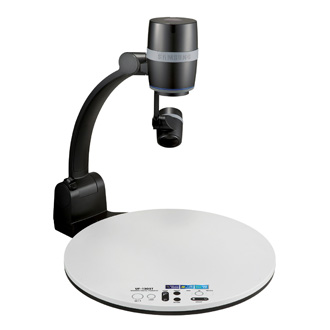 Document cameras are a classroom technology that are becoming
more and more a standard part of the physical classrooms. The cameras are integrated into the Smart
Classroom. Whether you’ve used this
technology before or are using it for the very first time, you can begin to
learn or learn more about why the use of this technology in the classroom may
help to enhance teaching and learning.
Below are several articles that will give you a glimpse into how you
might consider integrating the use of this tool into your teaching.
If you’d like more
information about document camera technology here at North Shore Community
College and would like to discuss ways to use this in your teaching, please
contact me, Dave Houle, at dhoule@northshore.edu or 978-739-5530.
- Sustainable Classroom Technology: Increasing Student Achievement with Document Cameras
- Document Camera Magic: Eleven Dozen Ways to Transform Teaching
- The Document Camera: A Better Way to Present
- 101 Ways K-12 Teachers Use Document Cameras
Tuesday, November 6, 2012
ANGEL Tip #5: Disabling Tabs
You have heard the saying, You learn something new everyday, well today I learned something new about ANGEL!
Many faculty look to me to help resolve issues or help them design their ANGEL courses to be the most effective for students. I love helping them and in the process I get to see so many interesting ideas and presentations. By investigating problems I have, on occasion, come across things you can do in ANGEL to make the flow between faculty and student smooth. The goal is to make navigating through the course as effortless as possible. Today, a faculty member showed me how to disable the tabs a student can see across their ANGEL course page. If you don’t use the tab why have it displayed?
Why don’t you take a look and decide if it is a tab you want to keep?
To disable a tab:
A great way to make your ANGEL course clean and concise!
How else do you try to make navigating Angel less daunting or challenging for students? What other ways do you try to make Angel more coherent to your students? Share your thoughts in the comment box below.

Many faculty look to me to help resolve issues or help them design their ANGEL courses to be the most effective for students. I love helping them and in the process I get to see so many interesting ideas and presentations. By investigating problems I have, on occasion, come across things you can do in ANGEL to make the flow between faculty and student smooth. The goal is to make navigating through the course as effortless as possible. Today, a faculty member showed me how to disable the tabs a student can see across their ANGEL course page. If you don’t use the tab why have it displayed?
Why don’t you take a look and decide if it is a tab you want to keep?
To disable a tab:
- Go to your course shell in Angel
- Select the Manage tab
- Then under the section “Course Settings,” select to Tab Settings
- Select the Tabs that you do not want displayed and change the option to disabled
- Remember to save
A great way to make your ANGEL course clean and concise!
How else do you try to make navigating Angel less daunting or challenging for students? What other ways do you try to make Angel more coherent to your students? Share your thoughts in the comment box below.
Friday, November 2, 2012
ANGEL Tip #4: Setting Up the Gradebook
It is the beginning of week 7 of the fall semester; a great time to
reflect on what the semester has been like. It is also a great time for
students to analyze how they are doing in class. A great tool for them
to use when doing this is the ANGEL gradebook. It gives the student
the insight on how they are doing at any particular point in the
semester.
The ANGEL gradebook is available for all courses; it doesn’t matter if it is online, hybrid or a face-to-face course. Any faculty member can choose to use it.
First thing to consider when doing the gradebook is whether you want to use the point or percentage system. The gradebook is set up by categories that reflect what percentage of the total grade that category is worth. Then each category will contain the total assignments that make up that category.
For example – you could have 3 categories:
For assignments you could have:
The ANGEL gradebook will automatically do the calculations for you as you enter your grades. No more spreadsheets and formulas to figure out!
Technology is great but it is always a good idea to have a printed or saved copy of your gradebook. Not only can technology be fallible, but, if, for some reason, a student questioned their grade in the future you would have your own copy of the gradebook even if you were no longer using ANGEL. It is very easy to do.
The ANGEL gradebook is available for all courses; it doesn’t matter if it is online, hybrid or a face-to-face course. Any faculty member can choose to use it.
First thing to consider when doing the gradebook is whether you want to use the point or percentage system. The gradebook is set up by categories that reflect what percentage of the total grade that category is worth. Then each category will contain the total assignments that make up that category.
For example – you could have 3 categories:
- Homework worth 25 % of the total grade
- Quizzes worth 25% of the total grade
- Final Exam worth 50% of the total grade
For assignments you could have:
- 10 homework assignments (each with the best achievable grade being 100)
- 3 quizzes (each with the best achievable grade being 100)
- 1 final exam (with the best achievable grade being 100)
The ANGEL gradebook will automatically do the calculations for you as you enter your grades. No more spreadsheets and formulas to figure out!
Technology is great but it is always a good idea to have a printed or saved copy of your gradebook. Not only can technology be fallible, but, if, for some reason, a student questioned their grade in the future you would have your own copy of the gradebook even if you were no longer using ANGEL. It is very easy to do.
- Go to the manage tab, then gradebook.
- On the left side you will see the print option.
- Click on it and generate a pdf. You can even change the font if you would like to view it in a larger size.
Subscribe to:
Posts (Atom)