Tuesday, May 14, 2013

Massive Open Online Courses: Massive Threat or Open Invitation? Part 2 of 2


This 2-part blog feature comes from Guest Blogger, Michael J. Badolato, Ed.D., Dean of Academic Technology and was originally featured in NSCC Technology Across the Curriculum's annual publication:  Mousetales.  Part 1 of this article can be found here.


In the course of this academic year, two Massachusetts state community colleges have partnered with edX in the delivery of an introductory computer science course on their respective campuses. Mass Bay and Bunker Hill each have integrated edX’s content within different instructional designs. Mass Bay has developed a hybrid, or blended, design incorporating the MOOC as the online component complementing weekly in-class meetings to meet the course’s total credit-hour requirement. Bunker Hill’s rendition is essentially a ‘flipped classroom’ model where the lecture provided by the MOOC is positioned as the assignment component along with a full number of in-class meetings reserved for project-based activities, collaboration and discussion. While MIT will recognize participation with a certificate of completion, course credit will be awarded through the participating community colleges.  The courses are led by the local community college professors while the MOOC portion of the course is a video lecture offering no real interaction with the MIT lecturer. In effect, both schools implement the MOOC as a large-scale reusable learning object in the service of their individual learning outcomes.

What is important to remember about this partnership is that while MIT and Harvard have elite brand recognition, they are relative novices in the world of online learning. Community colleges have the benefit of years of experience in online course design and in accommodating students diverse in their backgrounds and educational goals. Where the community colleges gain yet another strategy in their arsenal, Harvard and MIT gain valuable partners who can share their extensive knowledge of creating challenging learning experiences that benefit students of all levels.

To gain a balanced perspective on MOOCS, it is helpful to view them within the context of an emerging academic infrastructure where both content and process is less centralized and more distributed. This infrastructure embraces sources of content beyond our local development, includes individuals outside of our immediate locale, blends the physical and virtual, and rebalances the teacher-student-peer relationship towards independent learning and collaboration. Aside from MOOCs and open content, a working example can be found in our own Math Redesign Project, which is a flexible convergence model utilizing third-party content within a fixed learning environment facilitated by qualified, experienced faculty.  We have before us a greater continuum of possibilities that will continue to include us and the value we provide, yet challenge us to collaborate and literally think outside the boxes that are our texts, curriculum, classrooms, desks, buildings, and servers.  As the continuum expands, we will in-turn find ourselves moving beyond the writing of singular courses toward strategically building complete learning experiences.  The possibilities have never been greater.

To learn more, please visit:

Have you taken a MOOC?  What are some of your experiences with MOOCs?  

Thursday, May 9, 2013

Preparing your ANGEL Courses for the Summer Semester

As you start to think about your summer courses, we wanted to share with you the following important information that will help you prepare your course site in ANGEL.

Please review the “Preparing your ANGEL Course for a New Semester” checklist for directions on getting your course site set up for a new semester.

If you have any questions, please contact us at angel@northshore.edu.

Monday, May 6, 2013

Massive Open Online Courses: Massive Threat or Open Invitation? Part 1 of 2


This 2-part blog feature comes from Guest Blogger, Michael J. Badolato, Ed.D., Dean of Academic Technology and was originally featured in NSCC Technology Across the Curriculum's annual publication:  Mousetales.

When I first encountered the word “MOOCs” a little over a year ago, I envisioned subterranean creatures lying in wait to conquer our world, or perhaps another multi-user online dungeon game.  A recent set of articles (see Laura Pappano's “The Year of the MOOC" and Kevin Carey's “Show Me Your Badge") featured on the cover of the November 2012 New York Times Education Life supplement presented a white rabbit along with the headline “Massive and multiplying, the latest word in online learning: MOOC.”  While the latter image may be far less menacing, it is no less compelling given the seemingly sudden appearance and proliferation of MOOCs across the higher education landscape.  

On the surface, MOOCs, or Massive Open Online Courses, are exactly what the term implies: an online course that is massive in terms of sheer enrollment, potentially thousands at any given time, and open, in that anyone can attend regardless of academic background, at no cost and with no official registration required.

Upon closer examination of MOOCs, there is something in them that is familiar in a manner not unlike so many ‘next big things’ we have all encountered.  Yet, their very scale and accessibility suggests implications for altering the structures and relationships of our educational systems as we have come to define them.  It is common experience, if not historical record, that whenever a new technology is first integrated into the educational practice of the day, be it chalkboard or circuit board, some disruption occurs while the innovation gradually settles into the mainstream.   Communities of practice, within a single institution or distributed across the field, establish rubrics, standards, and other structures from which to base development and assess quality.  The innovation is adopted, brought under control and integrated within an agreed upon framework. Final analysis results in acceptance, rejection or revision and the practice moves onward.

In the midst of these processes, technology in education has come to know several forms. Many colleges and universities, NSCC among them, have been developing their online learning practice and capacity for the better part of two decades. Classroom delivery, increasingly influenced by what has been learned through online practice, has also become richer and more complex in its ability to accommodate a greater variety of content and interaction.  The recent influx of mobile and wireless devices promises to take these interactions to a more immediate, untethered and personal level.  Thus, the very infrastructure of our educational delivery system is becoming distributed across an increasing number of channels while pedagogies strive to adapt.  Content for this emerging infrastructure is being prolifically developed as the means for its production and adoption becomes more accessible, less costly and, ironically, less technical.

A recent trend that has been born of these possibilities is the Open Content Movement.  Among the growing number of open content developers and distributers are individual teachers working through collaborative online entities such as the Open Education Resources (OER) Commons, as well as non-profit organizations such as Kahn Academy, a producer of internet video micro-lectures currently in its seventh year of operation. Several renowned institutions have also sponsored open content projects, such as MIT’s Open Courseware and Carnegie Mellon’s Open Learning Initiative.  Where the products of these initiatives have been adopted, they have supplemented, and in some instances replaced, traditional texts and other materials.  The educational publishing industry, however, has also responded by offering supplemental materials at no additional charge to maintain interest in their inventory.   These resources are not typically organized into whole courses and the interactions that surround them, but are offered in a format known in educational technology jargon as Reusable Learning Objects (RLOs), which are typically digital chunks and snippets of materials and curriculum guides offered in a variety of file types. They can be used as strategic parts of a larger course or curriculum, or as learning experiences that can often stand on their own.

MOOCs are essentially an extension of the open content concept, presented as an entire online course or as a series of related lectures with roots in programs offered at actual higher education institutions. As such, there are currently three recognized major MOOC producers.  The MIT/Harvard collaboration edX is an outgrowth of their Open Courseware Initiative, providing the next level  in open content to enable an experience more akin to a fully functioning online course and if desired, a process for gaininga university-backed certificate, albeit no direct MIT credit. Another university initiative spin-off is Udacity, which began life as a series of free computer science courses offered through Stanford University.  Coursera, a for-profit company founded by Stanford University computer science professors but not affiliated with that institution, was conceived as a hub for MOOCs developed at several participating institutions and as a venue for offering credit and certificates (for a fee) as well as integrated support services. The American Council onEducation recently approved five Coursera courses for college credit.

Khan Academy’s stated mission is “… the goal of changing education for the better by providing a free world-class education for anyone anywhere.”  Proponents of MOOCs, and open content in general, laud this very openness as a decentralized and democratic opportunity for access to what they view as a quality higher education experience. Doubters, for much the same reasons, are concerned about the potential disintermediation from the oversight of higher education institutions and their faculty. Both sides of the debate see the potential for alternative credentials outside of the traditional degree sequence, though each side obviously has a different opinion as to the relative merits of such an outcome.


This ends part 1--stay on the lookout for part 2, where Michael address specifically what's being done at community colleges in Massachusetts.

Monday, April 29, 2013

ANGEL Tip #8: Extended Testing Time

Sometimes you find it necessary to give a particular student(s) extra time when taking an assessment.  This is very easy to do in ANGEL when using the testing feature.  All it involves is creating two teams – one for the extended testing time and one for the rest of the class –  and then customizing the settings.

Here's what you do:
  1. Go to the Manage tab in your course and click on "Teams".
  2. Click on "Add a Team".
  3. Give the Team a name – it might be something like “extended testing time” or whatever helps you identify the team that needs extended time. You can also just call them Team A or Team B.
  4. Click "Save".
  5. You will see your list of students.  From your list of students, place a check-mark in front of the name of the student(s) who needs extended testing time.
  6. Click “Add Selected” and then "Done".
  7. Repeat the process for creating a team that will include the rest of the students in the class.  
  8. After you have created your teams, go to your Lessons tab and locate the specific assessment. 
  9. Hover your mouse over the assessment and click "settings".
  10. Click the "Advanced" radio button (near the top).
  11. Click the "Access" tab.
  12. Next to "Team Access," select "Selected Teams" from the drop down box.
  13. Check the box in front of the team who needs extended times and then click that team name.
  14. You should see a pop up box called Custom Team Settings.  Check off  "Advanced Settings".
  15. You will see the override settings that you can select to accommodate the team who needs extended time.
  16. Make sure to click "Save" once you have selected your extended time options.

If you have any questions please contact the ANGEL Helpdesk at angel@northshore.edu.

Tuesday, April 23, 2013

Best Practices for Smart Classrooms: Environmental Factors

When presenting in the classroom using technology, it’s always a great idea to see what might be getting in the way of good teaching and learning.  It really helps to visualize what a good learning space might look like for your particular needs. 
  • How should desks or tables be arranged?
  • Does it make sense to project on a screen or a whiteboard?
  • What kind of flexibility exists for lighting in the room?
  • How should I set those lights for note taking yet visibility of any projected materials?
  • How should the shades in the room be positioned?
  • Are there noise factors in the room?  If so, how can they be minimized?
  • Am I able to be mobile in the classroom as I present?  How can I be less tethered to the podium in the room?
  • What else gets in the way of great teaching and learning?
Here are some good links that address the issue of the learning space as it relates to good pedagogy:

What Makes A Great Learning Space?

Learning Spaces

What have you done in your classroom to minimize how environmental factors affect teaching and learning?

Please let us know how we can help you show your best teaching in the classroom by minimizing learning space issues.   Contact us at itd@northshore.edu.

Monday, March 11, 2013

More Infographics To Think About: Part 2

There are a lot of great infographics out there about technology and education, despite the concerns and issues that some have identified with education-based infographics.  Here are a few more to review and think about.

These two infographics look at the use of technology by college students.  The "2012 Students and Technology" infographic is based on an annual survey of undergraduate students by EDUCAUSE and presents information on student technology ownership and student uses of technology in their college experiences.
ECAR Student and Technology 2012 Infographic.  Source: Source: http://net.educause.edu/ir/library/pdf/ERS1208/EIG1208.pdf
Click to see full graphic. Source: http://net.educause.edu/ir/library/pdf/ERS1208/EIG1208.pdf
 The "Technology Use on College Campuses" infographic presents similar data on how students are using technology and what their technology preferences are.
Technology Use on College Campus infographic.  Source:  https://s3.amazonaws.com/infographics/Techonology+Divide.png
Click to see full graphic. Source: https://s3.amazonaws.com/infographics/Techonology+Divide.png
These two infographics provide information on ways faculty are using social  media in the classroom.  The "Teachers' Guide to Social Media" infographic presents ideas on how social media can be used in classes to "connect, notify, teach, and currate". 
Teachers' Guide to Social Media Infographic. Source: https://s3.amazonaws.com/infographics/Teacher-Guide-Social-Media-800.png
Click to see full graphic. Source: https://s3.amazonaws.com/infographics/Teacher-Guide-Social-Media-800.png
The "How Today's Higher Education Faculty Use Social Media" infographic presents the results of research by Pearson Learning Solutions and Babson Survey Research Group on the various personal, professional and teaching uses of social media by faculty.
How Today's Higher Education Faculty Use Social Media infographic.  Source: http://www.pearsonlearningsolutions.com/assets/downloads/pdfs/pearson-social-media-infographic-2012.pdf
Click to see full graphic.  Source: http://www.pearsonlearningsolutions.com/assets/downloads/pdfs/pearson-social-media-infographic-2012.pdf
The "Blended Learning: A Disruptive Innovation" infographic examines what blended learning is.  Even though the focus is K-12, it does provide some good background information and a general overview on blended learning models.
Blended Learning: A Disruptive Innovation Infographic.  Source: http://knewton.marketing.s3.amazonaws.com/images/infographics/blended-learning.jpg
Click to see full graphic.  Source: http://knewton.marketing.s3.amazonaws.com/images/infographics/blended-learning.jpg
The "Status of Online Education" infographic is based on survey data from the Babson Survey Research Group and presents data on online education as seen by chief academic officers at institutions across the country.
Status of Online Education Infographic.  Source: http://www.pearsonlearningsolutions.com/assets/downloads/reports/changing-course-survey.pdf
Click to see full graphic.  Source: http://www.pearsonlearningsolutions.com/assets/downloads/reports/changing-course-survey.pdf
The "Flipped Classroom" infographic presents information on what the flipped classroom model is and how it is implemented.
Flipped Classroom infographic.  Source http://knewton.marketing.s3.amazonaws.com/images/infographics/flipped-classroom.jpg
Click to see full graphic.  Source: http://knewton.marketing.s3.amazonaws.com/images/infographics/flipped-classroom.jpg
The "State of Digital Education" infographic looks at the impact of the Internet on education.
State of Digital Education infographic.  Source: http://knewton.marketing.s3.amazonaws.com/images/infographics/state-of-digital-education.jpg
Click to see full graphic.  Source: http://knewton.marketing.s3.amazonaws.com/images/infographics/state-of-digital-education.jpg
And the "Envisioning the Future of Education Technology" infographic examines a variety of emerging technologies and what their impact might be on education.
Envisioning the Future of Education infographic.  Source: http://edudemic.com/wp-content/uploads/2012/08/envisioning-the-future-of-education-technology_50291a3e6125d.png
Click to see full graphic.  Source: http://edudemic.com/wp-content/uploads/2012/08/envisioning-the-future-of-education-technology_50291a3e6125d.png

These are all infographics on technology and education.  What infographics are you seeing relative to your disciplines?  Do you see a use for infographics in the classroom?  Has anyone considered infographics as an output for a student research project?

Friday, March 1, 2013

Best Practices for Smart Classrooms: Accessing Resources

There are many resources for Smart Classrooms that are available on NSCC's Campus Pipeline (http://pipeline.northshore.edu) under the "My North Shore" tab.  

When you click on the "My North Shore" tab, look under the "College Departments" header and then click on the "Academic Technology" link.  


An image of Pipeline's "My North Shore" Tab
This is the initial view under Campus Pipeline.  Note the College Department section on the left.  Note Academic Technology in that section.
Here you'll find many helpful resources from classroom documentation to step-by-step guides and video tutorials.  If you have any questions about these resources, please contact Dave Houle at dhoule@northshore.edu.
Academic Technology Panel in My NorthShore Tab
These are the resources under
Campus Pipeline -> MyNorthShore -> CollegeDepartments -> Academic Technology


Friday, February 22, 2013

Infographics To Think About: Part 1

The rise of Web 2.0 tools, access to big data, and availability of easy-to-use image editors have produced a plethora of infographics in the last few years.  One can find infographics on anything from Star Wars profits to world water usage to real and artificial Christmas tree usage.  They can be quite useful in creating a visual summation on a range of complex information and data. 

In fact, there is even an infographic explaining just "What Is an Infographic."
What Is an Infographic - http://www.customermagnetism.com/infographics/imgs/what-is-an-infographic.jpg
Click to see full graphic. Source: http://www.customermagnetism.com/infographics/imgs/what-is-an-infographic.jpg
In this blog post, we're going to take a look at some of our favorite infographics that deal with technology, education and college.  This first infographic actual identifies and explains different concepts and elements of technology and education.  It professes to be an "Edtech Cheatsheet."
EdTech Cheatsheet Infographic http://jeffhurtblog.com/wp-content/uploads/2012/08/EdTechCheatSheetInfographic.jpg
Click to see full graphic. Source: http://jeffhurtblog.com/wp-content/uploads/2012/08/EdTechCheatSheetInfographic.jpg 
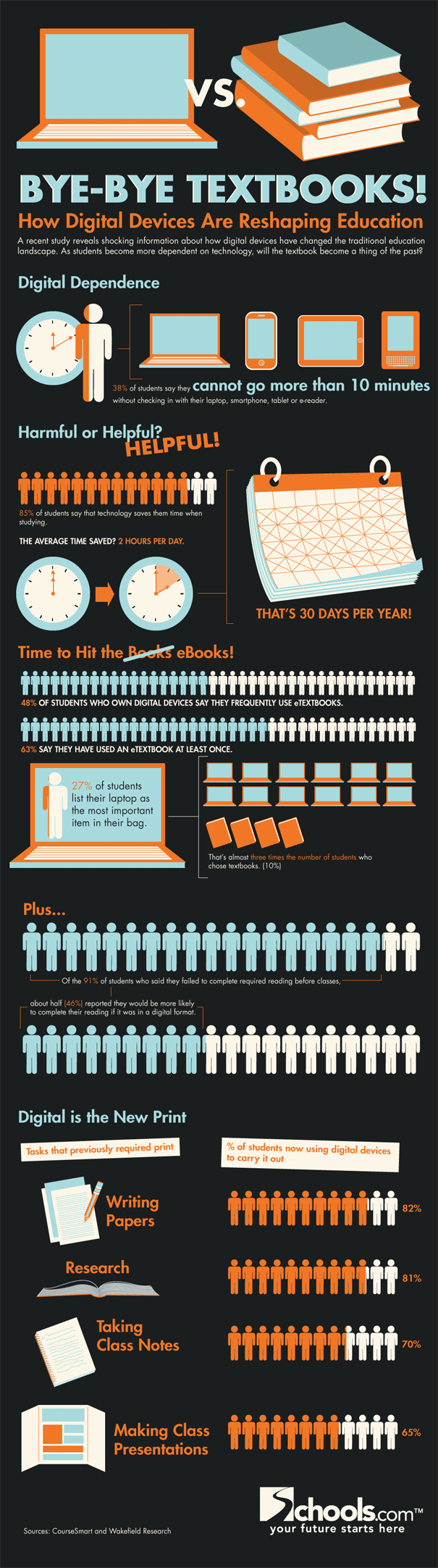
Next, let's take a look at textbooks.  Those costly but sometimes essential resources for a college course.  This infographic explores the benefits and challenges of digital textbooks.
Digital Textbooks Infographic  - http://hbculifestyle.com/wp-content/uploads/2011/08/digital-textbooks.gif
Click to see full graphic. Source: http://hbculifestyle.com/wp-content/uploads/2011/08/digital-textbooks.gif
This infographic looks at how the digital world is impacting student experiences and learning.  
Student Cyborg Infographic - http://thumbnails.visually.netdna-cdn.com/infographic-how-technology-is-facilitating-education_50290f237b01d.jpg
Click to see full graphic. Source: http://thumbnails.visually.netdna-cdn.com/infographic-how-technology-is-facilitating-education_50290f237b01d.jpg
Similar to the one above, this infographic considers the go-to Apps that are impacting education for students and educators alike.
Apps & Education Infographic http://www.collegerecruiter.com/blog/wp-content/uploads/2012/08/Apps-and-Education-Infographic.png
Click to see full graphic. Source: http://www.collegerecruiter.com/blog/wp-content/uploads/2012/08/Apps-and-Education-Infographic.png
Continuing along these lines, this infographic considers the impact on the classroom that digital technology is impacting. 
Digital Classroom Infographic http://techloy.com/wp-content/uploads/2012/02/Digital-Classroom-Infographic.png
Click to see full graphic. Source: http://techloy.com/wp-content/uploads/2012/02/Digital-Classroom-Infographic.png
Here, we have an infographic on gamification in education (which if you want a sense of what that looks like, I encourage you to check out Jane McGonical's TED Talk, Gaming Can Make a Better World).

Gamification in Education Infographic http://s.knewton.com/wp-content/uploads/gamification-education.png
Click to see full graphic. Source: http://s.knewton.com/wp-content/uploads/gamification-education.png
 Interestingly, this infographic explores usage and interest among faculty and instructors with regards to social media.  We're familiar with students' usage, but there isn't much talking about instructor usage.  
Instructors and Social Media Infographic http://www.saltywaffle.com/wp-content/uploads/2011/10/social-media-2011-2010-infographic.gif
Click to see full graphic. Source: http://www.saltywaffle.com/wp-content/uploads/2011/10/social-media-2011-2010-infographic.gif
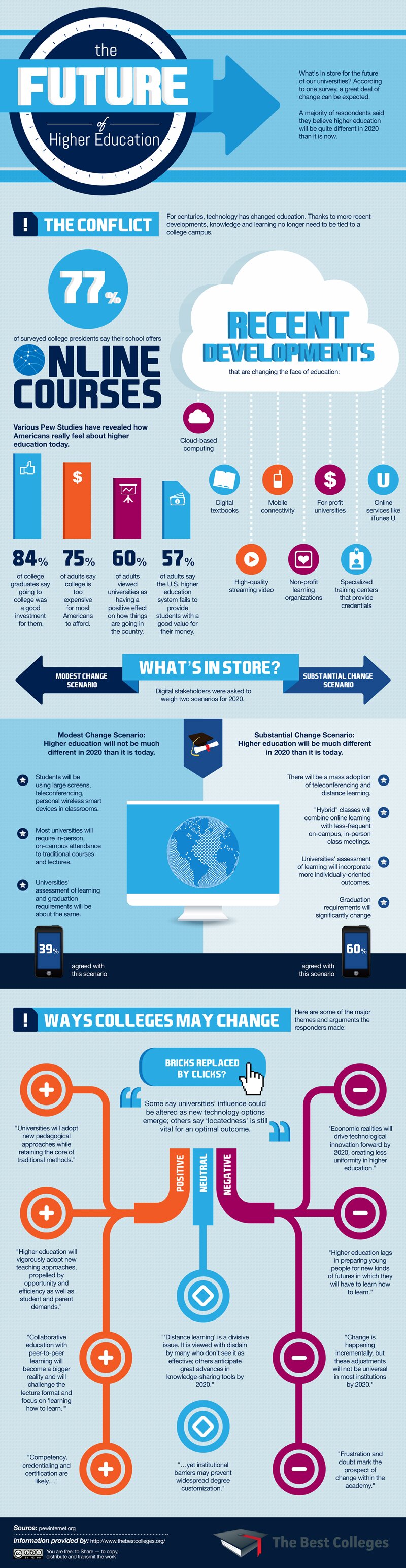
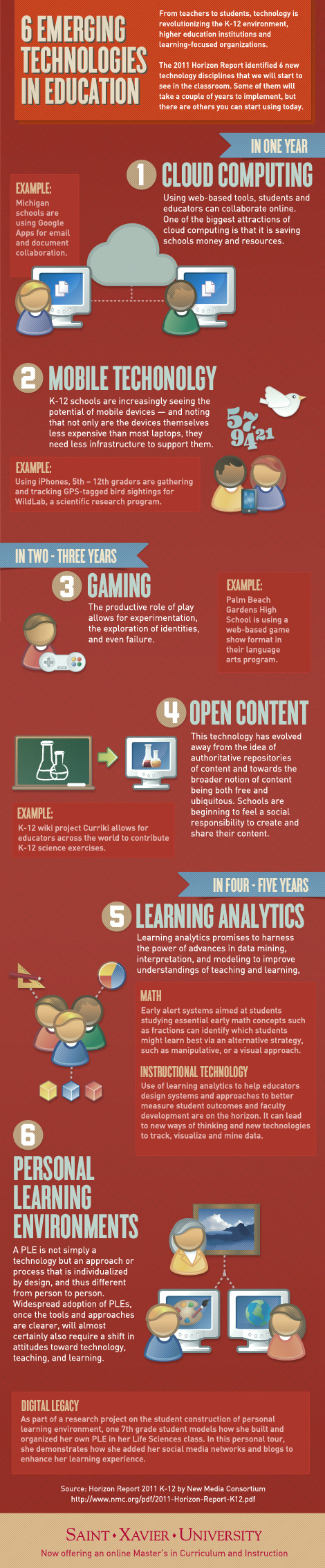
These last two infographics explore the future of higher education.  
Future of Higher Education Infographic - http://collegeof2020.com/wp-content/uploads/2012/12/The-Future-Of-Higher-Education-800.jpeg
Click to see full graphic. Source: http://collegeof2020.com/wp-content/uploads/2012/12/The-Future-Of-Higher-Education-800.jpeg
6 Emerging Trends in Higher Education - http://www.peterpappas.com/images//2012/02/six-emerging-technologies-in-education.jpg
Click to see full graphic. Source: http://www.peterpappas.com/images//2012/02/six-emerging-technologies-in-education.jpg
Infographics are not beyond your own abilities.  There's lots of advice about what makes a good infographic.  There's also resources and tools out there to help you make an infographic. 

What infographics do you enjoy?  What are some of your favorite sources for infographics?

Thursday, February 7, 2013

ANGEL Tip #7: Customizing Your Course Home Page

As you navigate your ANGEL course shells, do you ever think, “Boy, I wish I could do …..?” Sometimes you want to rearrange the course home page to better appeal to your particular students.  You may see some components you would like to take off the page and some you would like to add to the page.  I, personally, like the course home page to highlight any announcement I make.  I do this by  having only the announcement component on my course home page.  A Math instructor, however, may want to have a calculator on his/her course home page or a Composition instructor may want to include a dictionary.

You can add and remove components on your course home page very easily.  Right under the title of your course, you should see an “Edit Page” link.  If you click on that link, it will open up the editing page.

Home page identifying "Edit Page" placing.

To delete a component, just hover your cursor over the shaded area of the component title and click the "X" button on the right hand side.  

Course Anouncements Pencil

If you want to add a component to the home page, just click the “Add Component” button and check the box in front of the title of the component  you would like to add.  Click the “Add Selected” button and the "Save" button.  And it’s done!

Visual showing which options to select.  "Add Components" "Check Desired Options." "Click Add Selected."

You can also have a color theme for your course.  This will also provide a background image to the course that you can relate to your subject matter.  For instance, if you teach History, you may want to add a globe or, if you teach Early Childhood, you many want to add a theme of little hands.  This is also very easy to add.
  1. Go to the "Manage" tab in your course.
  2. Under Course Settings, click the "Course Theme Selector" link.
You should see available themes under the drop down arrow. You can look at how your course will appear by clicking on each theme.  However, your course theme won't change until you select the "Apply" button and then the "OK" button.

If you have any questions please contact angel@northshore.edu.

Let us know what themes you are using and what components you use on your home page for your courses.


Monday, February 4, 2013

Using Prezi Without Losing Your Mind

We had a great series of workshops prior to the start of the Spring 2013 semester, including one on Prezi.  Since it is a great tool for learning inside and outside the classroom, we thought we'd follow up with this blog post for those that couldn't make the workshop.  You will also find the Prezi that we created for this presentation and here is access to the handout that we provided.

So what is Prezi?  It's most basic description is that it is 3-dimensional presentation tool that can used to align and present information in a more meaningful way.

BENEFITS: As a web-based program, Prezi has a lot to offer.
  • Free:  A free account is available to anyone.  If you register for their education license with your school email address, you will have an enhanced account with more space and usages rights. 
  • Easy to Use:  After checking out some introductory and how-to material, you can easily begin work on a Prezi using mostly pointing and clicking.  No programming skills needed and no software to download.
  • Single or Collaborative Use:  Like other Web 2.0 tools, users have the option of working on it together or singularly at the same time (and at different computers).  Additionally, one can present a Prezi online to another audience that is not present. 
  • Visual Appeal:  In lieu of the standard PowerPoint, the ability to move from slide to slide on screen adds a bit more visual stimulation for presentations (so long as the tool isn't overused). 
  • PowerPoint Integration:  If you already have created PowerPoints, you can upload and integrate them into a Prezi very easily.  You can also integrate PDF files as well.

CHALLENGES:  Though Prezis are enjoyable to use for education, there are certain challenges to contend with when considering using them.
  • Limited Space:  Even with an education license, you're limited to 500 megabytes.  That amount may be more than enough, but if you're teaching several different classes and plan to use one for each class, you might fill up that space quickly.
  • Clunkiness: Because of the nature of Prezi working within a browser, occasionally the program can get a bit clunky and you'll be unable to drag or move around the way you want.  Typically when this happens, you will need to save the Prezi, exit the Prezi, and close the browser and/or clear the cache and then return to it.
  • Getting to Advance:  Prezi can be easy to learn but it takes planning and practice to develop a rich presentation that fully utilizes the tools that Prezi has available.  We recommend looking at a lot of the examples made available on the site in order to get a stronger sense of what can be done.
  • Movement Overload:  Because of the movement feature in Prezi and how it can draw attention, early users often use too much motion.  They mistake the availability of movement for the relevance of movement.  Movement should be selective and relevant--otherwise it becomes a gimmick that doesn't help keep focus (as well as occasionally induces nausea).

USES:  Keeping those things in mind, we turn now to consider what are some of the best ways that you can use Prezi for education.
  • Standard Presentation:  There certainly isn't anything keeping you from uploading your PowerPoints and using Prezi as a straightforward presentation tool.
  • Conveying linear-based ideas:  Prezi works great when trying to convey information that is formulaic or process-oriented.  Telling a story, explaining a pattern, or moving through a routine all lend themselves well to being displayed in a Prezi.
  • Conveying nonlinear ideas:  Prezi also works great for grouping related information communicating differences according to space and alignment. If you want to identify features of a culture or elements of a story, you can use Prezi to differentiate the different pieces. It's also useful for honing in on elements of a contained piece.  For instance, you can move about to focus in on different aspects of an image (a cell, painting, landscape, etc.). 
  • Visualizing Integrated Concepts:  When working with a complex system, Prezi really shines.  This is where layering your information and using the depth of a Prezi can help communicate the "big picture" as well as the smaller pieces (that is, see the "Forest" and the "trees").
  • Brainstorming & Mindmapping:  Finally, Prezi can also be used to help students or even the instructor to bridge connects and ideas.  This could work well in groups of students working on a project as they could all be in a Prezi (by collaborating) at the same time and connecting their ideas.


Do you use Prezi?  How useful have you found it?  What are your students reactions to using Prezi?